

That catalogue could have hit the lead’s phone in ten seconds. As a text message. Open rates on SMS and MMS sit around 98%. Email runs at roughly 20%. That’s not a marginal gap. It’s a different channel category, full stop.
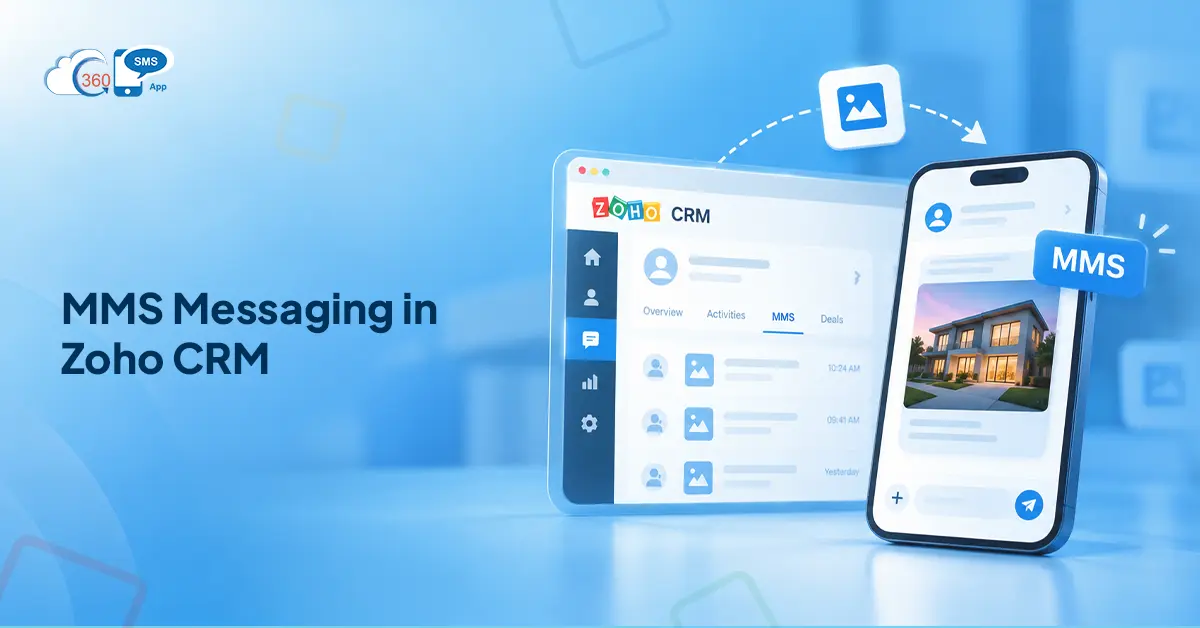
Most Zoho teams don’t realize they already have this. 360 SMS brings MMS natively into the CRM. No WhatsApp dependency, no external platform, no switching tabs mid-conversation. The file goes out from the record. The delivery receipt logs back to it automatically.
This blog covers what file types MMS supports, what’s actually worth sending as media, and where Zoho workflow automation makes it run without anyone queuing it manually.
What Is MMS and How Is It Different From SMS?
Plain text, up to 160 characters, delivers fast, works on every phone. That’s SMS. Universal, cheap, zero setup for the recipient.
MMS is the same channel with a payload attached. Text plus media: images, PDFs, documents, audio. It costs more per message. But the message still arrives in the recipient’s native messaging app, not in a platform they have to log into, not in an email thread they’ll get to eventually. Their regular texts. That’s it.
That’s the thing. MMS doesn’t ask the customer to do anything different. They open it the same way they’d open a photo from a friend.
When does it beat SMS? When words alone don’t close the gap. A two-sentence description of a floor plan is not the floor plan. A loan document described in a text is not the same as the actual PDF on their phone. When the media is the message, MMS.
What File Types Can You Send as MMS from Zoho CRM with 360 SMS?
Most MMS tools in the Zoho space support images. JPEG, PNG, GIF. Fine for product photos.
360 SMS goes well beyond that. Supported formats include:
- Images: JPEG, PNG, GIF
- Documents: PDF, DOC, DOCX, XLS, XLSX
- Multimedia attachments
In practice, that covers nearly every document that moves a business deal forward. Quote PDFs. Signed agreements. Intake forms. Product brochures. Data sheets. Spreadsheets. Things that previously required a separate email thread now leave the CRM record directly as MMS.
Worth saying: carrier file size limits apply. For reliable cross-carrier delivery on US numbers, keep files under 1MB. 600KB is the safest threshold if you can’t confirm which carrier your contact is on. Video isn’t universally supported across US carriers, so verify before relying on video delivery. For images and documents, coverage is consistent.
The format breadth matters more than it sounds. Some competing Zoho apps list MMS support but cap it at JPEG and PNG. That works for product photos. It doesn’t cover the loan document a financial services rep needs to get signed, or the patient intake form a healthcare practice wants completed before the first appointment.

How to Send MMS from Zoho CRM: Step by Step
No portal redirect. No switching tabs. Everything runs inside the CRM record itself.
- Open the contact, lead, or deal record in Zoho CRM.
- Open the 360 SMS messaging panel embedded directly in the record.
- Click the attachment icon in the message composer.
- Upload or select the file.
- Add message text if needed.
- Send. The file delivers to the customer’s phone as MMS.
Every message, including the attachment, logs against the CRM record automatically. Delivery status tracks in real time. The next rep who opens that record sees exactly what was sent, when, and whether it arrived. No manual notes, no “I think I sent it” in the team meeting.
Real Business Use Cases for MMS in Zoho CRM
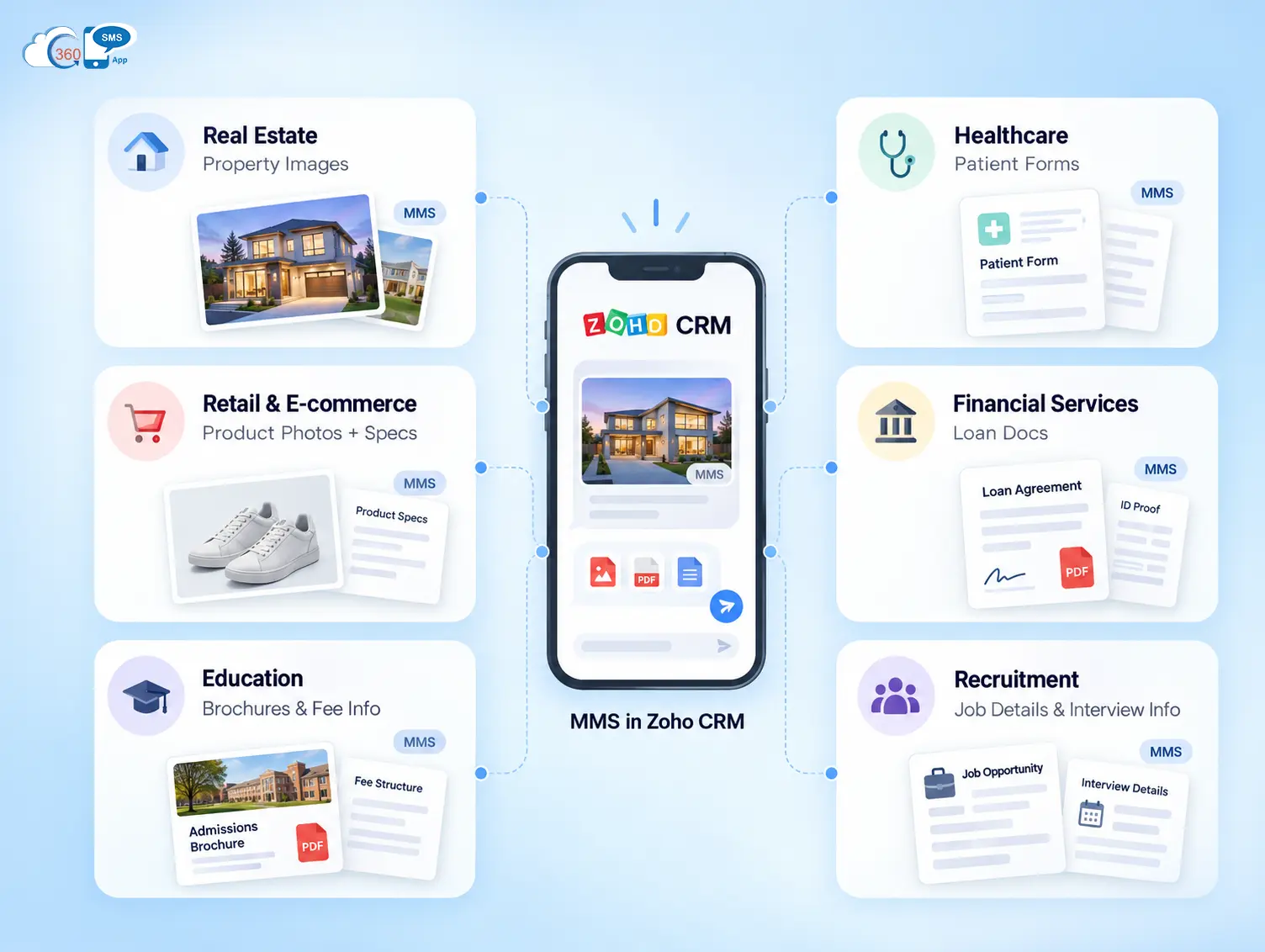

Real estate. A lead books a viewing. Before they show up, the agent sends property images and the floor plan PDF from inside the deal record. The lead arrives informed. I’ve seen agents describe this as compressing two or three follow-up calls into one text. The deal conversation starts further along.
Healthcare. Patient intake forms as PDF via MMS, sent before the first appointment. Patients complete them on their own time. No waiting room clipboard. The form sits in the CRM thread, tied to the patient record.
Retail and e-commerce. Customer asks about a product. Rep sends the product image and spec sheet together in one MMS. No email thread. No waiting for a catalogue link to load.
Financial services. Loan documents and agreement PDFs delivered to the customer’s phone with a delivery receipt logged in Zoho. Timestamped, trackable, compliance-friendly. Email doesn’t give you that kind of paper trail inside your CRM.
Education. Admission forms, fee schedules, event flyers to enquiry leads. A student asks about a program and gets the full brochure back in a text message, not buried in a campaign drip six days later.
Recruitment. Job description PDFs, interview confirmation documents. Candidates actually read them. To be fair, this one surprised me the first time I heard it, but candidates respond to texts faster than emails, especially when interview slots are time-sensitive.
MMS vs SMS: When the Extra Cost Is Worth It
MMS costs more per message than SMS. At volume, that adds up.
So here’s how to think about it. Use SMS when the message is the point. A confirmation. A reminder. A short follow-up where words carry everything.
Use MMS when the customer would have asked, “Can you send me that?” regardless. If a document or image was going out within 24 hours anyway, send it now via MMS and skip the extra back-and-forth. The cost difference per message is small. The conversion difference on document-heavy workflows is not.
Honestly, most teams overthink this. The question is simple: does this message need something attached? If yes, MMS. If no, SMS.

How to Automate MMS in Zoho CRM Workflows
Manual sending works for one-to-one conversations. Automation is where MMS stops being a feature and starts being a workflow.
360 SMS plugs directly into Zoho Workflow Rules. Which means the same CRM logic that fires task assignments or email notifications can fire an MMS with an attachment.
Scenario 1. A deal stage moves to “Proposal Sent.” The workflow triggers automatically, attaches the proposal PDF as an MMS to the primary contact. No rep action. The contact gets it within minutes of the stage change.
Scenario 2. A new lead submits a web form. Within two minutes, a welcome brochure MMS lands on their phone. They’re still at their desk.
Scenario 3. A contact’s birthday field matches today’s date. A personalized image card goes out as MMS. Light touch. Memorable.
Setting this up takes one Zoho Workflow Rule. Set the trigger condition, add the “Send SMS/MMS” action through 360 SMS, attach the media file from the template library. Done. It runs on its own from there.
For larger sends, 360 SMS supports bulk SMS & MMS campaigns directly from Zoho List Views. Filter by deal stage, assigned owner, industry, whatever the campaign needs. Attach the media. Launch. Merge fields pull live CRM data into each message, so every send personalizes at scale without manual editing per record.
Wrapping Up
Zoho gives you the data. What it doesn’t give you natively is a way to push a PDF to a customer’s phone in seconds, from inside a CRM record, with delivery tracking and automated follow-up baked in. That’s the gap 360 SMS closes.
The file format support is what makes it usable for real business workflows, not just product photos. PDFs, DOCX files, XLSX spreadsheets- those are the documents that actually drive decisions. And when the workflow automation kicks in, the right document reaches the right person without anyone queuing it manually.
If someone on your team is still typing “I’ll email it to you” when a customer asks for a document, there’s a cleaner path.
Want to make the most out of MMS inside your Zoho CRM?