


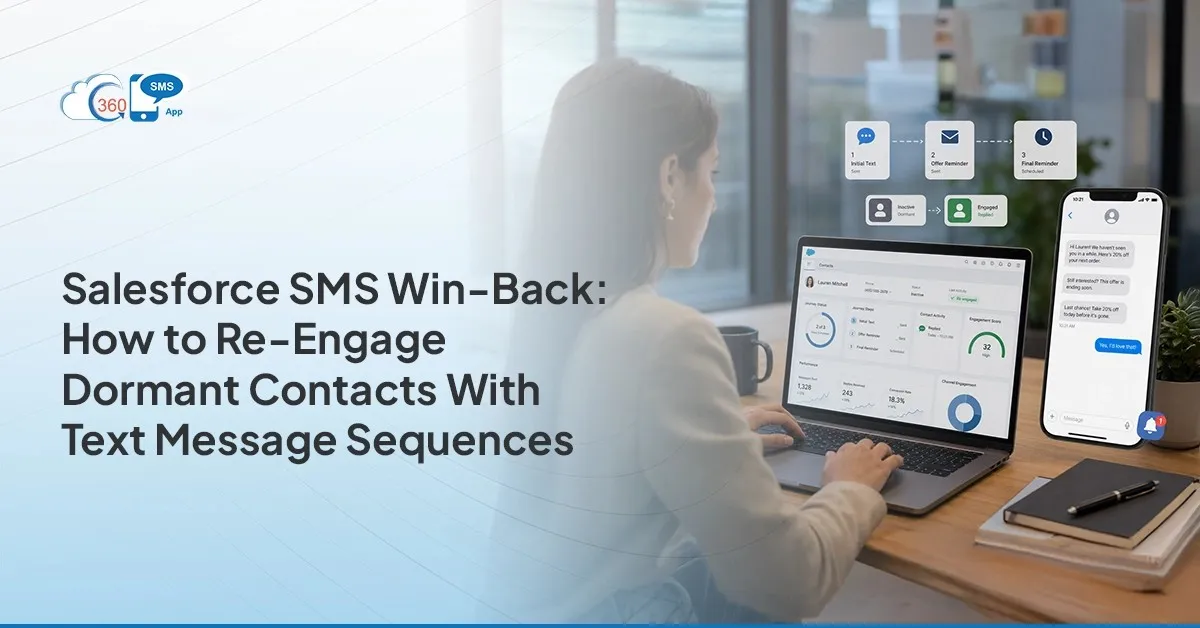

Why Dormant Contacts Stop Responding to Email and Why SMS Gets Through
Channel fatigue is real. The average B2B buyer gets flooded daily, and dormant contacts have usually made peace with skimming or skipping entire folders. Your messages aren’t being ignored specifically they’re caught in the same pile as everyone else’s.
SMS automation in Salesforce goes to a different inbox entirely. One most people still check personally, without filters trained to deprioritize marketing. A text doesn’t compete with 99 others the way email does. The moment is quieter.
For a dormant contact, that matters more than any subject line optimization ever will. One well-timed text referencing something genuinely relevant can be the first real interruption in months. That’s the whole point of the channel.
Defining a Dormant Contact in Salesforce: Last Activity Date and Criteria
Build a live Salesforce report, not a static list. Entry criteria need to update automatically as contacts age into dormancy otherwise you’re managing a spreadsheet, not a campaign.
Use these filters:
- Last Activity Date > 90 days ago
- Last Email Opened = null
- Opportunity Stage ≠ Closed Won or Closed Lost
- Opt-out status = false
Save the report. This becomes the entry point for your drip campaign in the 360 SMS app. Because it’s a live Salesforce report, new dormant contacts get enrolled automatically without anyone updating anything manually. That’s the drip campaign efficiency in Salesforce that turns a one-time blast into an always-on re-engagement engine the kind that doesn’t require someone checking a spreadsheet every Monday morning.

The Three-Message Win-Back Sequence Structure
Three messages. Not five, not seven. Three is tight enough to hold urgency but spaced enough that it doesn’t read like harassment.
Message 1- Day 1
Short, personal, references real context.
“Hey [First Name], [Your Name] from [Company] we connected around [timeframe/context]. Wanted to check if [relevant goal] is still on your radar. Happy to reconnect if the timing’s better now.”
Keep it under 160 characters if possible. The shorter this looks, the more likely it gets read in full.
Message 2- Day 4, no reply
Different angle entirely. Don’t repeat message one. Bring something useful a case study, a product update relevant to their industry, a stat that actually lands for their role.
“Hi [First Name] quick one. We just helped [industry] teams [specific result] with a new workflow inside Salesforce. Thought it might be useful given your setup. Worth a look? [Link]”
The goal here isn’t to close anything. It’s to give them a reason to engage that isn’t about your pipeline.
Message 3- Day 8, still no reply
The close-out. And this one consistently generates more replies than message one.
“[First Name], don’t want to keep cluttering your inbox. Happy to remove you from our list if the timing isn’t right just say the word. If you do want to reconnect, I’m here.”
Something about giving people permission to leave makes them want to stay. Run this sequence and see for yourself.
Setting Up the Win-Back Sequence in 360 SMS App and Salesforce
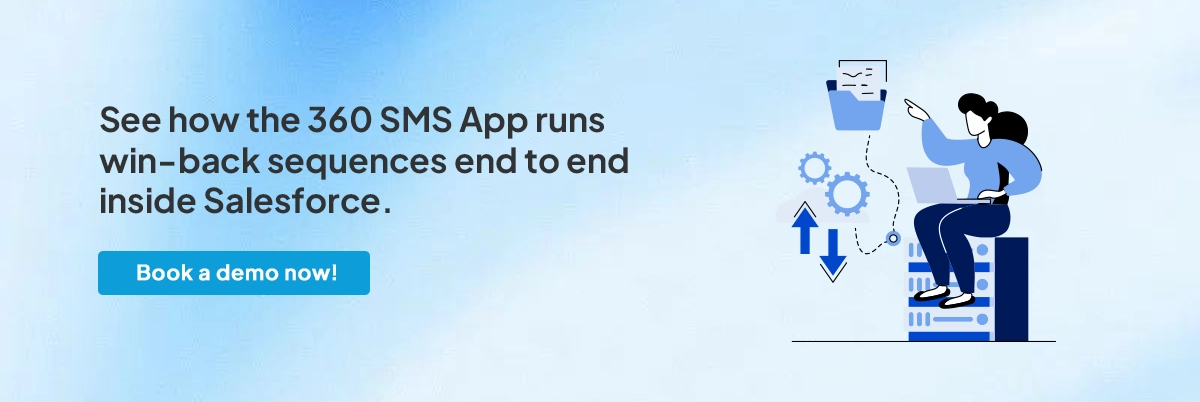
360 SMS App runs natively inside Salesforce no external platform, no duplicate lists, no tab-switching. Here’s how to wire it up:
- Create the multichannel drip in the 360 SMS app with AI. Get a recommended three-message step with delays for different channels: Day 1 SMS on enrollment, Day 4 WhatsApp if no reply, Day 8 email if still no reply.
- Connect the Salesforce report as the entry source. In campaign settings, point the entry criteria to the dormant contacts report. Any contact matching it gets enrolled when the Flow runs.
- Set exit conditions. Contact replies → exit immediately, notify the assigned rep. Contact opts out → exit, update the Salesforce opt-out field, suppress from future sends.
- Build the Salesforce Flow trigger. A scheduled Flow runs daily, checks the dormant report, and enrolls any new matching contacts into the campaign automatically.
Once live, the campaign runs without anyone kicking it off. New dormant contacts get picked up, replies pull contacts out, opt-outs are handled. That’s what set up SMS drip campaigns in 360 SMS is supposed to look like not a campaign someone has to babysit.
What to Do With Replies: Routing, Response Playbooks, and Next Steps
A reply from a dormant contact isn’t a closed deal. It’s the start of a conversation and how the rep handles the first response usually determines whether it goes anywhere.
360 SMS App routes replies to the record owner in Salesforce automatically. No shared inbox chaos, no manual sorting. The rep lands in a conversation with full context message thread, contact record, last interaction history without switching screens.
Simple reply playbook:
- Respond within two hours. Same-day reply rates drop sharply after the first two hours. Speed matters more here than on cold outreach.
- Open with acknowledgment, not a pitch. Try: “Great to hear from you what’s changed on your end?” Let them set the pace.
- Update the Salesforce record immediately. Log the interaction, change contact status, and if the conversation looks promising, reopen or create an opportunity. This also stops the contact from being re-enrolled in the win-back sequence on the next Flow run.
Measuring Win-Back Sequence Performance in Salesforce
Three numbers give you a clear read don’t wait until end of quarter to check them.
- Reply rate target 5–15%. Below 5% means the templates need work or the list is too cold. Build a Salesforce report on SMS activity records filtered by campaign name and reply received = true.
- Reactivation rate contacts moving to an active pipeline stage within 30 days. Even 2–3% on a list of 1,000 dormant contacts is 20–30 real pipeline opportunities. Track it against Opportunity create date and campaign enrollment date.
- Opt-out rate keep it under 3%. Higher usually means the list is too stale or the send window is off. 360 SMS App updates Salesforce opt-out fields automatically, so the reporting is just a filter.
All three reports live inside Salesforce. No separate login. SMS drip campaigns in Salesforce are only as useful as the data they generate and when activity writes back to the CRM directly, you’re not chasing numbers across platforms.
Contact our experts to get a win-back sequence running in your Salesforce org this week.
Wrapping Up
Dormant contacts aren’t gone. They’re waiting for something that feels different from the last twenty emails they deleted. A three-message SMS sequence built on a live Salesforce report, automated through 360 SMS App, and measured against three clear metrics gives you a structured way to be that interruption. Reply rate, reactivation rate, opt-out rate. Those three numbers tell you everything. Start there.