


Overview
The 360 SMS App uses a custom Zoho CRM module called Schedule Messages to send outbound messages. By creating a Schedule Message record inside a Zoho Workflow, you can trigger automated messages from any module, at any point in your flow — whether it’s a new lead, a contact update, a deal stage change, or any custom trigger.
How it works:
- A Zoho Workflow fires based on your chosen trigger (record create, update, date/time, etc.).
- The workflow action Create Record creates a new Schedule Messages record.
- The 360 SMS App detects the new record and sends the message automatically.
Prerequisites
- 360 SMS App installed and configured in your Zoho CRM.
- At least one Sender Number assigned to your user (or team).
- A Message Template created in 360 SMS App — you will need its Record ID.
- The target module (e.g. Leads, Contacts, Deals) must have a mobile/phone field.
Step-by-Step: Create the Workflow Action
Step A: Open Workflow Rules in Zoho CRM
Navigate to Setup → Automation → Workflow Rules and open an existing workflow or create a new one. Set your trigger condition for the module you want to automate (e.g. Leads, Contacts, Accounts, or any custom module).
Step B: Add a ‘Create Record’ Action
- In the Actions section of your workflow, click Add Action → Create Record.
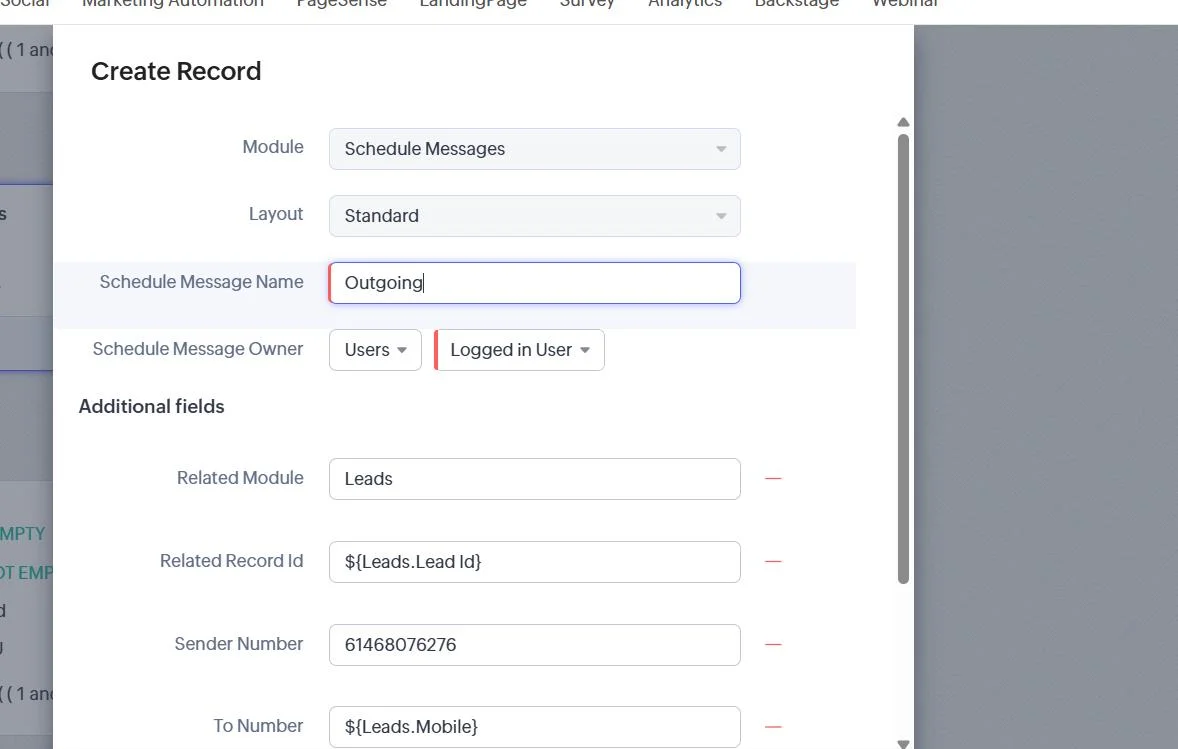
- In the dialog that appears, set Module to Schedule Messages.
- Set Layout to Standard.
- Fill in the fields described in the Field Reference section below.
Field Reference: Create Record Configuration
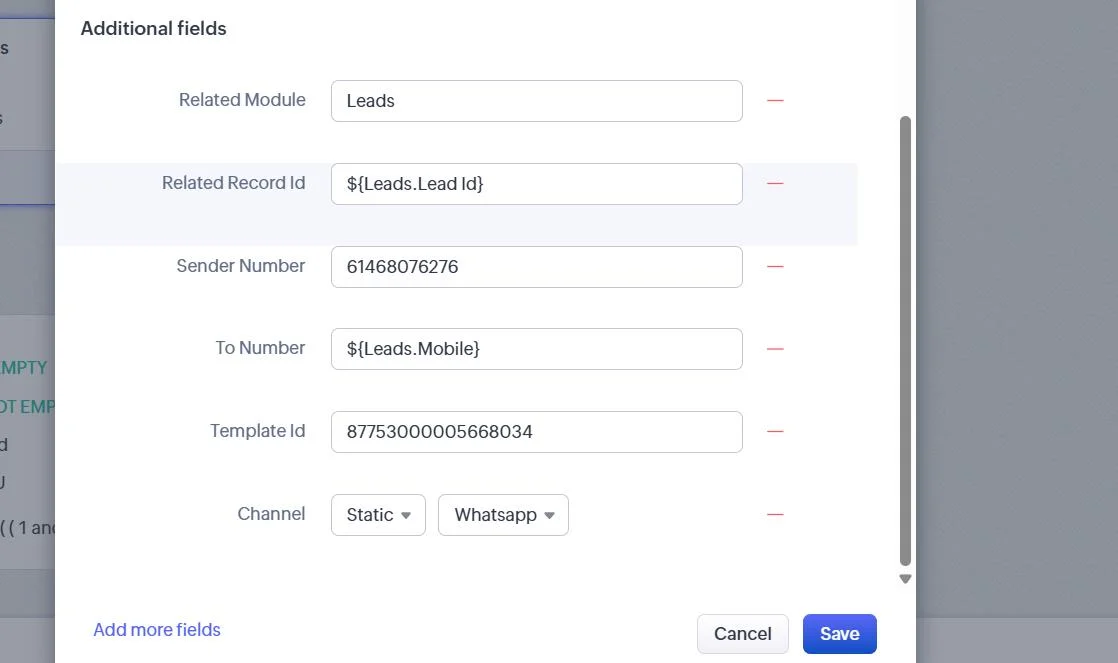
The table below lists every field you must configure in the Create Record action. All fields are required for the message to send. Use Zoho merge tags (e.g. ${Leads.Mobile}) to pull dynamic values from the triggering record.
| Field Name | Required | Example Value | Description |
|---|---|---|---|
| Module | Yes | Schedule Messages | Always set to ‘Schedule Messages’. This is the 360 SMS custom module. |
| Layout | Yes | Standard | Use the Standard layout unless a custom layout has been configured. |
| Schedule Message Name | Yes | Outgoing | A label for this record. Can be static text or a merge tag. Used for identification only. |
| Schedule Message Owner | Yes | Users → Logged in User | Assigns the record owner. Typically ‘Logged in User’ or a specific user/queue. |
| Related Module | Yes | Leads | The source module triggering the workflow (e.g. Leads, Contacts, Deals, or any custom module). |
| Related Record Id | Yes | ${Leads.Lead Id} |
Merge tag for the ID of the triggering record. Change the module prefix to match (e.g. ${Contacts.Contact Id}). |
| Sender Number | Yes | 61468076276 | The outbound phone number assigned to the user or team. Obtain this from 360 SMS App settings. |
| To Number | Yes | ${Leads.Mobile} |
Merge tag for the recipient’s phone number. Map to the appropriate mobile/phone field in your module. |
| Template Id | Yes | 87753000005668034 | The Record ID of the Message Template in 360 SMS App. Copy it from the template’s URL or detail view. |
| Channel | Yes | Static → WhatsApp | Select channel type (Static or Dynamic) and channel (WhatsApp, SMS, etc.) matching your template. |
Merge Tag Quick Reference (by Module)
Replace the module name and field name in the merge tag pattern to match your workflow’s source module. The format is always: ${ModuleName.FieldApiName}
| Module | Related Module Value | Related Record Id | To Number (Phone) |
|---|---|---|---|
| Leads | Leads | ${Leads.Lead Id} |
${Leads.Mobile} |
| Contacts | Contacts | ${Contacts.Contact Id} |
${Contacts.Mobile} |
| Accounts | Accounts | ${Accounts.Account Id} |
${Accounts.Phone} |
| Deals | Deals | ${Deals.Deal Id} |
${Deals.Mobile} |
| Any Custom Module | [ModuleName] | ${[ModuleName].[ModuleName] Id} |
${[ModuleName].Mobile} |
How to Find Your Sender Number & Template ID
Sender Number
- Go to the 360 SMS App in Zoho CRM.
- Navigate to SMS Setup → User Config.
- Find the number assigned to the relevant user or team.
- Copy the number exactly as displayed (no spaces or dashes).
Template ID
- Go to 360 SMS App → Message Templates.
- Open the template you want to use.
- Look at the URL in your browser — the long numeric ID at the end is the Template Record ID.
- Alternatively, the Template ID may be displayed in the template’s detail view.
- Paste this ID (numbers only) into the Template Id field.
Tip – The Template ID is a long numeric string (e.g. 87753000005668034). Double-check that you are copying the Record ID and not the Template Name or any other field.
Channel Configuration
The Channel field has two parts: Channel Type and Channel Name.
| Channel Type | Channel Name | When to Use |
|---|---|---|
| Static | When the channel is fixed and known at configuration time. | |
| Static | SMS | Use for standard SMS messages through a fixed number. |
| Dynamic | — | When the channel is determined at runtime from a field value in the triggering record. |
Troubleshooting
| Issue | Resolution |
|---|---|
| Message not sent | Verify that the Sender Number is correct and assigned. Check that the Template ID is valid and the template is active. |
| Merge tag shows blank | Ensure the triggering record has a value in the mapped phone field. Check the merge tag syntax matches the module’s API name exactly. |
| Wrong recipient number | Confirm the ‘To Number’ merge tag maps to the correct field (Mobile vs. Phone). Update the tag if your module uses a different field name. |
| Workflow not firing | Review the workflow trigger condition and ensure the rule is Active. Check workflow execution logs in Setup → Automation → Workflow Logs. |
| Template not found | Re-copy the Template ID from the 360 SMS App. Make sure there are no extra spaces or characters. |