


Overview of Features
The Zoho CRM × 360 SMS Integration enables seamless SMS communication directly from Zoho CRM with the following key features:
- Easy marketplace installation
- AI-powered auto-reply and message suggestions
- SMS templates with merge fields and attachments
- One-to-one and bulk SMS messaging
- Compliance management (Opt-in / Opt-out)
- Message history and tracking
- Link tracking with detailed analytics
Installation
Follow the steps below to install the Zoho CRM × 360 SMS application:
- Install the application using either of the following methods:
- Search for the app in the Zoho Marketplace, or
- Use the direct installation link shared with you.
- Paste the installation link into your browser while logged into your Zoho account.
- You will be automatically redirected to the Zoho login page (if not already logged in).
- Follow the on-screen instructions to complete the installation.
- Once installed successfully, you will see a confirmation message indicating that the package has been installed.
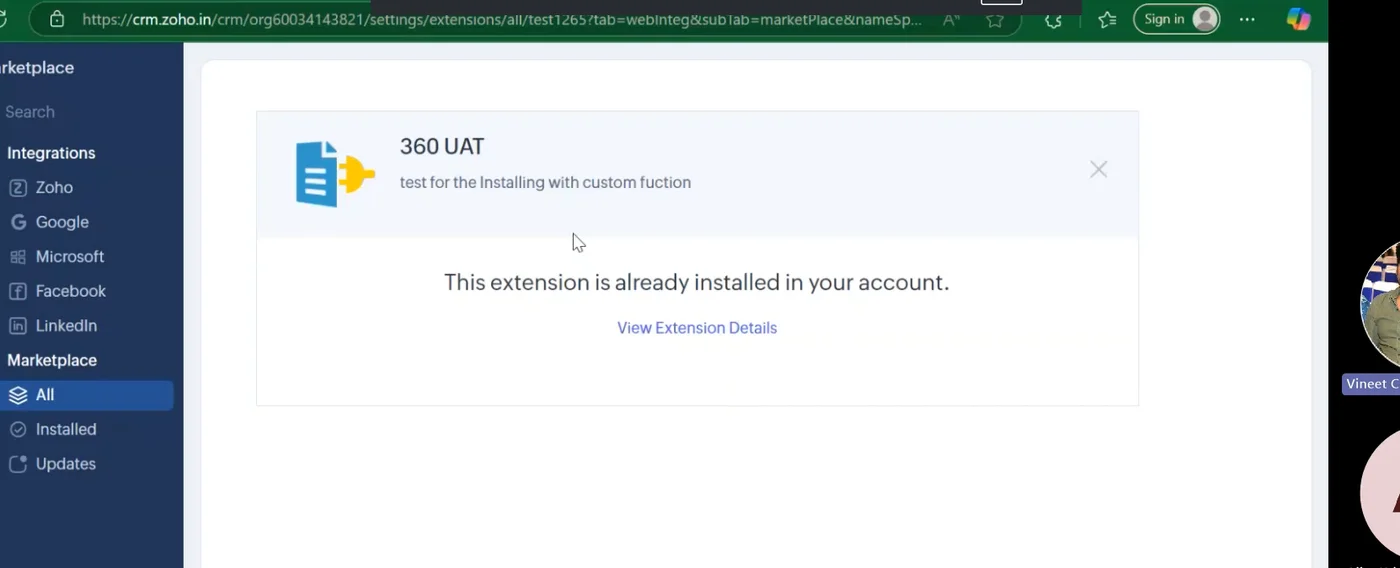
General Settings & Compliance Setup
After installation, configure the basic settings:
- Click the Gear (⚙️) icon in Zoho CRM to open Settings.
- Navigate to General Settings of the 360 SMS application.
- In this section, you can view:
- Assigned phone numbers for AI and Non-AI features
- Pre-configured standard modules such as Leads and Contacts
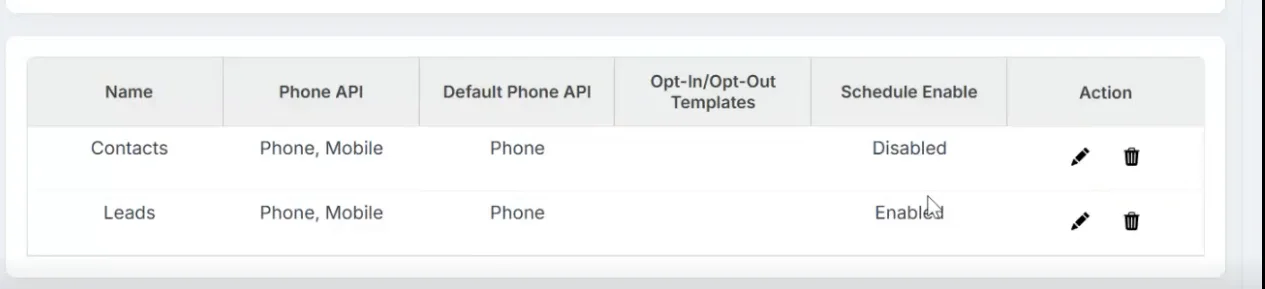
- Open the Compliance Setup tab:
- View default Subscribe and Unsubscribe keywords
- Configure your Opt-out preferences as per business requirements
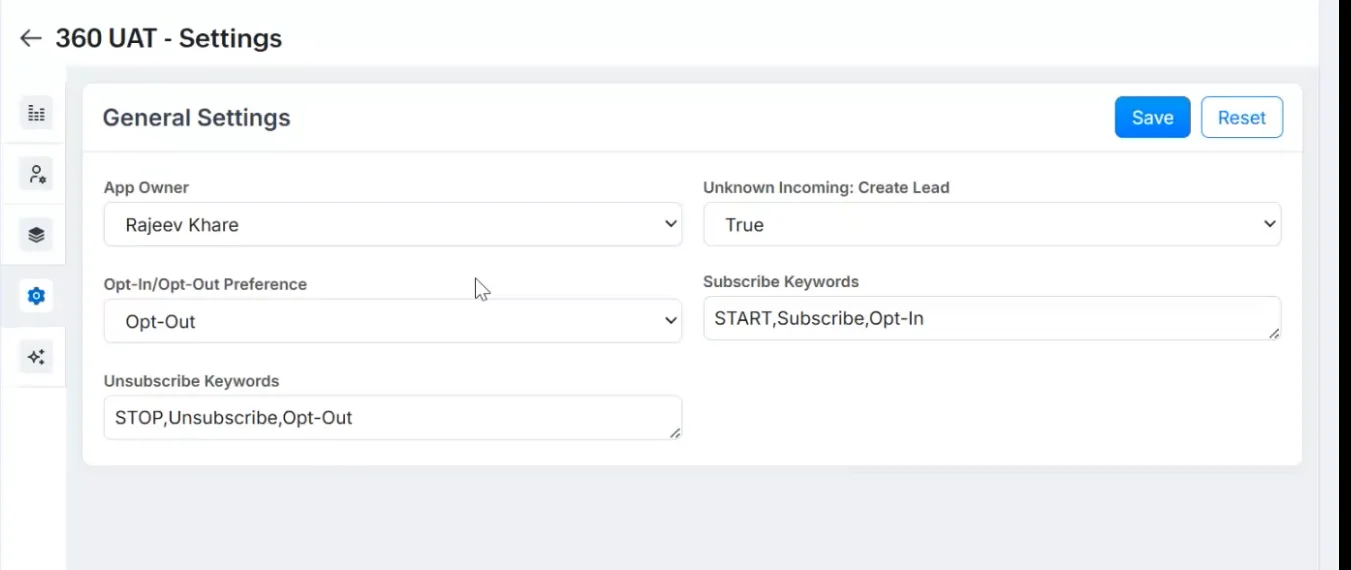
This ensures compliance with messaging regulations.
SMS Setup
The SMS Setup section allows you to configure how SMS works across your organization, users, and CRM modules. This is the foundational setup required before sending messages.
To access SMS Setup:
- Click the installed packages button in Zoho CRM.
- Navigate to 360 SMS → SMS Setup.
The SMS Setup includes the following sections:
1. Org Configuration
The Org Configuration section displays SMS-related settings at the organization level.
Here, you can:
- View all phone numbers assigned to your Zoho CRM organization
- Identify numbers enabled for AI and Non-AI messaging
- Ensure numbers are properly provisioned and active before use
2. User Configuration
The User Configuration section shows how phone numbers are mapped to individual users.
From this section, you can:
- See which phone number is linked to which user
- Verify user-level SMS access
- Ensure replies and outbound messages are routed correctly
This setup is critical for:
- One-to-one messaging
- AI auto-suggestions and replies
- Accountability and message ownership
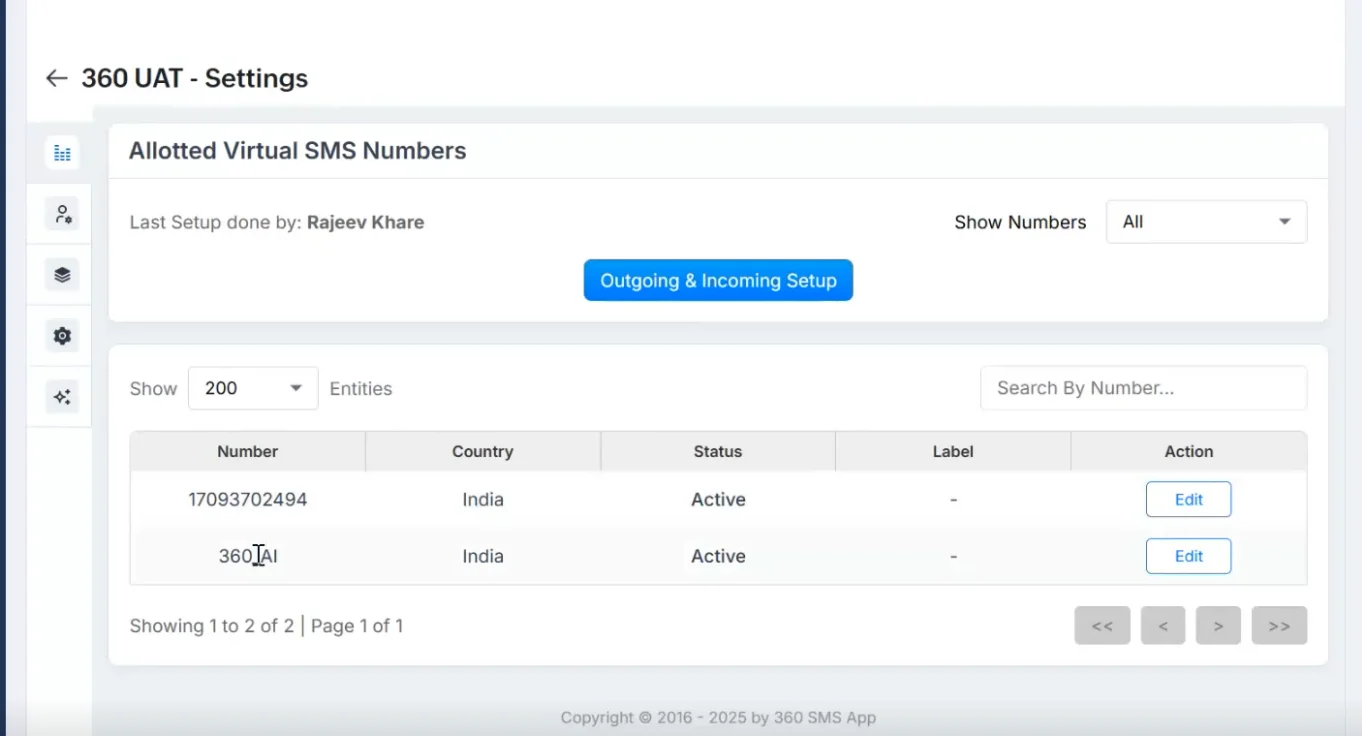
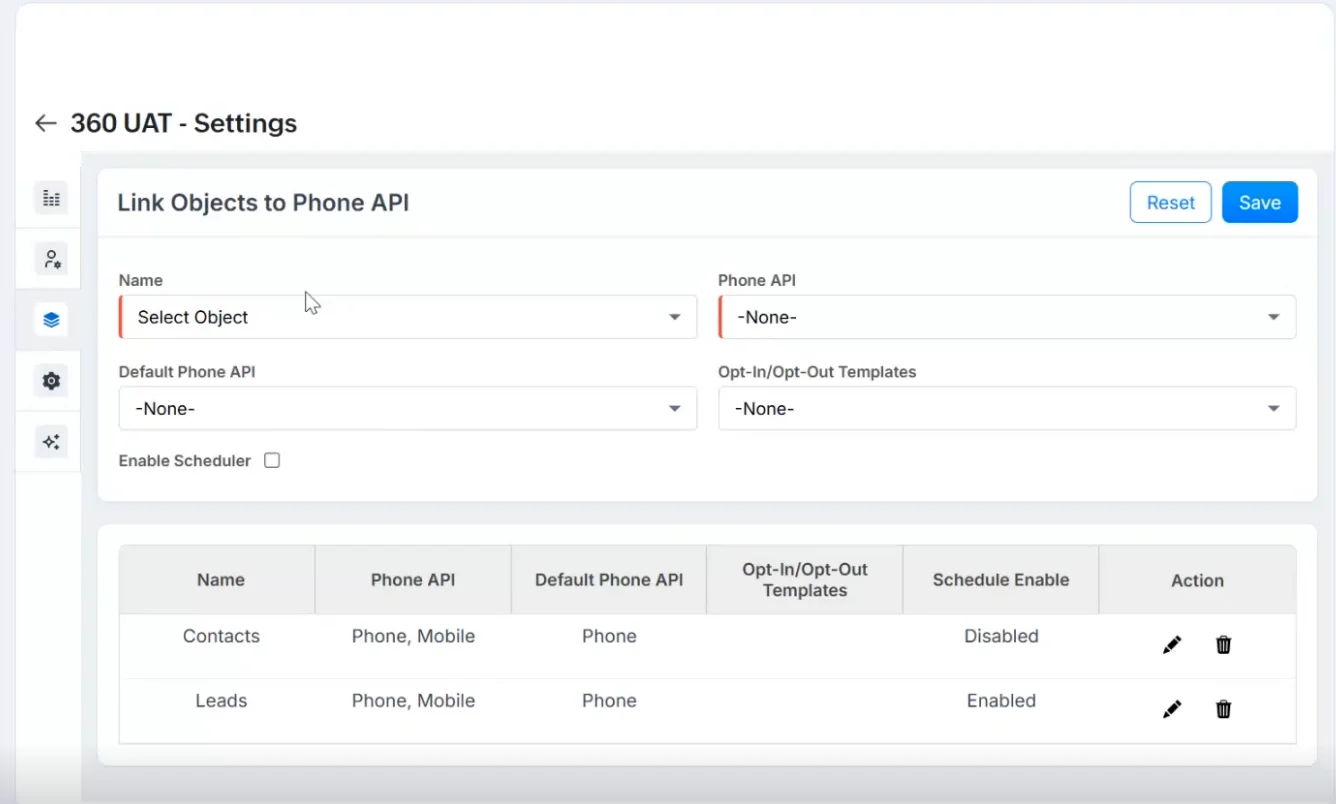
3. Module Setup
The Module Setup section allows you to configure which CRM modules can use SMS functionality.
Key points:
- Leads and Contacts are standard modules and are pre-configured by default
- You can enable or disable SMS for additional supported modules as required
- This configuration controls where:
- Conversation View appears
- Templates are accessible
- AI suggestions are triggered
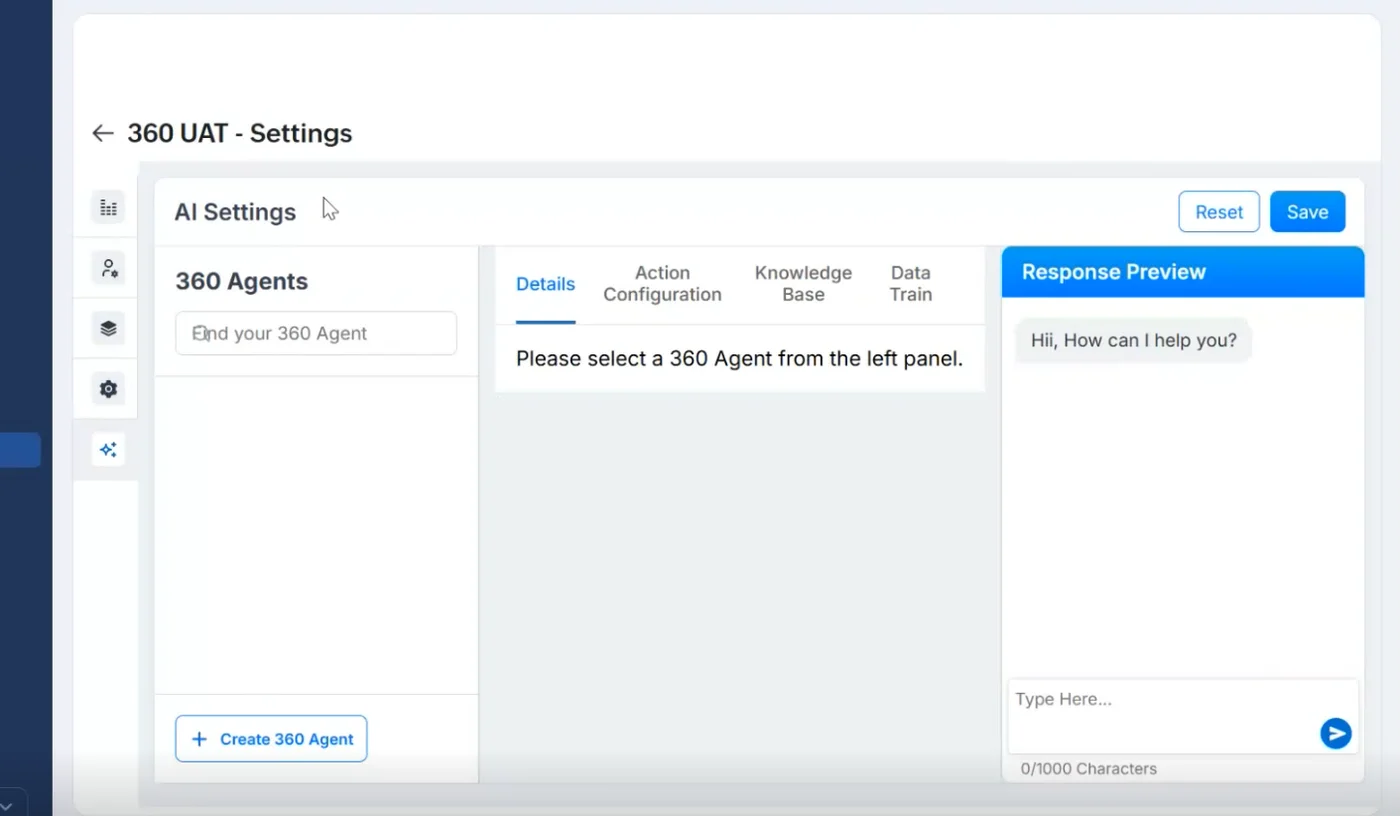
4. AI Settings (from SMS Setup)
The AI Settings section within SMS Setup provides quick access to AI-related configurations.
From here, you can:
- Navigate to iAgent configuration
- Control AI-driven behaviors such as:
- Auto-reply suggestions
- Auto message replies
Note – Detailed iAgent creation, action configuration, and knowledge base training are covered in the AI Settings section later in this guide.
AI Settings (iAgent Configuration)
AI functionality is powered through an iAgent. Follow the steps below to configure it:
Step 1: Create an iAgent
- Go to the AI Settings tab.
- Create a new iAgent to enable automated responses.
- You can test the iAgent directly from the Settings UI.
Best Practice – Ensure the instructions provided to the agent are dynamic, clear, and highly specific to your business use case for better responses.
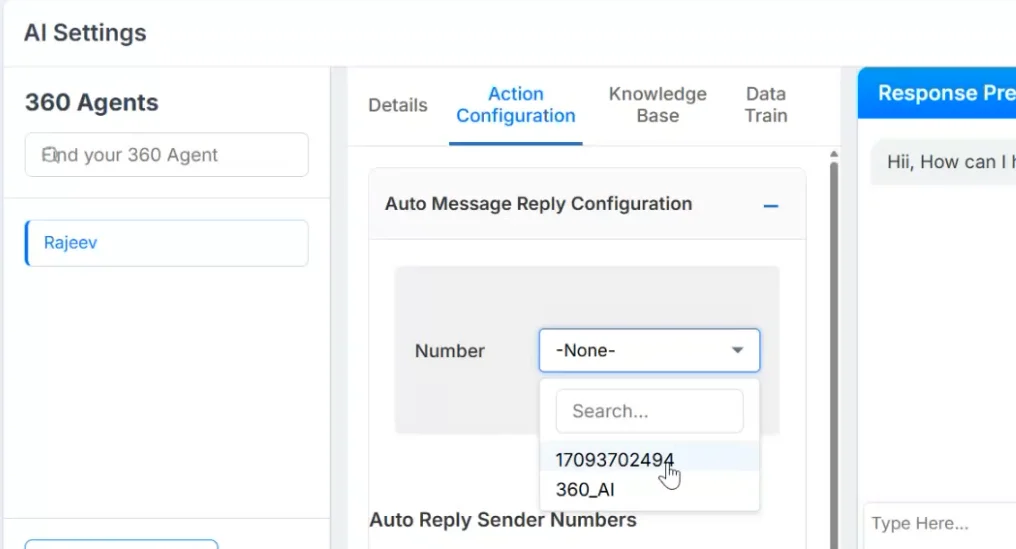
Step 2: Action Configuration
- Navigate to the Action Configuration tab.
- Choose one or both of the following actions:
- Auto-Reply Suggestions
- Auto Message Reply
- Configure activation:
- For Auto-Reply: Select the phone number to enable automatic replies.
- For Auto-Message Suggestions: Select the user name, phone number, or user profile for which suggestions should appear.
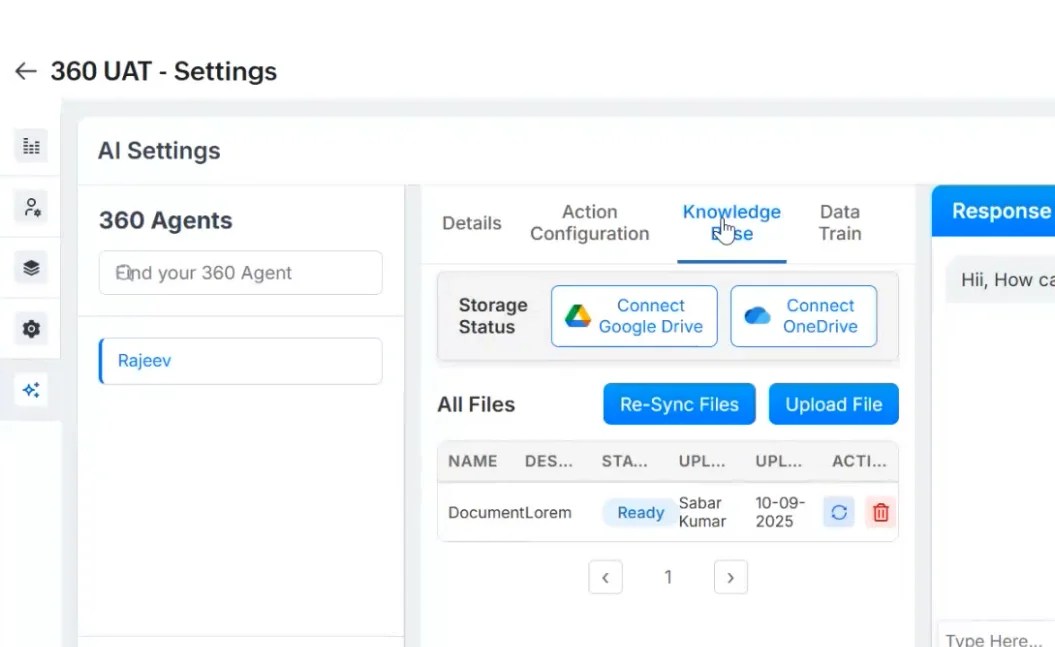
Step 3: Knowledge Base Training
- Open the Knowledge Base tab.
- Train the AI by connecting your data sources (e.g., drives).
- The more data you train, the more accurate and contextual the AI responses will be.
SMS Templates
SMS templates allow you to send standardized messages quickly.
Creating a Template
- Use the Search bar (top left) and navigate to the SMS Template module.
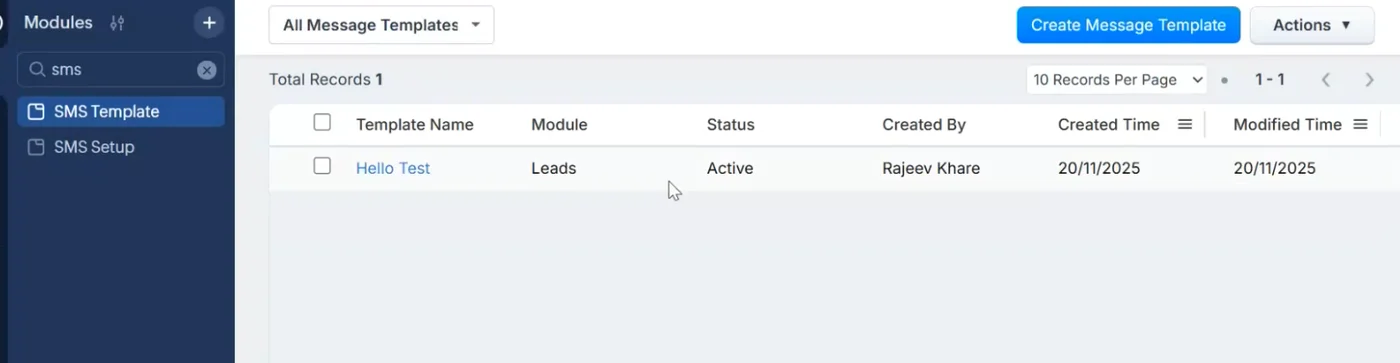
- Click Create Template.
- Enter template details and select the module where the template should be active.
AI-Generated Templates
- Use the Generate Content with AI bar.
- Enter a basic message prompt.
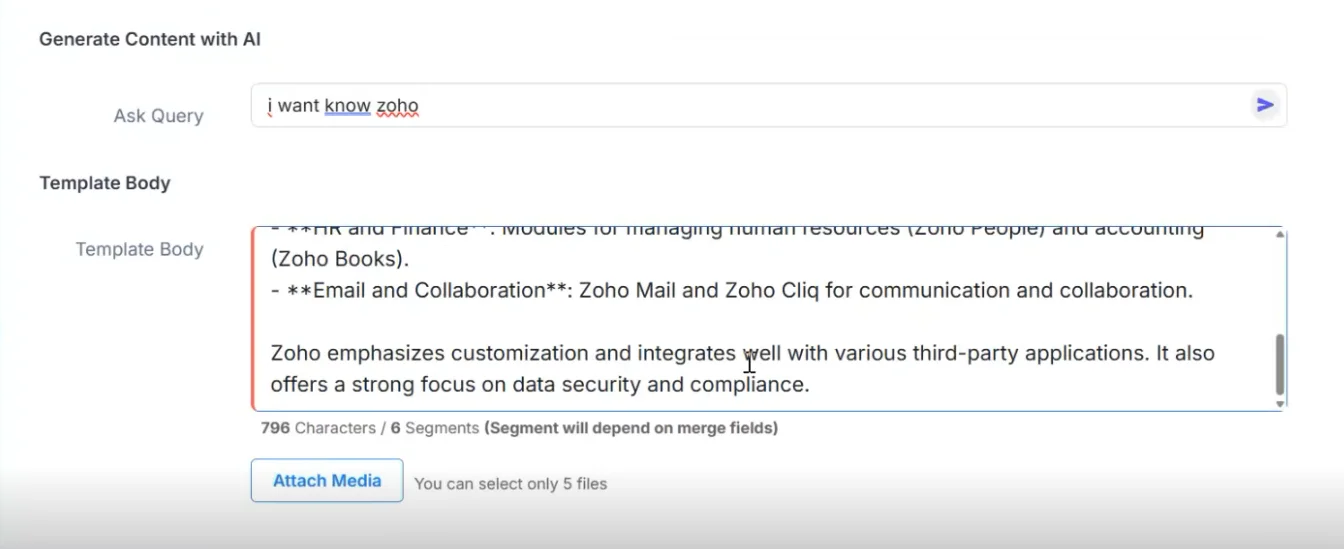
- AI will generate a detailed, ready-to-use SMS template.
Adding Merge Fields
- From the Generate Merge Fields section, select the required fields.
- Insert them into your template to personalize messages automatically.
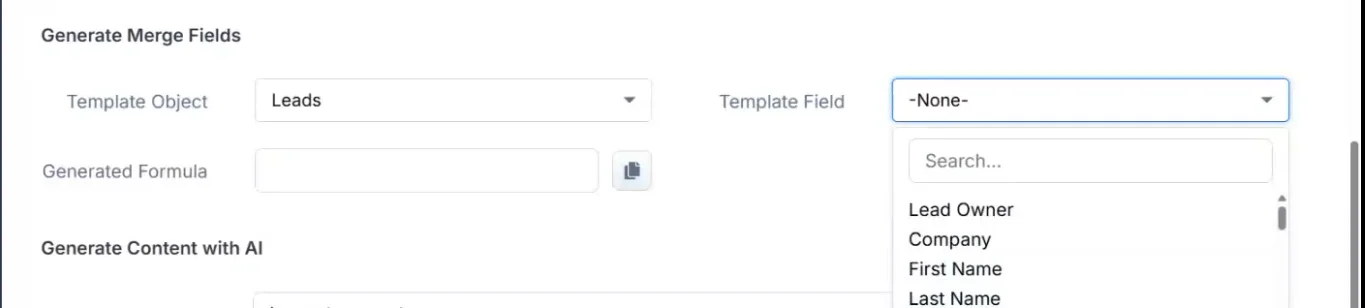
Note – One standard template comes with the package, which users can utilise as per their needs.
Sending SMS from Records (Conversation View)
- Go to the Leads (or Contacts) module.
- Open a record and navigate to the Conversation View.
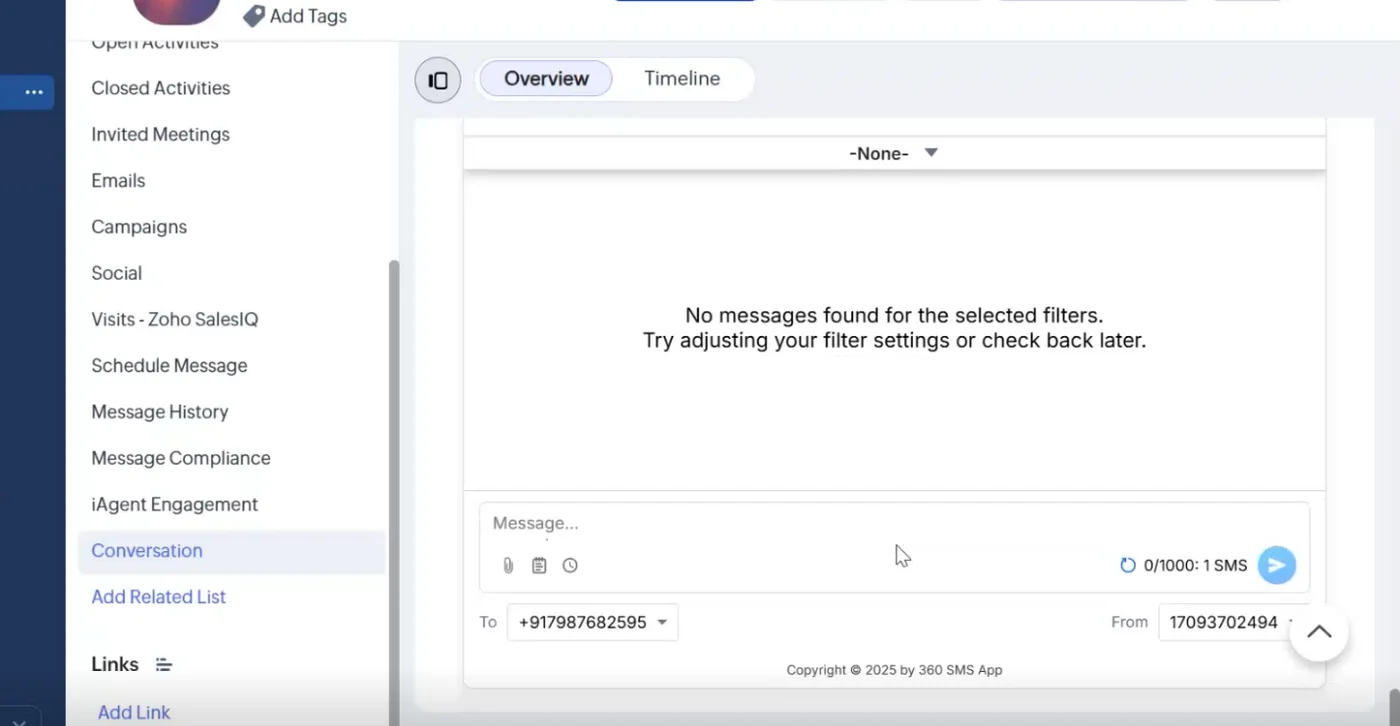
- Click on Templates and select the required SMS template.
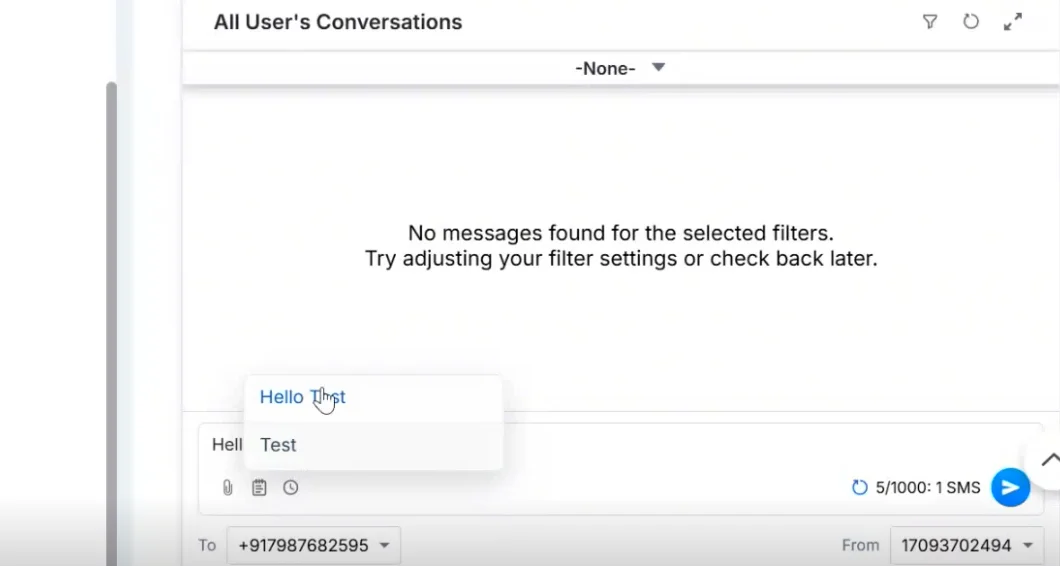
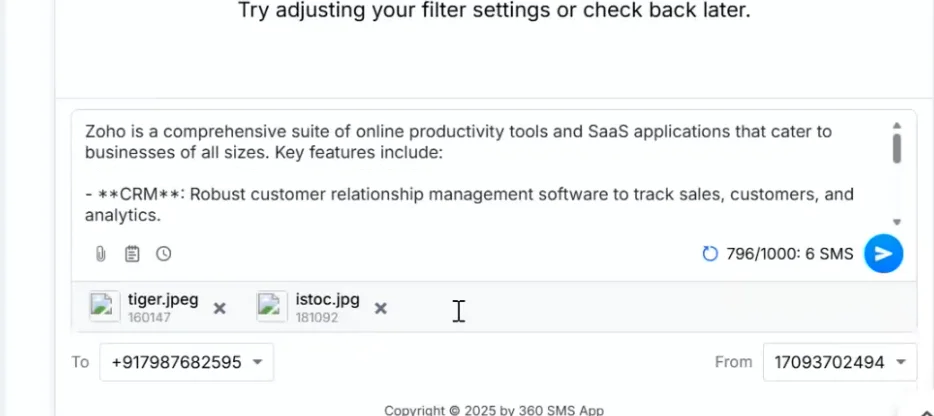
- The message will auto-populate along with any predefined attachments.
- To add new attachments, click the Paper Clip (📎) icon in the conversation view.
Scheduling Messages
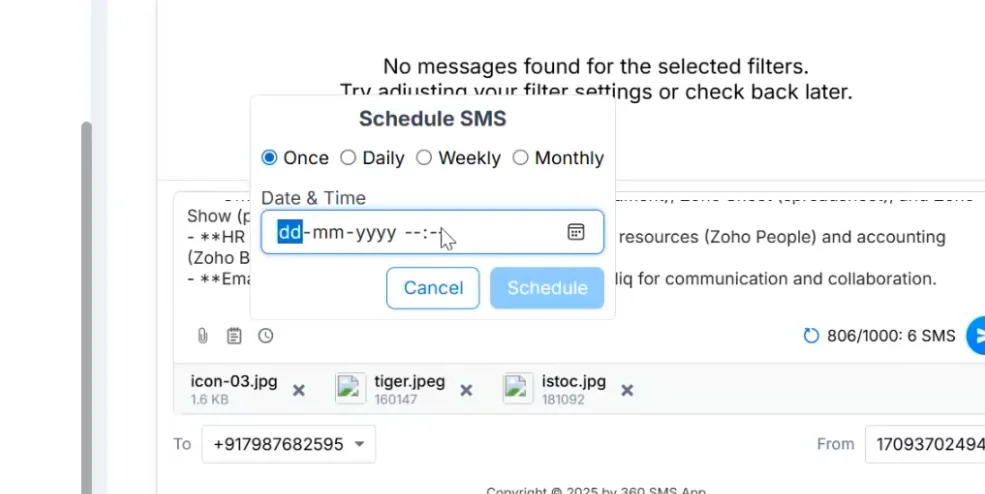
- Click the Clock / Timer (⏱️) icon.
- Choose when the message should be sent:
- Just once
- Daily
- Weekly
- Monthly
SMS History & Message Records
To view SMS history:
- Click the Information (ℹ️) icon on a message.
- You will be redirected to the SMS record created for that message.
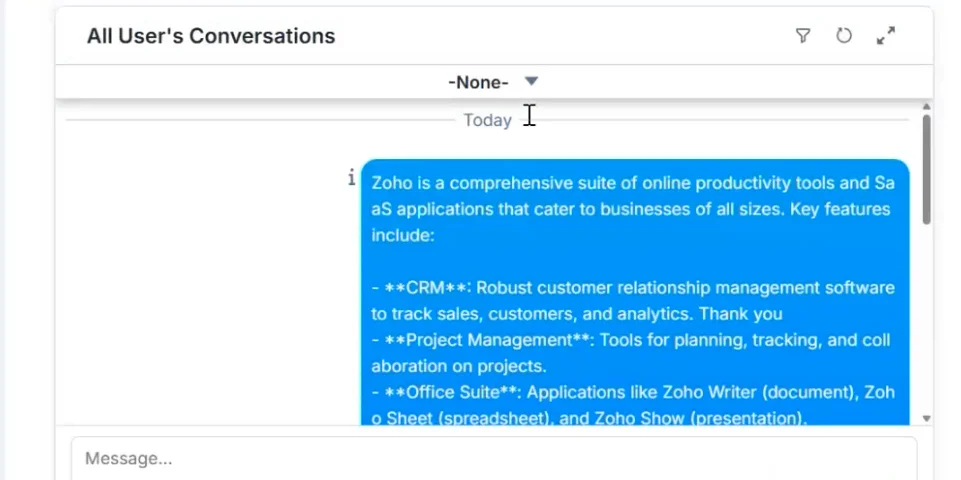
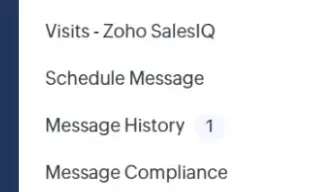
Alternatively, navigate directly to the Message History module from the left-hand navigation bar to view all SMS records.
Opt-In & Opt-Out Management
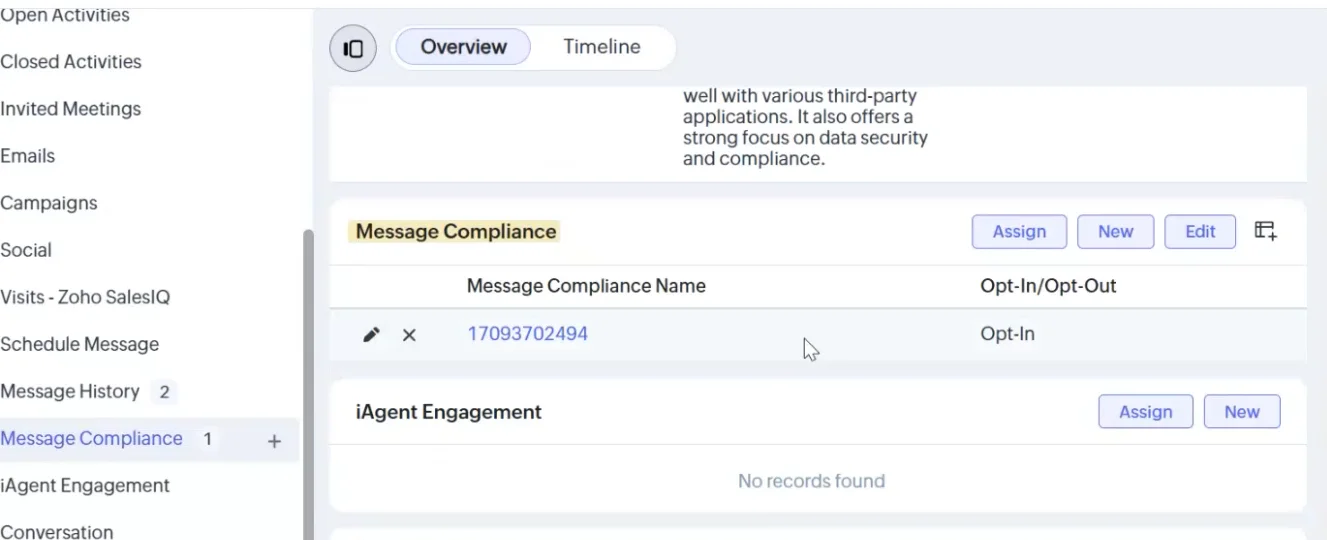
Opt-In
When an opt-in message is received:
- An auto-reply suggestion appears (if auto-reply agent is enabled).
- An Opt-in record is created in the Message Compliance module.
Opt-Out
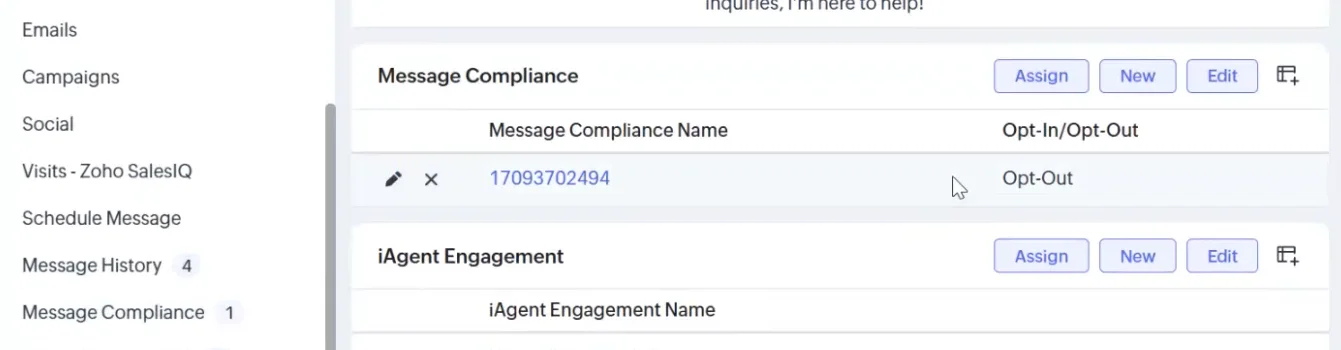
If an incoming message contains opt-out intent (e.g., not interested, don’t message):
- The lead/contact is automatically opted out.
- An Opt-out record is created in the Message Compliance module.
AI-Powered Detection
- AI detects similar or intent-based phrases, even if they are not exact unsubscribe keywords.
- Such messages are automatically treated as opt-outs.
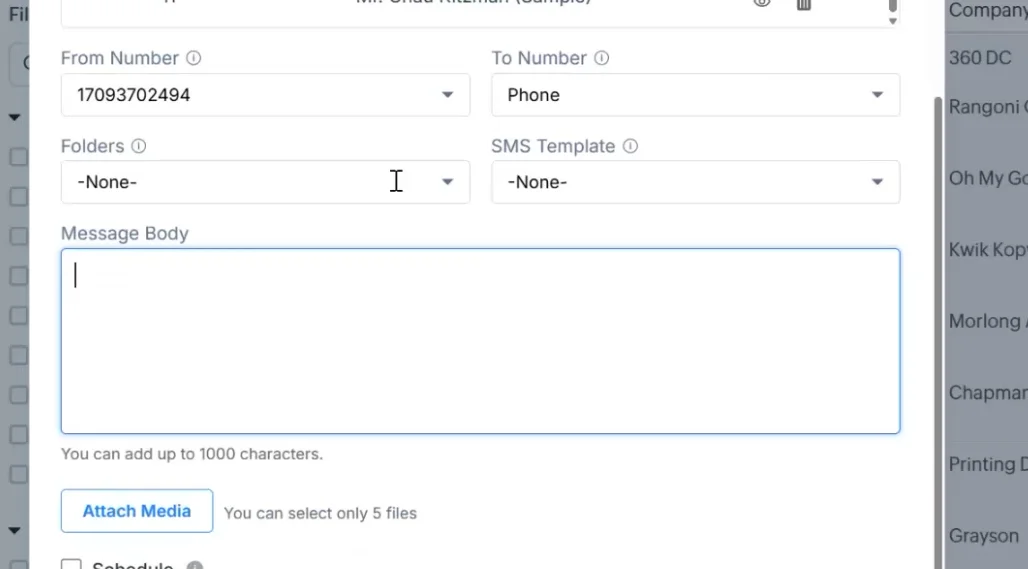
Bulk Messaging
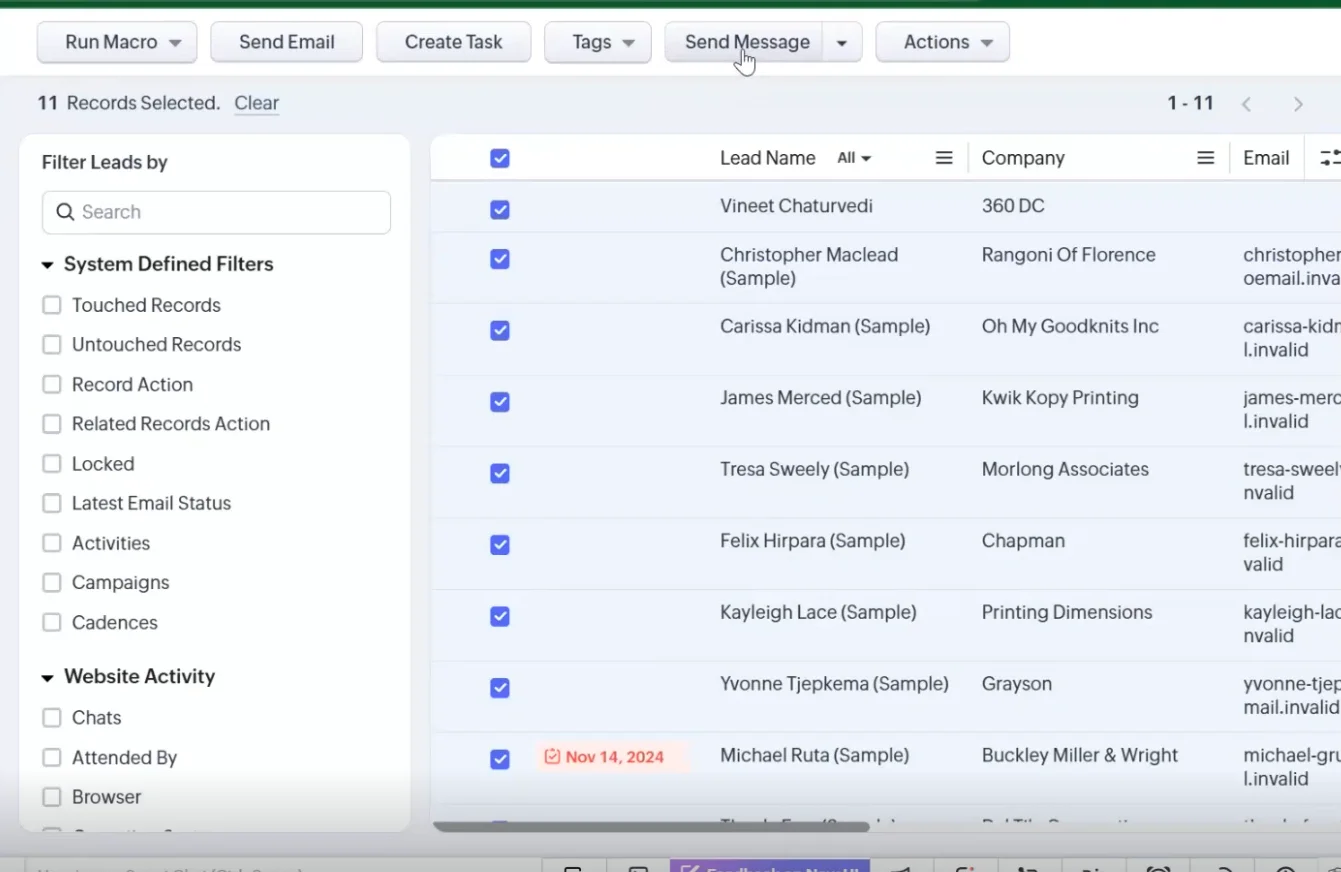
To send messages to multiple records:
- Open the required module list view.
- Select:
- All records, or
- Specific/custom records.
- Click the Send Message button.
- Choose:
- An existing SMS template, or
- Write a custom message.
Link Tracking
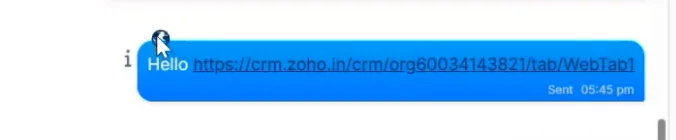
When an SMS contains a link:
- A Globe (🌐) icon appears at the top of the message.
- Click the globe icon to open the Link Tracking module.
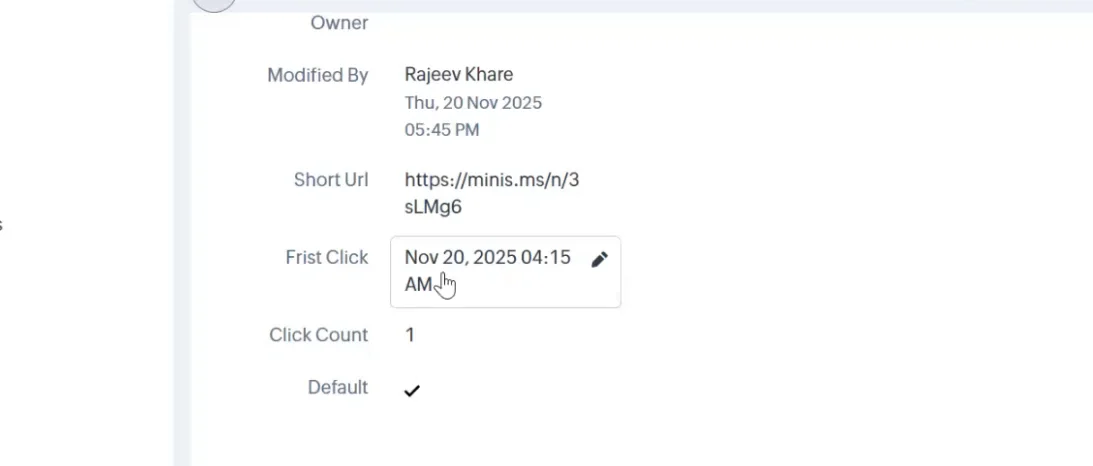
- In the Overview section, you can view:
- First click time
- Total click count
- Other engagement details
How to Setup Workflows?
Example Use Case
When a Deal is created or moved to the “Qualified” stage:
- Assign the record to a sales representative
- Send an email notification
- Create a follow-up task
Step 1: Navigate to Workflow Rules
- Log in to Zoho CRM.
- Click the Setup (gear icon) in the top-right corner.
- Under Automation, select Workflow Rules.
This section manages all automation rules.
Step 2: Create a New Workflow Rule
- Click Create Rule.
- Select the Module where the workflow should apply.
Examples:
- Leads
- Contacts
- Deals
- Custom modules
For this example, select Deals, then click Next.
Step 3: Enter Rule Details
Provide the following information:
- Rule Name: Deal Qualification Automation
- Description (optional): Assign rep, send email, and create task when deal becomes qualified
Click Next.
Step 4: Select the Trigger
Choose when the workflow should execute.
Available options:
- On record action (create/edit)
- On date/time
- Based on score
For this use case, select On a record action → Create or Edit.
Step 5: Define Conditions
Set criteria to determine when the workflow runs.
- Select Execute the workflow when specific conditions are met.
- Add a condition such as:
- Field: Stage
- Operator: is
- Value: Qualified
You can add multiple conditions using AND/OR logic.
Click Next.
Step 6: Add Actions
Actions define what happens when the workflow is triggered.
A. Email Alert
- Click Instant Actions → Email Alerts → Add.
- Select an existing template or create a new one.
- Choose recipients (Owner, Contact, or custom email).
- Save.
B. Task Creation
- Click Add Task.
- Enter:
- Subject: Follow up with client
- Due date: 2 days
- Owner: Deal Owner
- Save.
C. Field Update (Optional)
- Click Field Update → Add.
- Select the field and define the new value.
Example: Status → Follow-up in progress
Step 7: Save and Activate
- Click Save.
- Enable Activate Rule.
Note – The workflow will not run unless activated.