




 When customers message your business on WhatsApp, your team needs the conversation alongside customer details and previous interactions. Otherwise, employees may switch between tools, search for records, or miss follow-ups.
To integrate WhatsApp with Zoho CRM, connect a WhatsApp Business Platform account through a supported integration. Messages can then be managed in Zoho CRM and associated with relevant records.
360 SMS App for Zoho CRM brings WhatsApp, SMS, and MMS into an embedded messaging experience. Teams can manage conversations, run bulk campaigns, automate messages, and use AI-powered replies, chatbots, and compliance assistance without leaving Zoho CRM.
What do you need before you integrate WhatsApp with Zoho CRM?
Prepare these essentials before connecting your account. Review current Meta requirements during onboarding, since account eligibility, template approval, and messaging rules can change over time for your business.
A Meta business account: Set up a Meta business portfolio and WhatsApp Business Platform account. Complete the required business and phone-number verification during onboarding.
A business phone number: Choose the number customers will use and check its eligibility before onboarding. If it is already on the WhatsApp Business app, ask whether your provider supports Coexistence for eligible numbers.
A business display name: Choose a recognizable name that follows Meta’s requirements and submit it for review.
Message templates: Prepare reminders, updates, and follow-ups. Approved templates are required to start conversations and to message outside the 24-hour customer service window.
Customer consent: Explain what messages people are agreeing to receive, keep consent records, and provide a clear opt-out process. Follow WhatsApp policies and local laws.
A CRM module plan: Choose where conversations should be associated, such as Leads, Contacts, or Deals, and decide who handles incoming messages.
Which ways can you connect WhatsApp to Zoho CRM?
Choose based on the features you need and the work your team can maintain.
Zoho’s built-in options: Check whether your edition supports the features you need, including module coverage, templates, bulk messaging, and conversation history.
A Zoho Marketplace app: This can suit teams that want messaging and campaigns inside CRM without maintaining a custom connection. Compare channel support, record association, workflows, consent controls, and ease of use.
A custom WhatsApp API integration: A custom build can fit specific processes, but developers must maintain the connection, webhooks, and error handling.
For teams that want WhatsApp inside everyday CRM workflows, a Marketplace app can be a practical choice. 360 SMS App embeds SMS, MMS, and WhatsApp in Zoho CRM. Users can message from CRM records, view conversation history, receive incoming alerts, and associate conversations with configured modules.
It also supports List View bulk campaigns, CRM-based personalization, scheduling, templates, and workflow-triggered messages. AI features include reply suggestions, automated replies, chatbots, AI template creation, and compliance assistance. Explore the WhatsApp integration for Zoho CRM to see how it fits your team’s process.
One more point: WhatsApp is only one part of the communication process. With 360 SMS, your team can also share images, PDFs, Word documents, spreadsheets, and other supported files in conversations. Templates can be organized into folders, making frequently used messages easier to find and manage. Delivery tracking, read receipts where supported, URL shortening, and link tracking provide visibility after a message is sent. These tools help teams keep customer communication organized without adding another platform to their daily work.
How do you set up WhatsApp in Zoho CRM step by step?
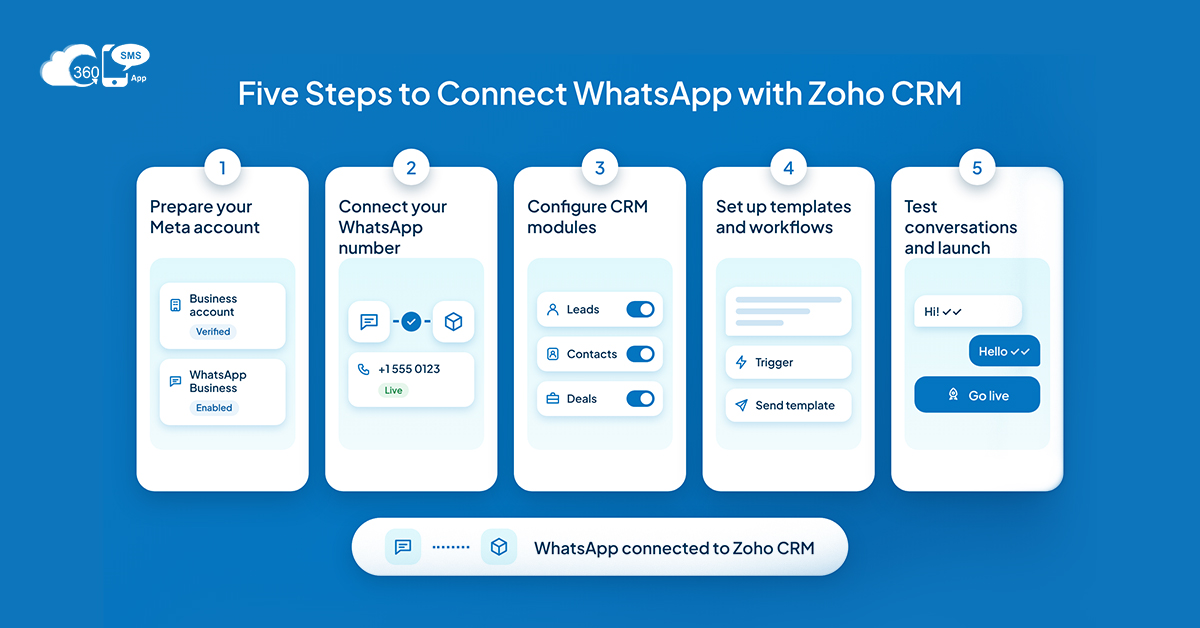
Once your WhatsApp Business Platform account is ready, follow these steps.
Connect your WhatsApp number: Complete your provider’s onboarding, business checks, and phone-number verification.
Configure CRM modules: Select the modules and phone fields your team will use. Set up record associations so conversations appear with the right customer context.
Set up templates: Create reusable messages and submit templates for Meta approval where required. 360 SMS supports interactive formats such as call-to-action, quick-reply, and list or menu buttons.
Create workflows: Choose CRM events that should trigger messages, such as a new record or a deal-stage change. 360 SMS supports Zoho CRM workflows, triggers, and custom functions.
Test the setup: Exchange test messages and check record association, notifications, templates, workflow triggers, and opt-out handling before rollout.
Read our guide to WhatsApp templates in Zoho CRM for more help.
What should you test before rolling WhatsApp out to the whole team?
Run a small pilot first. Test these everyday scenarios before expanding access.
Check record association: Send messages from different modules and confirm the conversation appears with the intended record. Check how messages from numbers not yet associated with a CRM record are handled.
Check ownership and notifications: Confirm incoming messages reach the right record owner and trigger alerts.
Check templates and personalization: Test names, dates, links, and other CRM fields to catch missing or incorrect merge values.
Check bulk campaigns and consent: Test a small List View audience. Review recipients, personalization, scheduling, and opt-outs. 360 SMS supports bulk SMS, MMS, and WhatsApp campaigns through Zoho CRM List Views.
Check delivery and engagement: Review delivery status, read receipts where supported, and link tracking.
Check automation and AI: Check AI-generated replies and chatbot responses for accuracy, and ensure your team can monitor conversations and respond when needed.
See how to send personalized bulk SMS and WhatsApp campaigns from Zoho CRM for the campaign steps.
Conclusion
Integrating WhatsApp with Zoho CRM takes more than connecting a number. Plan where conversations belong, who responds, and which messages should be automated.
Prepare your Meta account, templates, and consent process. Then configure CRM modules and workflows, and test record association, personalization, delivery, and opt-outs with a small group.
360 SMS brings WhatsApp, SMS, and MMS into Zoho CRM, with one-to-one conversations, List View campaigns, workflow automation, and AI-powered messaging.
Book a demo to see how it works.


