



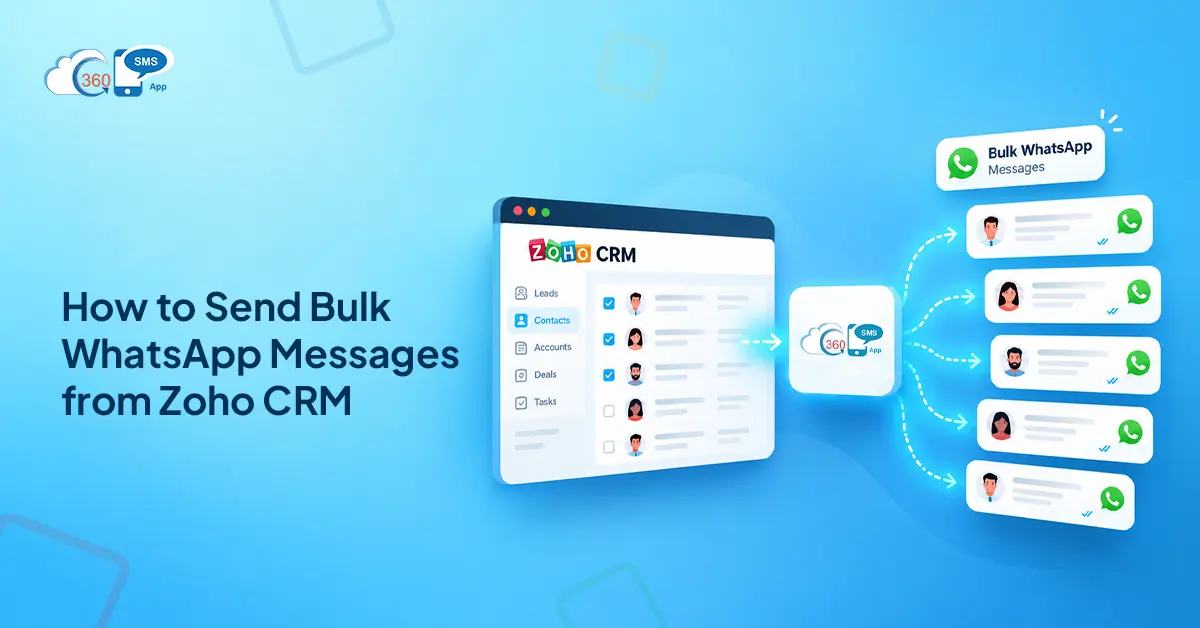
 Your sales team already uses WhatsApp inside Zoho for one-to-one conversations. It works. Messages get read, reps don’t have to leave the CRM, and the context stays attached to the right record. So at some point, someone asks the obvious question: can we scale this? Send a campaign to 500 leads at once?
That’s when things get complicated.
Bulk WhatsApp isn’t bulk SMS with a different icon. Meta enforces rules that most teams have never heard of, and finding out about them usually means a flagged number. Sometimes a suspended one.
Look, this guide covers the full setup: the compliance requirement, how to filter your audience from inside Zoho before anything goes out, what the actual send looks like, and what happens when contacts write back.
The One Rule That Changes Everything for Bulk WhatsApp
Almost no bulk messaging guide explains this clearly. Here it is.
WhatsApp runs a 24-hour session window. After a contact’s last inbound message to you, you have 24 hours to reply with free-form text. Once that window closes, any outbound message must use a Meta-approved template– a format you submit to Meta in advance, not something you write on the fly.
Bulk campaigns go to large contact lists. Most of those contacts haven’t messaged you recently. Which means every single bulk WhatsApp send must use an approved template. That’s not a guideline or a best practice. Meta’s systems detect non-template bulk messages automatically, flag the sending number, and in repeated cases, suspend the WhatsApp Business Account.
That’s the thing. Teams that skip this step don’t know they skipped it. They send a campaign, nothing seems wrong immediately, and then a few days later the account has a quality restriction nobody can explain.
Worth saying: 360 SMS for Zoho handles template creation, submission, and tracking entirely inside Zoho CRM. No separate Business Manager tab required.
How to Build and Submit a WhatsApp Template Inside Zoho CRM
Most rejections come from one mistake. Not the writing. The category.
Meta classifies every template as marketing, utility, or authentication. Miscategorize it, and the submission gets rejected. A utility template with a promotional line anywhere in the body reads as marketing. One edit, resubmit, and it usually clears.
For bulk campaigns, most teams work with four formats: plain text templates, CTA button templates that link to a booking page or payment portal, quick reply templates where the contact taps “Yes” or “No” without typing, and list/menu templates for structured option sets. 360 SMS for Zoho supports all four.
And for teams that find starting from scratch slow, the AI-powered template creation in 360 SMS generates a working draft from the use case you describe — it still needs review and the right category before submission, but “I don’t know what to write” stops being a reason campaigns get delayed.
Approved templates are organized into folders inside the template library. Sounds minor. It isn’t, once you’ve built up 25 active templates and need the appointment reminder variant without scrolling through everything.
How to Segment Your Bulk WhatsApp Audience Using Zoho CRM Fields
Here’s what most standalone WhatsApp broadcast tools give you: upload a contact list. That’s it.
Inside Zoho CRM, you build the audience using List View filters, drawing directly from record data. Every field is available as a filter condition. The audience you build reflects what’s actually in the CRM, not a spreadsheet someone compiled three months ago.
Filter sets that teams actually run: Real estate — Lead Status = Interested, Property Type = Apartment, WhatsApp opt-in = Yes. Healthcare — Appointment Status = Upcoming, Communication Preference = WhatsApp. Education — Enquiry Stage = Follow-Up, Program Interest = MBA.
That opt-in condition is the one that can’t get dropped. Sending to contacts who haven’t consented violates WhatsApp’s Business Messaging Policy and hurts your account health score — which Meta uses to cap messaging tiers and apply quality restrictions.
In practice, this is exactly where bulk campaigns fail quietly. The opt-in filter gets skipped, engagement drops, the account quality rating slides, and nobody connects the two. Most teams don’t notice until the daily send cap changes on them.
How to Send a Bulk WhatsApp Campaign from Zoho CRM: Step by Step
Template approved, audience filtered. Here’s what the send looks like.
Apply your List View filters to build the audience, select all filtered records, and click “Send Bulk Message” through 360 SMS. Select WhatsApp as the channel, choose the approved template from the library, and add merge fields — first name, company, deal stage, appointment date, any CRM field you need. Schedule a send time or push it immediately.
Delivery status logs back to each contact record automatically. No separate dashboard to open. Every result lives where the contact data lives.
What Happens When Someone Replies to Your Bulk WhatsApp Campaign
Nobody covers this part. And it’s the biggest operational gap between 360 SMS for Zoho and a generic broadcast tool.
A contact replies to your campaign. That reply comes back into Zoho as an individual two-way WhatsApp conversation on the contact’s CRM record. Automatically matched. No manual sorting. The rep assigned to that record sees it, responds from the same screen, and the full thread stays attached to the contact.
Compare that to most external broadcast tools — all replies go into a shared inbox. Someone has to manually match each one to a contact. Context fragments. Response time slows.
In practice, a bulk campaign to 500 leads can open 50 individual sales conversations that all live inside Zoho, fully attributed. The campaign doesn’t close when you hit send. It starts conversations that reps pick up directly, with the full contact history right there on the record.
Scheduling Bulk WhatsApp Campaigns for Better Delivery
Timing affects whether messages get read or quietly ignored. Genuinely.
Tuesday through Thursday, between 10 am and noon and again between 3 pm and 5 pm in the recipient’s time zone – those windows hold across most B2B and B2C contexts. Early morning sends (6 am to 8 am) underperform. So does anything after 9 pm or on Sunday, where block rates run higher.
360 SMS lets you set a specific send date and time at the campaign level. All contacts in the filtered audience receive the message at the scheduled time.
One thing worth building into your sequence before launch: if you’re sending a follow-up more than 24 hours after the initial campaign, you need a second approved template for it. The session window doesn’t carry over between business-initiated messages. That’s two sends, two templates. Build both before the first campaign goes out.
Wrapping Up
Bulk WhatsApp from Zoho CRM is a different tool than a generic broadcast sender, and most of that difference traces back to the Meta compliance model. Approved templates, opted-in audiences from Zoho List View filters, sends timed for decent delivery windows, and replies handled on the contact record — 360 SMS for Zoho runs all of this inside the CRM, without external tools, without a shared inbox, and without manually sorting replies every time someone writes back.
Make every bulk WhatsApp campaign work inside your Zoho CRM?


