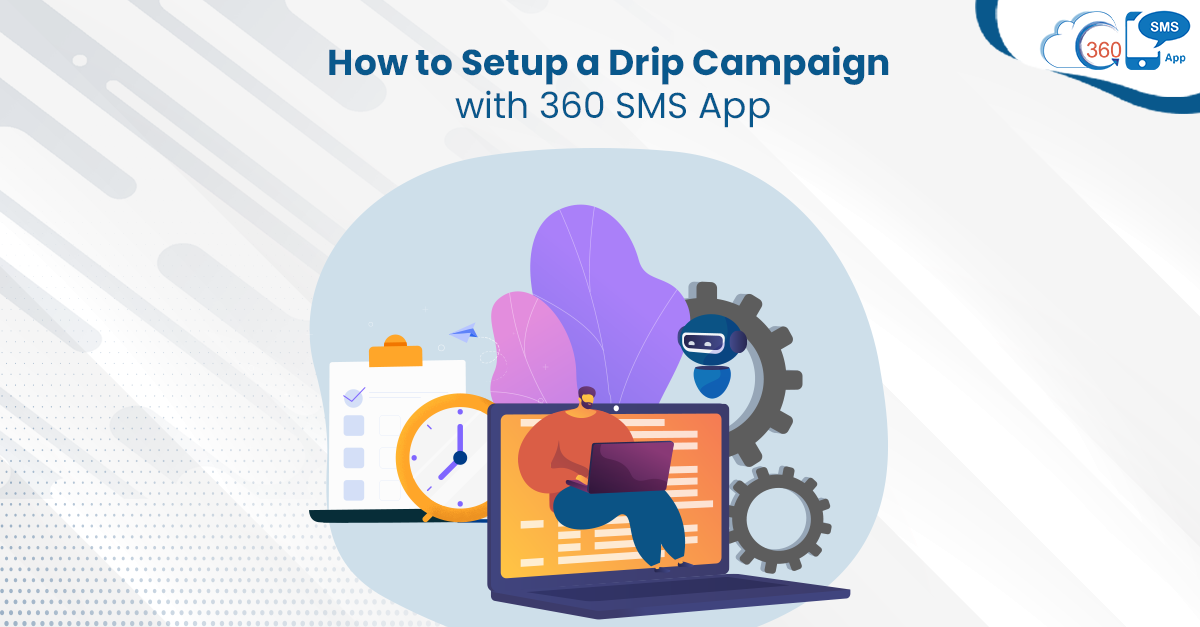
An SMS drip campaign is one of the out-of-the-box automation capabilities of 360 SMS. It allows users of even non-technical backgrounds to automate the flow of text messages without any expert assistance. Drip campaigns not only eliminate the dependency on experts but save a lot of time for employees. Setting up a Drip Campaign with 360 SMS App is an easy and quick process. Users can schedule and send text messages at their preferred time without any manual intervention. Here’s how you can set up an SMS drip campaign with a 360 SMS app.
Table of Contents
Drip Campaign Set up Process
Firstly, you need to design a series of text messages that need to go out at various intervals based on purposes, departments, etc., under the “SMS Drip Campaigns” tab. While designing a campaign, you can also choose SMS or voice template or survey to send it as a part of a drip campaign message.
Once you are done with creating a series of texts, you’ll have multiple campaigns to choose from.
Secondly, you need to schedule these text messages at various intervals defining the day and time using the Days or Minutes Offset field. The best part is, Minutes Offset is a customizable field, and you can get it customized to Hours or Months Offset as well. Also, You can set the time of the text messages to go once the drip campaign is activated.
Now here comes the most vital step that is Drip campaign activation. To assign a drip campaign against a particular lead, contact, or any other custom object, you need to associate it with that.
For assigning a campaign, navigate to the individual record page under the ‘Drip Campaign‘ section and edit it. In the ‘Drip Campaign’ section, you’ll find all existing drip campaigns, and you can select one of them from the dropdown list depending on the use case.
Besides, you also have the option to stop the flow of drip campaign text messages anytime by clicking on the checkbox under the ‘Drip Campaign’ section.
This is how you can configure and schedule text messages in a Drip Campaign.
Final Thoughts
Setting up automation in texting process needs expert assistance and might take several hours. But that’s not the case with 360 SMS, as it provides easy and quick setup. Users can schedule and automate texts themselves without any need for admin or developer help and sit back. Thus, 360 SMS saves a lot of time and effort.