
The primary goal of any business is growth, and what could be the method to lay a strong foundation for consistent business growth? It’s effective communication.
And to make any communication effective, it should be fast, accessible, and meaningful.
No matter how important in meaningful information you are trying to convey, if it’s not reaching your prospect and customers, they do not add any value to business growth.
This is why you should be able to send text messages from your CRM. With text messaging, you can easily turn your Zoho CRM into a powerful real-time engagement tool. Let’s explore how the right tool can completely transform the way you connect with your customers.
Table of Contents
Why SMS Integration is a Must for Zoho CRM
You already use Zoho CRM to manage your customers and sales—it’s your business organizer. But why add texting? Simply put: speed and visibility.
Adding a good Zoho CRM SMS integration is essential because:
- Grab attention right away: Almost everyone reads a text message immediately. That’s what makes texts even more effective for sales follow-ups or urgent announcements.
- Save tons of effort: Rather than sending text reminders manually, you can automate them, saving your team a significant amount of time and effort.
- Get a consolidated view: When you use a proper Zoho text integration, every text you send or receive is automatically saved right on the customer’s profile. This provides your entire team with a complete, clear history of every conversation.
The 360 SMS App Advantage: Why It Stands Out for Zoho CRM Users
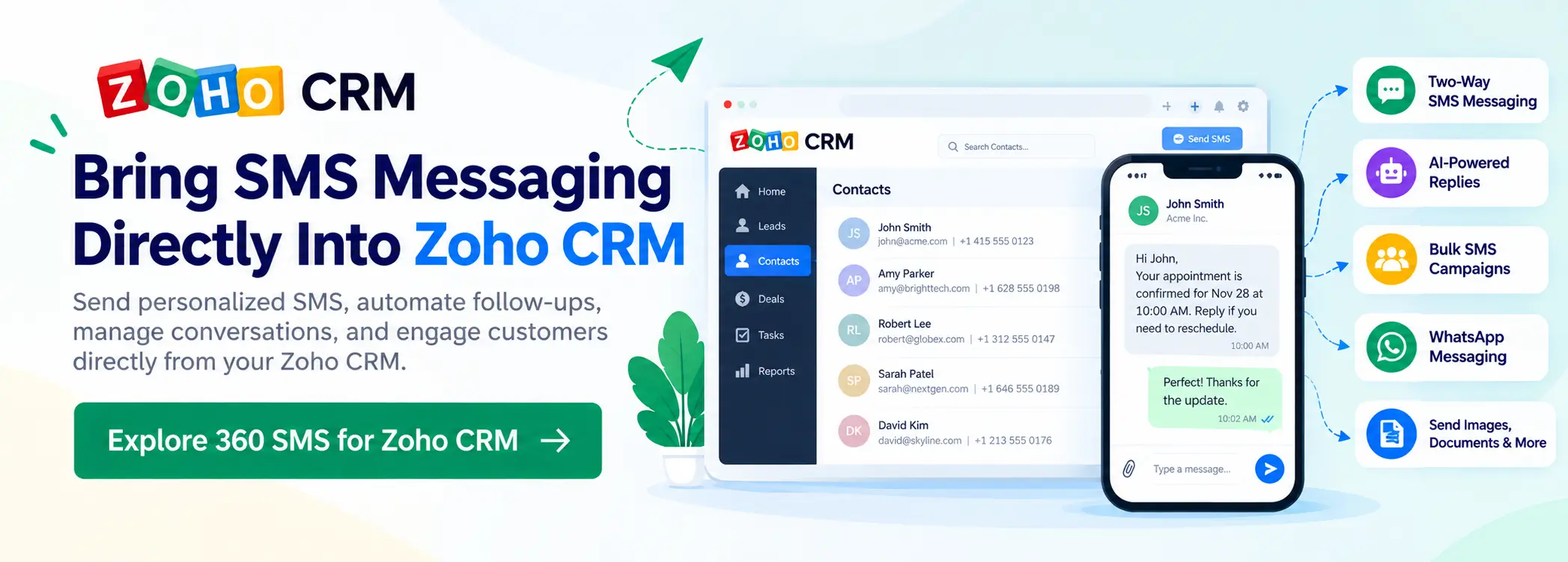
When you look for a tool to connect texting to your Zoho CRM, you want one that fits perfectly and also provides you with advanced capabilities to cater to the modern audience’s requirements. That’s why the 360 SMS for Zoho CRM app is a top choice. It’s built to solve your messaging headaches and make your team work smarter with AI-powered messaging.
Here’s what makes the 360 SMS for Zoho CRM app so great:
-
Access to Multiple channels:
It’s not just plain texts! You can send pictures and documents (MMS) and even talk to customers on WhatsApp—all from inside your Zoho account without redirecting to an external portal.
-
Next-Level AI Assistance:
The 360 SMS Zoho CRM integration uses smart AI features to help you:
- Get 24/7 Answers: Their AI ChatAgent can automatically reply to common questions, even in the middle of the night. This means you never miss a chance to help a customer and seize an opportunity
- Create Impactful Templates: Creating a message template requires your time, effort, and creativity. But that’s not the case with 360 SMS. You can easily create templates with AI by simply entering prompts and get perfect messages ready for you in seconds, making your texts more engaging and likely to receive a reply. The best part is you can even organize those message templates in folders for quick access when required.
- Get Perfect Replies while chatting one-on-one: When you have to think while crafting each response, talking one-on-one with your prospect or customer can drain time and extend the chat sessions. With 360 SMS, you get auto-generated responses that you can use as is or tweak as needed for faster responses without brain-racking.
- Manage Compliance with AI: Typically, it requires user-defined incoming keywords for automatic opt-outs. In 360 SMS, AI supports intent-based opt-outs, which eliminate the dependency on incoming keywords.
-
Track links and refine strategies:
Share on brand, shorten links, and track click-throughs to gauge customer engagement, allowing you to tweak your messaging strategies for better results.
This app gives you everything you need to keep your customer conversations organized and effective in one place with a more connected multichannel CRM approach.
Step-by-Step: Connecting 360 SMS App to Zoho CRM in Minutes
You might think adding a feature like this is complex, but connecting the 360 SMS App is surprisingly simple, even if you are not tech-savvy.
Here are the quick steps you’ll follow:
- Log In and Install: Go to your Zoho CRM. Use the link provided by 360 SMS to find the extension page, check the boxes, and confirm the install.
- Select Your Users: Choose exactly which team members should have access to the texting features.
- The Quick Link-Up: You’ll click a button like ‘Set Up Zoho,’ pick your data centre (like US or EU), and then click ‘Accept’ to let the app connect securely to your data.
- Assign a Number: Finally, you choose the phone numbers you want to use for sending and receiving messages.
That’s it! In just a few easy steps, you’re ready with your Zoho CRM to send SMS, gaining a powerful new way to communicate.
Crafting and Sending SMS That Actually Gets Read
With your Zoho text integration active, the goal is to send texts that are impossible to ignore. Use the customer data you have in Zoho to make every message unique and personal.
Example: Ditching boring and generic reminders, you can automatically add personalized details to send a message like: “Hi, [Customer Name]. Your technician, Sarah, for your [Service Type] is on her way and will arrive in 20 minutes.”
You can send texts to one person or select a group of people from your Zoho list view and send a personalized Zoho bulk SMS campaign that still feels personal to everyone.
Automate Like a Pro: Let SMS Do the Work for You
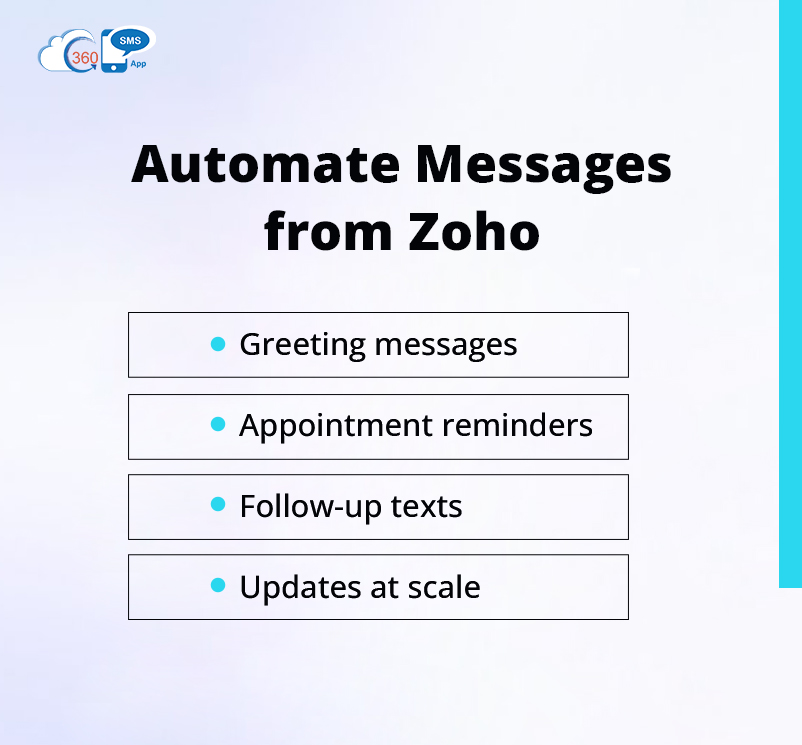
This is where you save real time. With automation, you can trigger an automatic text when a specific event occurs in your Zoho CRM.
- Welcome New Leads: When a new lead signs up, automatically send them an instant welcome text.
- Appointment Reminders: Set a rule to send a reminder text 24 hours before any meeting automatically.
- Follow-ups: After your initial outreach, you can plan automatic follow-up texts to nudge your customers if they haven’t responded in a while.
- Updates at Scale: In case of any support query raised by a customer, you can send automatic, timely updates and deliver quality experiences.
You can send personalized messages at scale and connect with your audiences in a more meaningful way with Zoho bulk SMS integration. It eliminates the need for additional resources or effort.
 Track, Measure, Optimize: Make Every SMS Count
 Track, Measure, Optimize: Make Every SMS Count
It’s important to know if your texts are actually helping your business. Your SMS tool should show you the results right in Zoho.
You need to focus on simple numbers:
- Response Rates: How many customers wrote back?
- Conversion Rates: Did the text lead directly to a sale or a completed booking?
By examining these numbers, you can determine if your texts are working. If your reminder texts stop people from missing appointments, you are directly saving money and proving that every Zoho CRM text message is a powerful investment.
Wrapping up
Sending texts through Zoho CRM is about much more than just having another way to communicate. It makes your conversations with customers faster, more personal, and a lot better. The right Zoho CRM SMS integration allows your business to connect with audiences at the right time and improve messaging ROI. When you use texting that’s built-in, especially with powerful apps like 360 SMS for Zoho, you are not just sending simple texts—you are building stronger relationships, keeping your customers excited, and helping your profits grow.
It’s time to harness the power of SMS and AI-powered messaging in Zoho and see your profits soar.
CEO Siddharth Sehgal is CEO & Salesforce Communication Guru. He helps businesses grow exponentially by putting their Salesforce CRM on steroids with his unique techniques. He is on a mission to help businesses build deeper relationships with their customers.

Siddharth Sehgal