 Speed, scale, and personalization — that’s what bulk messaging from a CRM should deliver. The reality with most setups? Teams export contact lists to an external SMS tool, lose all the CRM context in the process, and end up managing two separate platforms to track who replied to what.
It’s duplicate work. And it shows in the results.
When bulk SMS campaigns run from outside the CRM, messages aren’t tied to records. There’s no reply history against the lead. No delivery data on the contact page. Just a spreadsheet export and a hope that things sync back eventually.
360 SMS for Zoho fixes this natively. Every bulk SMS campaign from Zoho CRM goes out from inside the platform, pulls personalization data directly from CRM records, and logs replies back where they belong. This guide covers how to run those campaigns — SMS, MMS, and Zoho CRM WhatsApp bulk message sends — from List View to delivery tracking.
Table of Contents
What Is a Bulk SMS Campaign in Zoho CRM?
Simple version: it’s a one-to-many message send, triggered directly from a Zoho CRM List View or module. You filter a set of contacts, leads, or deals — pick a segment, compose a message, and send to all of them at once.
That’s different from automation. A bulk send is a deliberate campaign — a flash sale, a product update, an event announcement. Automation is a workflow-triggered message based on a CRM event. Both are useful. This guide is about the campaign side.
Channels supported through 360 SMS for Zoho: SMS, MMS, and WhatsApp. Same interface, same CRM record, different channel depending on what fits the audience and message type.
Why Send Bulk SMS and WhatsApp Directly from Zoho CRM?
The short answer: because your data is already there.
No export needed. No importing a CSV into a third-party tool and wondering if it’s current. Contacts, leads, and deals in Zoho CRM are the audience — you filter them and send directly. Every message ties back to the record. Delivery status, replies, read receipts — all on the contact page, not in a separate platform.
Personalization also works properly this way. CRM-Based Personalization in 360 SMS pulls from the actual fields on each record. Deal Stage, Lead Source, industry, location — real segmentation data, not just a first name merge. That’s a meaningful difference when you’re sending at volume and want replies.
Step-by-Step: How to Send a Bulk SMS Campaign from Zoho CRM with 360 SMS
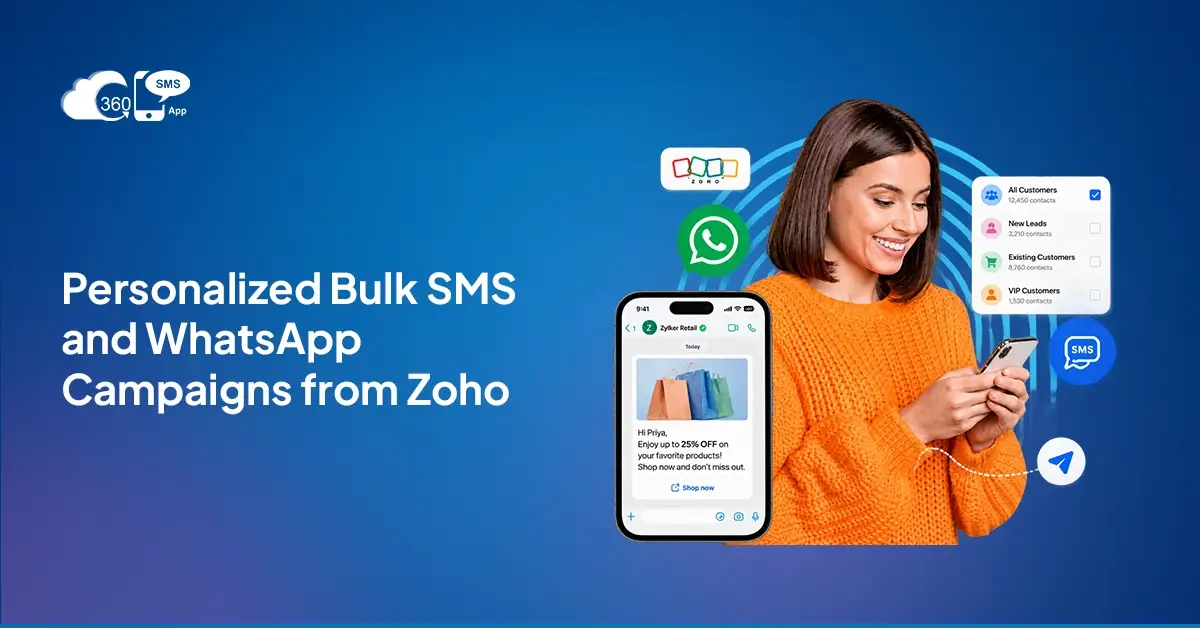
Step 1 — Filter your audience in Zoho CRM List View. Go to the module — Contacts, Leads, Deals — and filter by whatever criteria matters for this campaign. Industry, lead source, deal stage, location. The filter is your audience.
Step 2 — Select recipients. Pick specific records or the full filtered list. You’re working with live CRM data throughout.
Step 3 — Choose your channel. SMS for broad reach, MMS when visuals add value, WhatsApp for opted-in contacts where conversational replies are expected.
Step 4 — Compose with merge fields. Pull in contact name, deal stage, product, location — whatever fields exist on the record. Not sure how to phrase the message? AI Template Generation in 360 SMS drafts campaign copy based on message type and tone, which saves time at the composition stage and keeps message quality consistent across large sends.
Step 5 — Send now or schedule for later. Immediate send for time-sensitive campaigns. Scheduled send for planned sequences — set the date and time and let it run.
Step 6 — Monitor inside Zoho. Delivery status updates against each record. Replies come into Conversation View, linked to the contact. No switching tabs to check what happened.
How to Personalize Bulk Messages Using Zoho CRM Data
Most bulk messaging tools offer first-name merge. That’s not personalization — it’s just variable replacement.
Real personalization in a send bulk SMS from Zoho CRM workflow means using deal stage, industry, lead source, or custom fields that actually change the relevance of the message. A contact in the “proposal sent” stage should get a different follow-up than one at “first contact.” Zoho CRM has that data. 360 SMS pulls it directly into the message template.
Segmenting by these fields before the send — rather than sending the same message to every contact — is what lifts reply rates. The message lands differently when it reflects something specific about where that contact is.
Running a Bulk WhatsApp Campaign from Zoho CRM
WhatsApp bulk sends have one requirement that SMS doesn’t: Meta-approved templates. You can’t compose a free-form WhatsApp message and blast it to a list. The template needs to be approved by Meta first.
Within 360 SMS for Zoho, templates are managed inside the platform. Once a template is approved, it’s available for selection at the point of sending — the same List View workflow as SMS, just with a WhatsApp template step before you send.
Zoho CRM WhatsApp bulk message delivery is tracked the same way as SMS: delivery status and read receipts update against each contact record. Replies come back into Conversation View on the record, so the conversation history stays in context regardless of channel.
Scheduling Bulk SMS and WhatsApp Campaigns in Zoho CRM
Not every campaign should go out the moment you finish composing it.
Scheduling inside 360 SMS for Zoho lets you set a future send date and time — useful for coordinating campaigns across time zones, syncing with product launches, or hitting the send windows that tend to get better engagement. For SMS, late morning weekdays generally perform well. For WhatsApp, mid-afternoon on weekdays. These aren’t guarantees, but they’re reasonable defaults to test against.
Scheduling also means you’re not tied to a desk when the campaign goes out. Set the time, set the date, and it sends on its own
Tracking Campaign Performance Inside Zoho CRM
After a campaign sends, Messaging Analytics in 360 SMS gives you delivery rate, read rate, and response rate. The numbers that matter for deciding whether a campaign worked and what to adjust on the next one.
Replies auto-log to the contact’s CRM record in Conversation View. Which means a rep can open a record and see exactly how that contact responded to the last campaign — not in a separate inbox, not in an export, right there on the record. That context is what makes follow-up conversations actually useful rather than starting cold.
For Zoho CRM WhatsApp bulk message sends, read receipts track where supported, giving a clearer picture of engagement than delivery rate alone.
How 360 SMS Makes Bulk Campaigns Better in Zoho
Zoho CRM’s List View gives you the filtering and the audience. 360 SMS adds the messaging layer that Zoho doesn’t have natively — and a few things on top that make campaign execution faster and more reliable.
AI Template Generation means you’re not starting from a blank template for every send. Give it the campaign type and tone, and it drafts the message. From there, it’s editing, not creating.
AI Compliance handles opt-out management without keyword dependency. A contact who replies “take me off your list” or “please stop texting” gets processed the same as one who replies STOP. Intent-based detection catches the variations that exact-match systems miss — which matters at scale when message volume is high, and replies don’t follow a predictable format.
And all three channels — SMS, MMS, WhatsApp — run from the same interface. One place to build the campaign, one place to track the results, one place to see replies. No toggling between tools.
Final Thoughts
Bulk messaging works best when it’s built into the workflow rather than bolted on from outside. When a bulk SMS campaign from Zoho CRM runs natively — filtering from List View, personalizing from CRM fields, tracking replies on the record — the gap between sending a message and managing the conversation that follows shrinks considerably.
That’s the case 360 SMS for Zoho makes: not just bulk sending, but bulk sending that stays inside the CRM where the contact data, deal history, and conversation context already live. Campaigns go out faster, replies stay in context, and reps aren’t stitching together two platforms to figure out what happened.