 Text-only SMS gets the job done. Most of the time. But there’s a point where words alone stop working, and that point comes faster than most sales or marketing teams expect. Trying to show a product, walk someone through a setup, or get a reply from a contact who’s ignored three follow-up emails? Plain text has a real ceiling.
MMS punches through it. Drop a product image, a PDF proposal, a promotional banner straight into the conversation, same way you’d text a photo to a friend. People respond to visuals differently than they respond to words. Not every time, but consistently enough that skipping MMS is leaving something real on the table.
Most Zoho CRM teams, though, aren’t sending MMS from inside the CRM. They paste links. They send email attachments. They jump into a separate tool and hope the context travels with them. It usually doesn’t. Follow-ups fall through, no one knows which version of the proposal went out, and the contact record shows nothing.
That’s the gap this guide covers: what MMS actually is, when it beats plain SMS or WhatsApp, which file types go through 360 SMS, and how to build it into the workflow without adding new problems.
Table of Contents
What Is MMS and How Is It Different from SMS?
160 characters. No attachments. That’s SMS, and it’s fine for what it is.
MMS (Multimedia Messaging Service) carries files. Images, PDFs, documents your recipient can open and act on. The character cap jumps to 1,600, which already changes the format. But the file is the point.
And it’s not WhatsApp. Worth being clear about that. WhatsApp needs an internet connection and an installed app. MMS runs over the carrier network, same infrastructure as a regular text. No app on the recipient’s end, no Wi-Fi dependency. Any mobile number can receive one. That’s why MMS is still a legitimate channel in 2026, years after everyone assumed WhatsApp had made it obsolete.
Quick Comparison: SMS vs MMS vs WhatsApp for Business
| Feature | SMS | MMS | |
| Media support | None | Images, PDFs, Docs | Images, PDFs, Docs, Video |
| Character limit | 160 | 1,600 | 4,096 |
| Requires app | No | No | Yes |
| Template approval needed | No | No | Yes (outbound marketing) |
| Read receipts | No | No | Yes |
| Carrier network delivery | Yes | Yes | No (data only) |
Why Use MMS in Zoho CRM?
Here’s the thing: MMS inside a CRM isn’t really about the file format. It’s about where the conversation ends up.
Send a product brochure through an external tool and it vanishes into a thread no one revisits. The rep knows they sent it. The record doesn’t. Next person who touches that contact starts from scratch, either re-sending something already shared or asking a question that makes the team look disorganized.
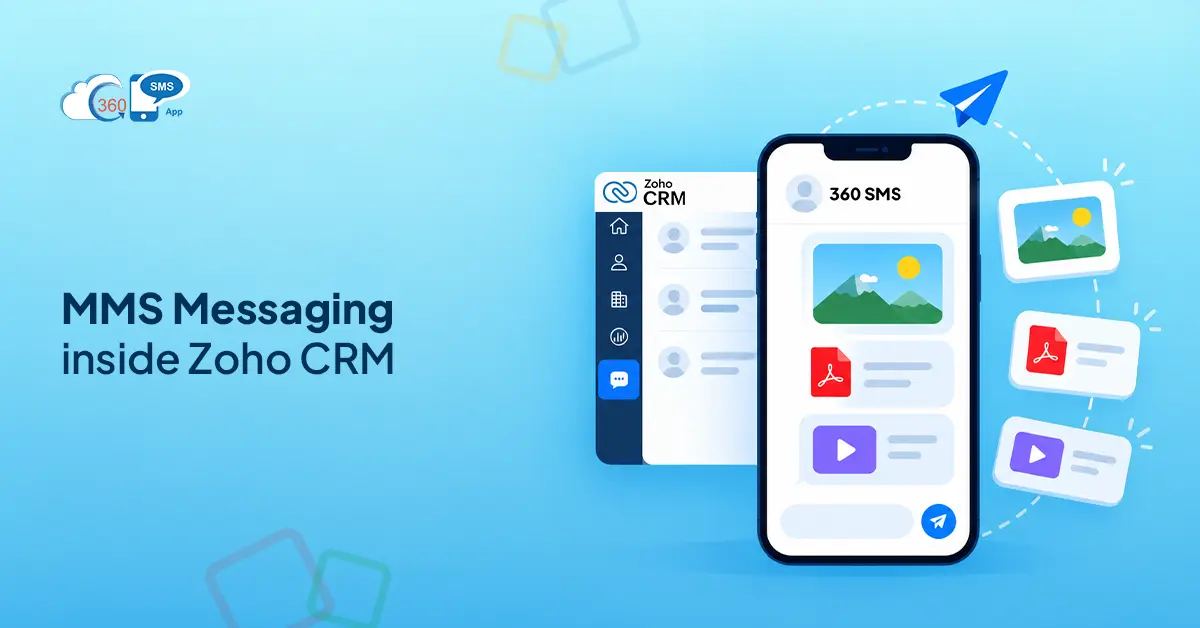
360 SMS logs every MMS conversation directly to the Zoho record, whether that’s a contact, lead, or deal. Automatically, no manual entry. The next rep who opens that record sees the image that went out, the PDF that was shared, the reply that came back, all in sequence, right where the rest of the contact history lives.
In practice, this matters most when more than one person touches an account. The message history is the handoff. Without it on the record, the handoff doesn’t really happen.
Top Business Use Cases for MMS in Zoho CRM
Sales Teams
PDF proposals, product images, pricing sheets: getting these in front of warm leads without the drag of email is where MMS earns its place. A text arrives differently than an email sitting unopened in a folder. Sales reps using MMS through 360 SMS send directly from the deal or contact record, so the file and the conversation stay in the same place.
Customer Support
Some things are faster to show than explain. A screenshot of where to click, an annotated image of the error screen: a support rep can attach and send in seconds instead of writing three paragraphs that may still leave the customer confused. Everything logs back to the record automatically.
Marketing Campaigns
Promotional banners, event invites with a visual, onboarding materials people actually look at rather than file away: these are solid MMS use cases. 360 SMS runs bulk MMS campaigns from Zoho CRM List Views, so the creative goes out with the segmented send without the marketing team needing a separate campaign tool.
Onboarding and Customer Success
New customers need documents. Setup guides, welcome packs, instructions that are actually useful in week one. MMS gets these delivered as a text, which typically gets opened, and the success team has a timestamped record of what went out and when. No digging through email threads to confirm something was sent.
How to Send an MMS from Zoho CRM with 360 SMS (Step-by-Step)
Simpler than people expect. Genuinely.
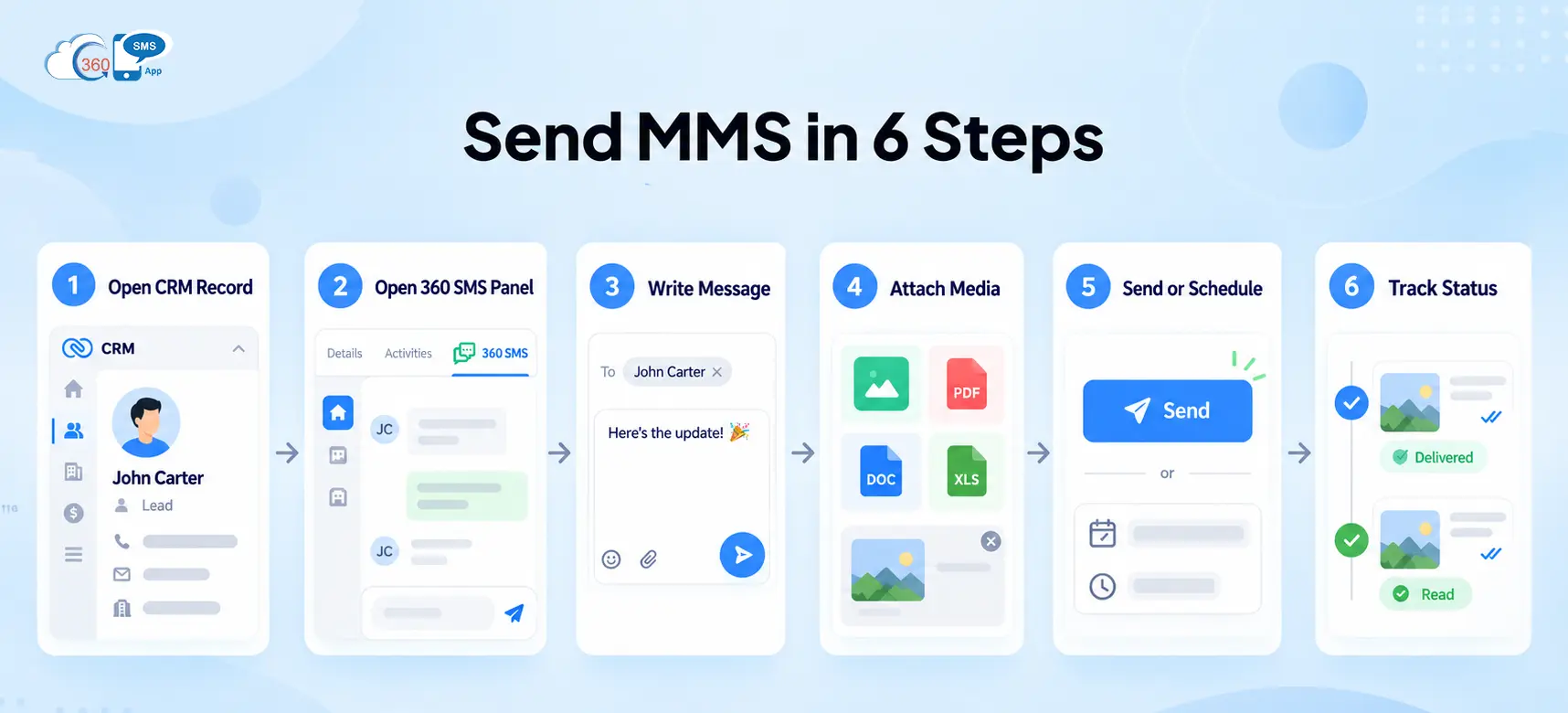
Step 1 — Open the CRM record.
Pull up the lead, contact, or deal in Zoho CRM. The 360 SMS panel sits directly on the record, no separate tab, no redirect to another tool.
Step 2 — Open the 360 SMS messaging panel.
It loads inside the record. Previous conversations are right there in the thread, so you can see what’s already been sent before composing anything new.
Step 3 — Write your message.
Keep it short. The attachment carries the weight; the text gives context for what they’re about to open.
Step 4 — Attach your media file.
360 SMS handles images, PDFs, DOC/DOCX, and XLS/XLSX natively. Attach straight from the panel, no converting files, no third-party upload tool in the middle.
Step 5 — Send or schedule.
Send now, or set a specific date and time if the timing is part of the campaign. Schedule it once, and it goes without anyone needing to follow up.
Step 6 — Track delivery and read status.
Once it’s out, delivery status and read status update on the CRM record. You can see whether the message landed and, where the recipient’s carrier and device support it, whether it was opened, all from inside Zoho.
Sending Bulk MMS Campaigns from Zoho CRM
One-to-one MMS handles conversations. Bulk MMS handles scale.
360 SMS runs bulk campaigns straight from Zoho CRM List Views. Filter contacts the way you normally would: by segment, deal stage, owner, whatever the send calls for. Attach the file, launch. Every message in the batch goes out with the same attachment.
Personalization still works at volume. Merge fields pull from CRM records (contact name, company, assigned rep), so each message reads as individual even across a large list.
To be fair, bulk MMS has one real consideration: file size. Compress before uploading. Heavy files slow delivery and catch carrier filters. A clean 400KB file will outperform a 900KB uncompressed version across the same list, particularly at scale. That difference matters when you’re sending to thousands.
MMS vs WhatsApp for Rich Media: Which Should You Use in Zoho CRM?
Both, honestly. They serve different situations.
MMS reaches any mobile number: no app install, no WhatsApp opt-in, no template sitting in a Meta approval queue. When someone needs a file fast, and you have their number, MMS is the shortest path between send and delivered.
WhatsApp has the interactivity edge. Read receipts are native. Templates support CTA buttons. For ongoing customer relationships where the conversation is the product, WhatsApp runs better. And if most of your contacts are already active there, that’s a real advantage.
In practice, the channel usually picks itself based on relationship stage. MMS for reach and speed. WhatsApp where the relationship is established and the two-way exchange matters. 360 SMS handles both from the same Zoho CRM interface: same record, same inbox, same message history. No permanent channel assignment per contact, no switching between tools. For teams already running WhatsApp for Zoho CRM, the channel works best where the relationship is established and replies are expected.
Tips for Effective MMS Messaging in Zoho CRM
Sending MMS is straightforward. Sending it well takes a bit more thought, mostly around file preparation and how the message is framed. A few things that actually move the needle:
- Compress files before attaching. Recipients on slow connections will open a heavy file once, then stop. You won’t know which contacts those are until after the campaign runs. Keep images under 500KB where possible.
- Use landscape orientation for images. Portrait images get clipped or force the recipient to scroll. Test on an actual device before anything goes to a full list.
- Pair a strong line of copy with the media. An image with no context gets ignored. Something specific (“Here’s the proposal we discussed” or “Your setup guide is attached”) gives the recipient a reason to open it.
- Don’t let the image carry the whole message. Carriers occasionally suppress media. The text needs to stand on its own if the attachment doesn’t come through.
- Test across carriers before a full campaign send. Rendering varies more than most teams realize: clean on one network, broken on another. A quick test to a handful of numbers across different carriers catches problems before they hit the whole list.
How 360 SMS Enables MMS Natively in Zoho CRM
No external tools. No portals. No workflow that bounces through three systems before a file gets sent.
The 360 SMS panel lives on the CRM record itself, not behind a redirect, not in a tab with its own login. MMS goes from there directly: images, PDFs, DOC/DOCX, XLS/XLSX, attached and sent without leaving the contact or deal record.
Delivery and read status feedback to the CRM automatically. Bulk MMS runs from List View. Merge fields handle personalization. Every message, every file, every reply logs to the record where the contact lives.
In practice, the next rep who opens that record has everything they need without asking anyone what went out or when. That’s the actual difference between a messaging tool that connects to your CRM and one that’s built inside it.
Wrapping Up
MMS from Zoho CRM is not a complicated setup. Use cases are concrete: product images, PDF proposals, onboarding documents, promotional creatives. The process through 360 SMS is one the team can run without a new training session or a separate platform to manage.
What makes it worth setting up properly is the logging. Every message on the record. Every file visible in context. Every conversation tracked against the contact or deal it belongs to. Teams that get this right stop losing track of what was sent and to whom, and that one change makes follow-ups significantly more reliable. The file went out. The record shows it. The next step is right there.
Send richer messages your contacts actually open, without leaving Zoho CRM.