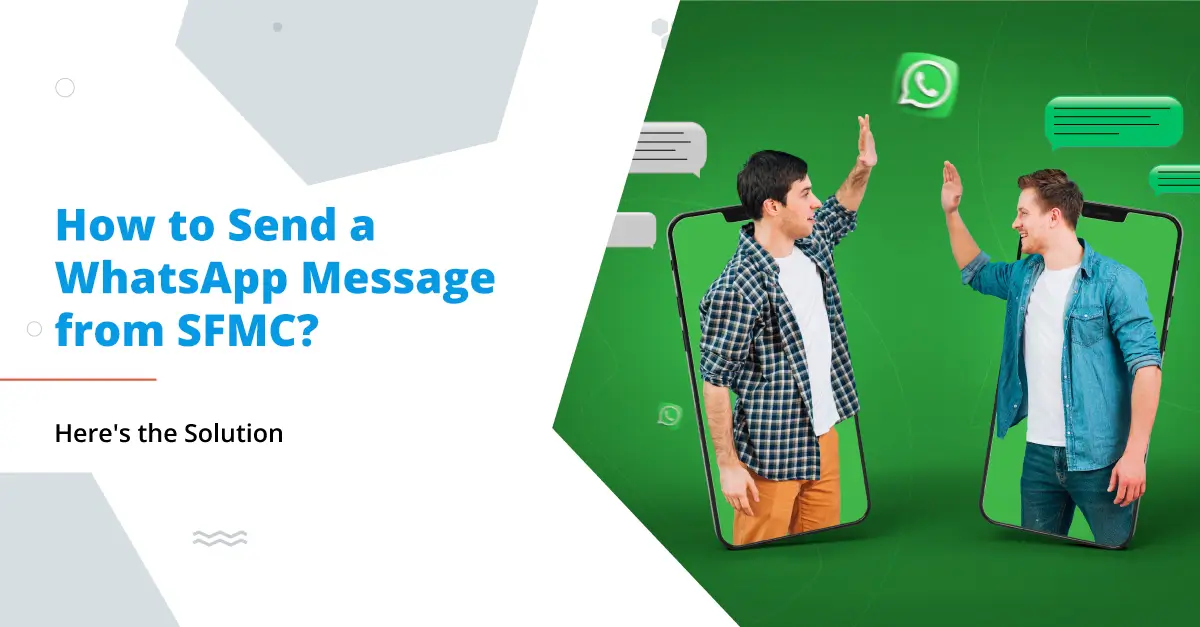
More specifically, companies of today in the contemporary world need to initiate long-term interactions with their customers through multichannel customer communication. Because WhatsApp is a very widespread multiplatform messaging service, it has become a useful tool for businesses to communicate directly and instantly with clients. Posting on Facebook is a cinch, but using SFMC SMS and SFMC WhatsApp as part of your Salesforce Marketing Cloud (SFMC) customer engagement programs is difficult for most organizations.
Well, if ever you wanted to learn how to send a WhatsApp message from SFMC or how to get efficient with marketing messages through multiple channels, you have come to the right article.
This blog will help you understand how to send WhatsApp messages using SFMC and how you can make the process even better by integrating 360 SMS for both the SMS and WhatsApp message-sending processes.
Table of Contents
Can You Send SFMC SMS and SFMC WhatsApp Messages?
Yes — and it’s worth being precise about what that means now.
Marketing Cloud Next does support WhatsApp natively. SMS and RCS too, with two-way conversations included. So if you’re on Marketing Cloud Next and WhatsApp is what you need, the channel itself is available.
But here’s what most teams run into quickly: getting WhatsApp live on Marketing Cloud Next requires Data Cloud as a mandatory dependency. You need to provision it, configure identity resolution, and work within a consumption-credit pricing model that shifts based on volume and message type. For teams that want WhatsApp running inside Salesforce today — without that platform overhead — that’s a real barrier.
The 360 SMS integration gives you a faster, simpler path. WhatsApp, SMS, and 15+ other channels, working natively inside your existing Salesforce org, without needing Data Cloud first. No complex API wiring, no consumption-credit unpredictability, no weeks of implementation before a single message goes out.
Enable WhatsApp Messaging in Salesforce Marketing Cloud
Connect SFMC with WhatsApp using 360 SMS and start engaging customers instantly—no complex APIs required.
Official WhatsApp API • SFMC Compatible
Steps to Send a WhatsApp Message from SFMC
While sending WhatsApp messages from SFMC requires additional integration, here’s a step-by-step guide to help you get started:
1. Set Up a WhatsApp Business Account:
First, you require the creation of a WhatsApp Business Account and, its subsequent, verification process. It is crucial in this step to ask for permission from WhatsApp to convey messages to customers.
2. Integrate WhatsApp API with SFMC:
Connect WhatsApp with SFMC by linking the application 360 SMS as an API. With Salesforce Marketing Cloud API you can also send messages, create automatic responses, and control the customers’ interactions inside the Marketing Cloud.
3. Configure Message Templates:
WhatsApp has strict guidelines on message content, especially for initial customer outreach. Create pre-approved message templates in SFMC to ensure compliance with WhatsApp’s rules. These templates should cover different scenarios, such as order updates, customer support responses, and promotional messages.
4. Define Your Customer Journey:
To conduct a customer journey with a WhatsApp messaging channel, you can proceed with SFMC’s Journey Builder and design a customer journey. Mapping your customer journey will help you determine the right amount and the right way to send WhatsApp messages as part of your marketing strategy.
5. Send WhatsApp Messages:
Once you set up your templates and get them approved, and map out your customer journey, you’re ready to start sending them WhatsApp messages without leaving the SFMC. With the right integration, you can automate message sends based on customer actions and triggers within SFMC.
6. Track and Analyze Engagement:
Use SFMC’s analytics tools to monitor message performance, open rates, and responses. This data will allow you to adjust your WhatsApp messaging strategy for optimal engagement.
The Role of 360 SMS Integration in SFMC SMS and WhatsApp
While SFMC can be configured to send WhatsApp messages via API, adding the 360 SMS integration offers a more comprehensive solution for managing both SMS and WhatsApp communications. Here’s how 360 SMS can make your SFMC SMS and WhatsApp experience even better:
1. Unified Platform for SMS and WhatsApp
The 360 SMS integration enables SFMC users to manage SMS and WhatsApp messaging within one unified platform. This seamless setup allows you to manage both channels with ease, ensuring you can reach customers on their preferred platforms. Instead of managing separate systems, 360 SMS brings SMS and WhatsApp under one roof within SFMC.
2. Cost-Effective Messaging
It can be cheaper to use SFMC WhatsApp through 360 SMS than through other 3rd party integrations. With 360 SMS, we consolidate SMS and WhatsApp and make it easy for organizations to save on messaging costs without sacrificing reach or engagement.
3. Scalable Messaging
360 SMS integration in SFMC supports scalable messaging, allowing you to reach a large audience without worrying about limitations. As your business grows, your messaging needs can expand alongside it, making 360 SMS a suitable choice for organizations with high messaging volumes.
4. Enhanced Analytics and Tracking
By allowing SFMC users access to analytics tools for monitoring and analyzing engagement rates for SMS and WhatsApp messages, 360 SMS brings the platform up to date in 2019. The feature allows businesses to drive decisions using real-time performance data and leveraging that, refine their messaging strategies moving ahead.
5. Easy Setup and Configuration
The 360 SMS integration provides a streamlined setup and configuration process within SFMC WhatsApp. With easy-to-use templates, point-and-click automation, and drag-and-drop tools, 360 SMS reduces the technical complexity of setting up WhatsApp in SFMC, enabling even non-technical users to send messages with ease.
Run SMS & WhatsApp Campaigns from One SFMC Platform
Automate journeys, send bulk messages & track engagement for SMS and WhatsApp with 360 SMS.
Cost-Effective • Scalable • No-Code Setup
Additional FAQs
As we wrap up, here are some commonly asked questions about SMS and WhatsApp integration in SFMC:
Can you do SMS with WhatsApp?
You can manage both the SMS messages and WhatsApp messages with 360 SMS, that is, you can deliver messages to your customers on the channel of choice — that’s both the best channel for the message and for the interests and preferences of your customer.
Can Salesforce Marketing Cloud send SMS?
Yes. Marketing Cloud Next supports SMS natively, alongside WhatsApp and RCS. That said, native SMS on Marketing Cloud Next requires Data Cloud provisioning and runs on a consumption-credit model — so costs vary based on volume and message type. The 360 SMS Add-on gives you SMS, WhatsApp, and 15+ additional channels on a flat subscription, directly inside Salesforce, without the Data Cloud dependency.
Can WhatsApp access my SMS?
No, WhatsApp cannot directly access your SMS messages. WhatsApp operates independently and only sends and receives messages within the app itself.
Conclusion
WhatsApp is now available in Marketing Cloud Next — that part’s settled. But available and easy to run are two different things.
Data Cloud dependency, consumption-credit pricing, weeks of provisioning — for teams that just need WhatsApp to work inside Salesforce without buying the full data platform stack, that setup process creates more friction than it solves. And once you’re through it, you’re still limited to three channels: SMS, WhatsApp, and RCS.
The 360 SMS integration covers 15+. Instagram, WeChat, Viber, LINE, Kakao, LinkedIn, Zalo, Facebook Messenger, WebChat — channels your customers are actually on, depending on where they are and what they use. Flat subscription pricing means you know your cost before the campaign goes out. And setup takes about 20 minutes, not weeks.
It’s not a replacement for what Marketing Cloud Next does well. But for the messaging side — especially operational, 1:1 conversations across more than three channels — it’s a meaningfully better fit for most teams.
Reach out at care@360smsapp.com or contact us here to see how it fits your current setup.