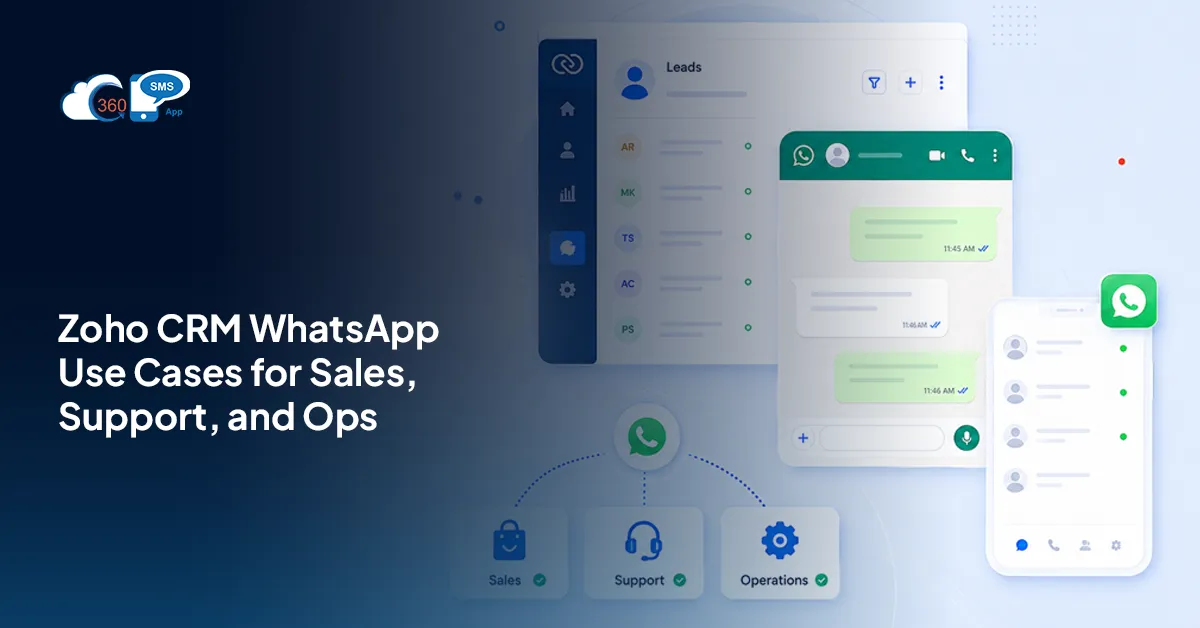
You’ve got WhatsApp connected to Zoho CRM. Now what?
That’s usually where the excitement stalls. Setup felt like progress. Then the panel just sits there, and nobody’s quite sure which messages are worth automating versus which should stay manual. Hunting for real Zoho CRM WhatsApp use cases, not another feature list? This is that. Split by team, split by moment, failure mode included for each one. Knowing what goes wrong matters more than knowing what’s technically possible, and that’s the piece most posts on this topic skip entirely.
Table of Contents
Why WhatsApp Works Differently From SMS Inside a CRM
SMS is a text box. WhatsApp is a conversation. That distinction changes what you can actually send. So, setting up WhatsApp Business with Zoho shouldn’t be an uphill task
Media files like images, PDFs, and videos make WhatsApp conversations more interesting than plain-text messaging. Customers can receive useful content directly in the conversation, while your team can keep the interaction connected to the relevant Zoho CRM record. Customers reply the way they’d reply to a friend, in fragments, with a photo attached sometimes, and the thread holds all of it in order.
But here’s the catch: outside the 24-hour customer service window, businesses generally need to use approved WhatsApp message templates to initiate or continue conversations. Not a big deal once you know it’s going in. A real problem if you don’t, because a live customer conversation can go quiet for a day, and suddenly you’re stuck sending only what Meta has already signed off on.
 Sales Use Cases
 Sales Use Cases
Speed matters more here than anywhere else in the funnel. Full stop.
Instant response to a new enquiry. Lead fills out a form; a WhatsApp message goes out within seconds acknowledging it. Teams responding within five minutes convert at meaningfully higher rates than teams that wait an hour (and an hour feels fast to most sales teams, which is part of the problem). What goes wrong: a generic “thanks for your interest” that could’ve come from any company on earth. Pull in their name and what they actually asked about, or skip it entirely. A lazy auto-reply does more damage than no reply at all, because now the lead knows a bot touched their enquiry first.
Reply within seconds but remain relevant. With AI-powered replies, salespeople can respond within seconds to one-on-one messages without being irrelevant. In that regard, sales representatives have extra time to engage with their prospects.
Share relevant resources. Sending a brochure, price list, or product photo without email works the same way, minus the wait. Attach the file, send it in the thread, done. No PDF vanishing into a spam folder somewhere, no “did you get my email” follow-up call three days later. What goes wrong here is dumber than it sounds: a file too large for the recipient’s connection, one nobody bothered to compress. Test it on your own phone before it goes live, on a slow connection if you can manage it.
Follow-up nudges on a stalled deal. Deal sits untouched for five days; a Zoho CRM workflow or scheduled action can trigger a WhatsApp follow-up automatically. Short. Low-pressure. Easy to ignore, easier to answer than an email ever was, since replying to a WhatsApp message takes ten seconds and replying to an email somehow always takes longer. What goes wrong: nudging too often. Three follow-ups in a week read as desperate, not diligent, and prospects notice the difference fast.
Send meeting and site-visit confirmations. Confirm the time, remind them the morning of, done. Cuts no-shows hard, and the reminder itself barely takes any setup once the workflow exists. What goes wrong is subtle: forgetting a reschedule option, so people who can’t make it just don’t show instead of telling you they can’t. Give them an easy out, and most of them will actually take it, which sounds counterintuitive until you’ve seen the no-show numbers drop.
Share and track links more effectively. Use Link Tracking & URL Shortening to share cleaner URLs in your messages and track customer engagement, giving sales teams another signal beyond replies alone.
For teams ready to automate this end-to-end, learn how to use Zoho CRM workflows with 360 SMS to trigger WhatsApp messages automatically.
Support Use Cases
Support runs on a different rhythm entirely. Less urgency, more reassurance.
- Ticket acknowledgement and status updates. When a ticket is created or its status changes, a Zoho CRM workflow can trigger a WhatsApp message confirming receipt or sharing a relevant update. Customers stop calling in to ask, “Did you get my ticket?” once this is running, which frees up more agent time than people expect. Send too many, and the one that matters gets lost in the noise, though, so pick two or three status changes worth a message and skip the rest.
- Sharing a how-to video or document instead of typing instructions. Some problems are more easily shown than explained across six paragraphs of typed steps. Link to something mobile-optimised, since that’s how most people are reading this anyway, probably standing in their kitchen holding the broken thing in one hand.
- Post-resolution check-in. Ticket closes; a message goes out a day later asking if it stuck. Catches problems that quietly resurface before they turn into a one-star review somewhere public. Send it too soon, before the customer has tested the fix, and you’ll get a shrug instead of a real answer, or worse, an annoyed one.
- Make WhatsApp support conversations smarter with AI. Automation handles when a message goes out. AI can help with what you say. With 360 SMS for Zoho, teams can create message templates using AI prompts, generate AI-assisted replies during one-to-one conversations, and use intent-based opt-out detection to identify customers who want to stop receiving messages.
Operations Use Cases
Ops use cases run the most transactions of the bunch, and that’s exactly why they template so well.
Order and delivery updates follow a predictable arc: placed, shipped, out for delivery, delivered. Four messages, all templated, all triggered by a status field changing on its own, no one manually typing “your order shipped” fifty times a day. The failure mode is almost always the status field lagging behind reality, so customers get a “delivered” ping a day early and start asking where their package actually went, which generates more support tickets than the automation was supposed to prevent.
Payment and renewal reminders work on a tighter emotional line. A reminder goes out a few days before the due date, then again if it’s missed. Tone matters more here than nearly anywhere else on this list. Get it wrong, and a helpful nudge reads like a threat, and customers remember which companies made them feel chased over a bill.
Which of These Should You Automate First?
Not all of these use cases deserve equal attention right out of the gate. Trying to launch everything at once is how most of these projects stall halfway through.
Here’s a rough filter: frequency times manual effort. Ask how often the message goes out. Then ask how much time it currently takes to send by hand. High frequency, high effort, that’s where you start. Low frequency, low effort waits, sometimes indefinitely, and that’s fine.
Two use cases almost always pay back fastest in practice: instant enquiry response and order or delivery updates. Both happen constantly. Both are currently eating someone’s afternoon, one message at a time, for no good reason. Get those two running first, let the team see it work, and the rest of the case for automating WhatsApp with workflows will make itself.
What to Get Right Before You Start
 What to Get Right Before You Start
Three things trip people up more than anything else when using WhatsApp for Zoho CRM.
Opt-in comes first, always. Opt-in comes first. Make sure customers have provided appropriate consent to receive WhatsApp messages rather than assuming that having their phone number means they have agreed to messaging.
Template approval is second. Meta reviews templates before they go live, and that review takes a few days, so don’t leave it until the week you actually need the template running.
Third is the 24-hour window itself. Message you: you get 24 hours to reply freely. Past that, only approved templates work, and there’s no way around it.
Get any of these wrong, and it’s not just a failed send. The whole number can get flagged, and getting a flagged number reinstated takes far longer than getting the setup right the first time would have.
Make opt-outs easier to manage. 360 SMS WhatsApp can use AI-powered intent detection to identify opt-out requests based on what customers mean—not just specific keywords—helping teams honor customer preferences more effectively.
Wrapping Up
Zoho CRM WhatsApp use cases were never really about picking from a list of nine. They’re about matching the right message to the right moment, and knowing exactly what breaks if the timing or tone is off. Start with two or three that hit hardest for your team this month. Sales gets speed-to-lead. Support gets the check-in. Ops gets the order update. Build those first. Watch how they land. Expand from there once the basics are running smoothly and the team trusts the automation isn’t going to embarrass anyone.
Curious what this looks like running inside your own Zoho account?