Batch Texting Techniques
There are three ways to send Batch Text Message aka Bulk SMS, Batch SMS with 360 SMS. This also applies to Batch MMS (sending of pictures):
- List Views – the Send SMS button is placed on List Views or Related Lists
- SMS from Reports – this is a unique feature only available from 360 SMS whereby you use standard Salesforce Reports to execute the batch SMS. This is the most robust method as SF Reports allow cross object queries and unlimited rows.
- Campaign – Add the Send SMS button to the Campaign Page Layout and all Campaign Members can be sent a Template of your choosing.
NOTE: Regardless of which method used, records marked “SMS Opt-Out” are never sent via a Batch SMS even if the criteria defined did not explicitly exclude them. The opt-out’s are simply skipped.
List Views
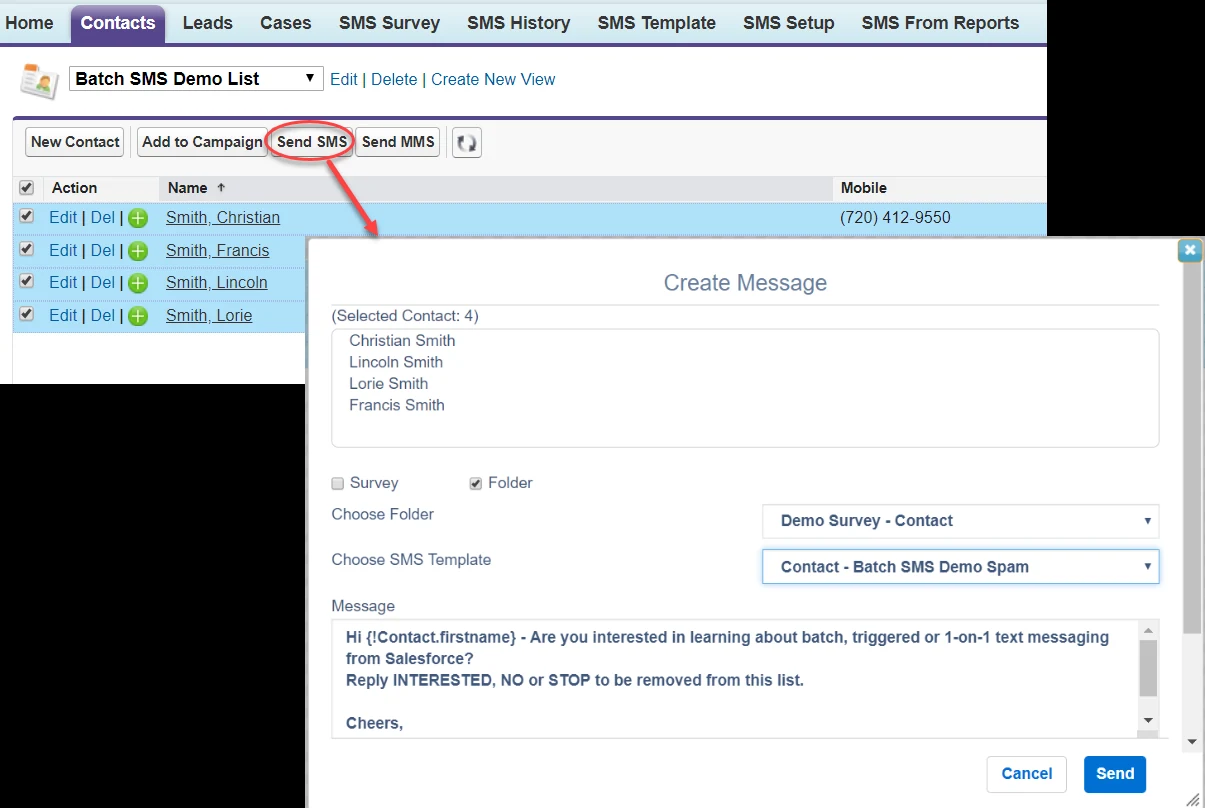
Figure 1 shows a typical List View (query) and the process of pressing the Send SMS or Send MMS button, then choosing a template to send. Batch MMS works the same way, but offers the option to choose the files to send.
Note that when sending Batch MMS only one copy of the file is stored in the Salesforce DOCUMENT object and all the outbound messages reference it, so as to save on storage.
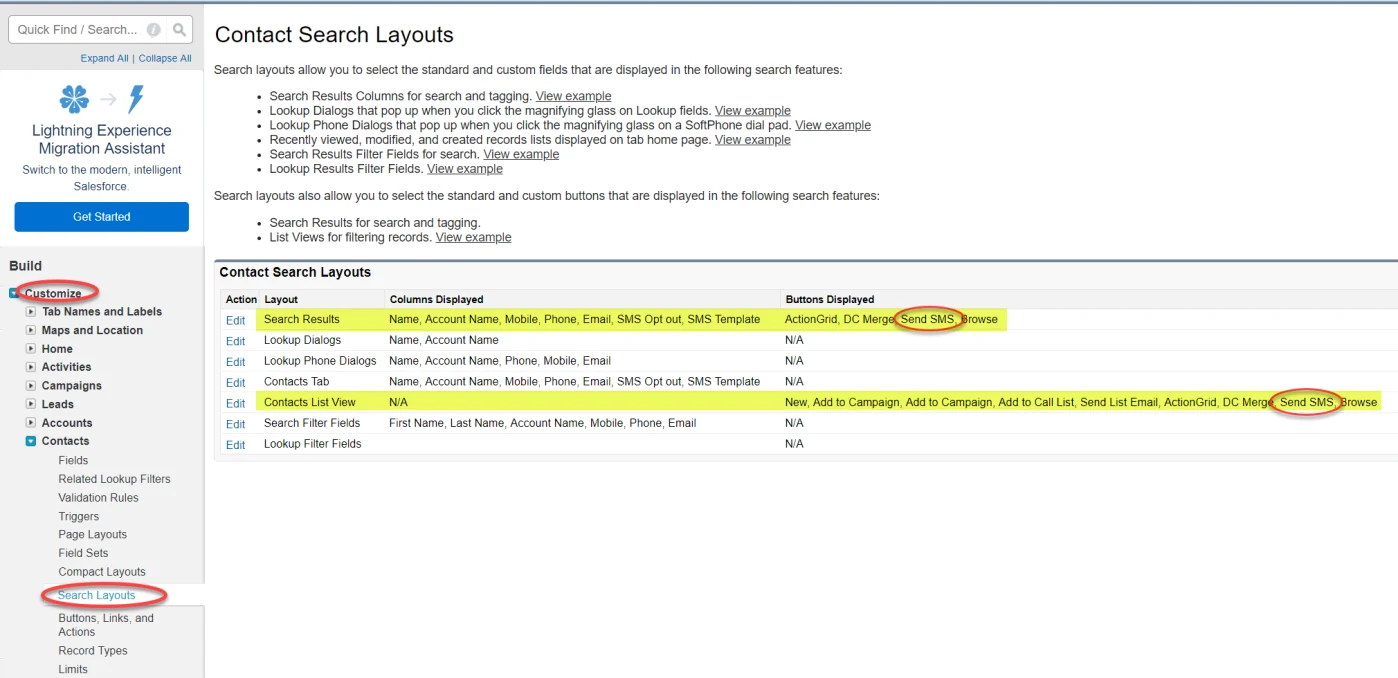
To configure Batch SMS for a List View or Related List simply add the Send SMS button to your standard Search Layouts and/or Related Lists. Note that there are separate Send SMS buttons for Lightning so choose accordingly. See Figure 2
SMS from Salesforce Reports
360 SMS is unique among SMS apps with its ability to use the native Salesforce Reports to execute Batch SMS. Many apps can send Batch SMS from Campaigns and from List Views, but List Views have two major limitations:
- Limited to 250 rows of selectable data
- No ability to do complex cross object queries such as “Contacts that were sent an SMS using Template = XYZ and which have ClickCount = 1 for the HyperLink Tracking”
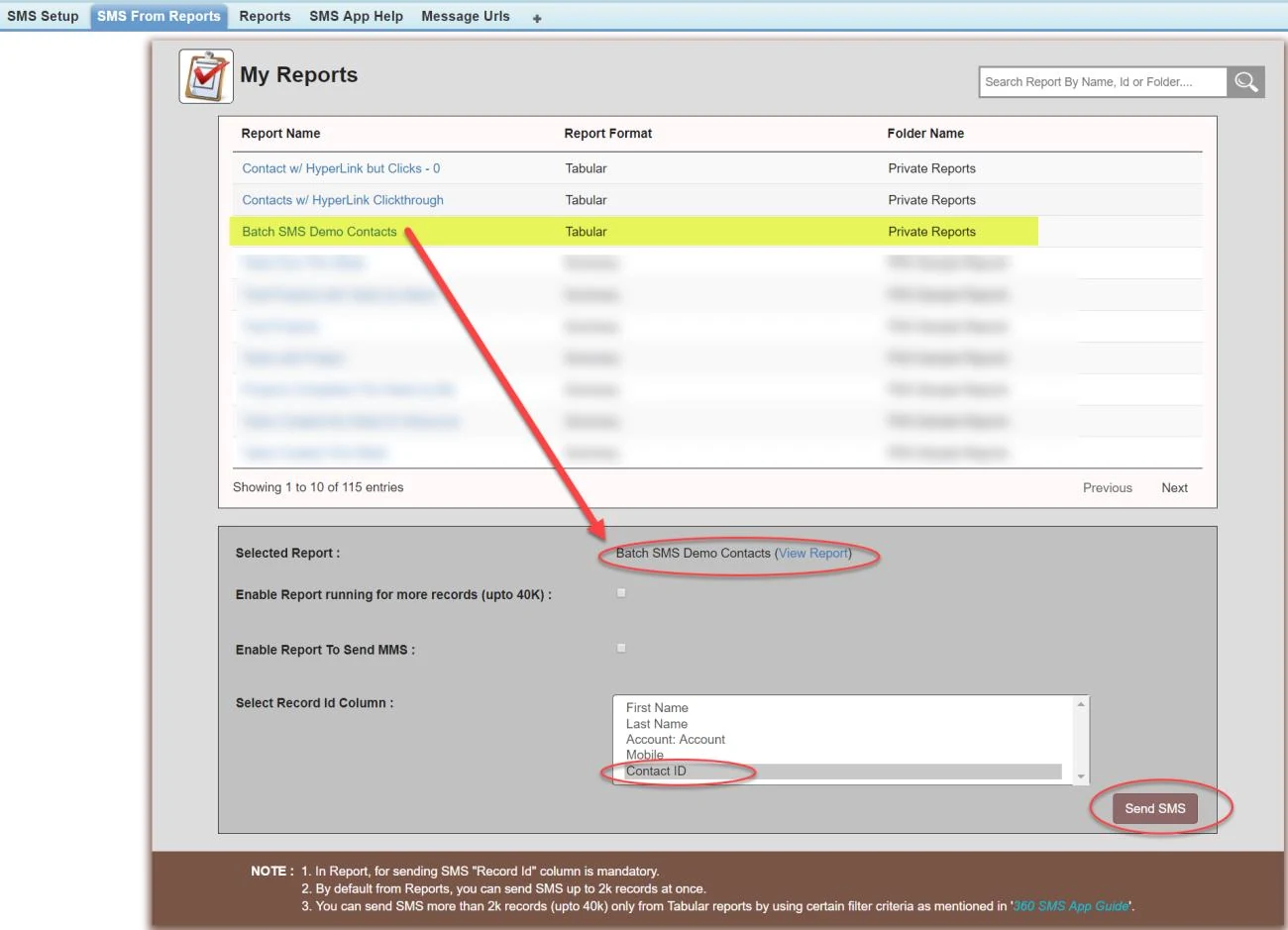
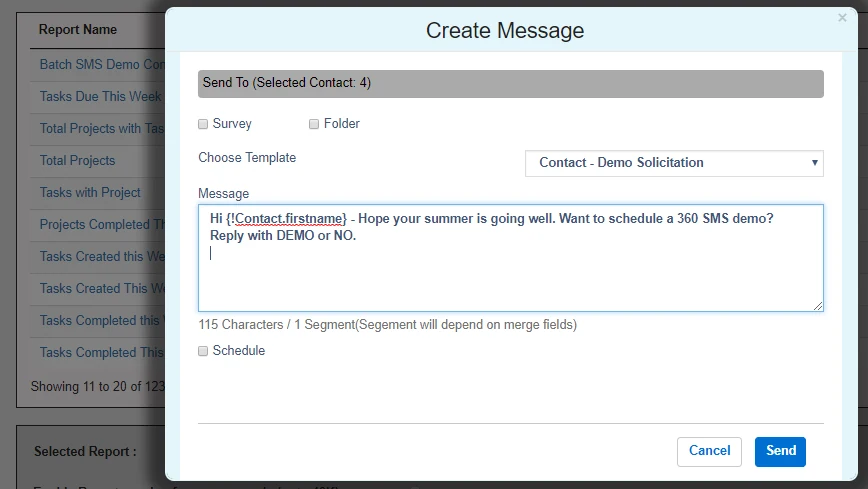
Figure 3 and Figure 4 on the following pages show the SMS from Reports interface.
Key Points:
- When using reports with multiple objects the primary object must be the object you’ll be texting from. Primarily it must expose its Record ID field, e.g. Contact ID
- Supports Tabular Reports and Summary Reports
- Tabular Reports
- By default, the feature sends messages for the first 2,000 records then stops.
- Use the “Enable Reports Running for more Records (up to 40K)” checkbox in the reports interface to go beyond 2,000 records. As of this writing the label is actually wrong, you can send SMS to unlimited records.
- Obviously sending batches greater than 10,000 can take between 3 – 5 minutes so be patient.
- Summary Reports
- Summary reports can only send up to 2,000 records due to Salesforce limitations
- Tabular Reports
Campaigns
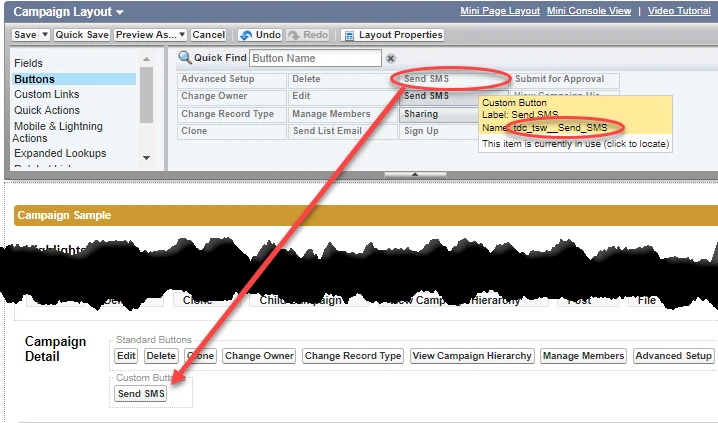
360 SMS provides a Send SMS button for the Campaign object to facilitate batch texting the contacts and leads in the Campaign Members object. As shown in Figure 5, you simply press the button and it prompts you for to choose a template based on the Contact object and if the list also has Leads then it prompts for a lead-based Template.
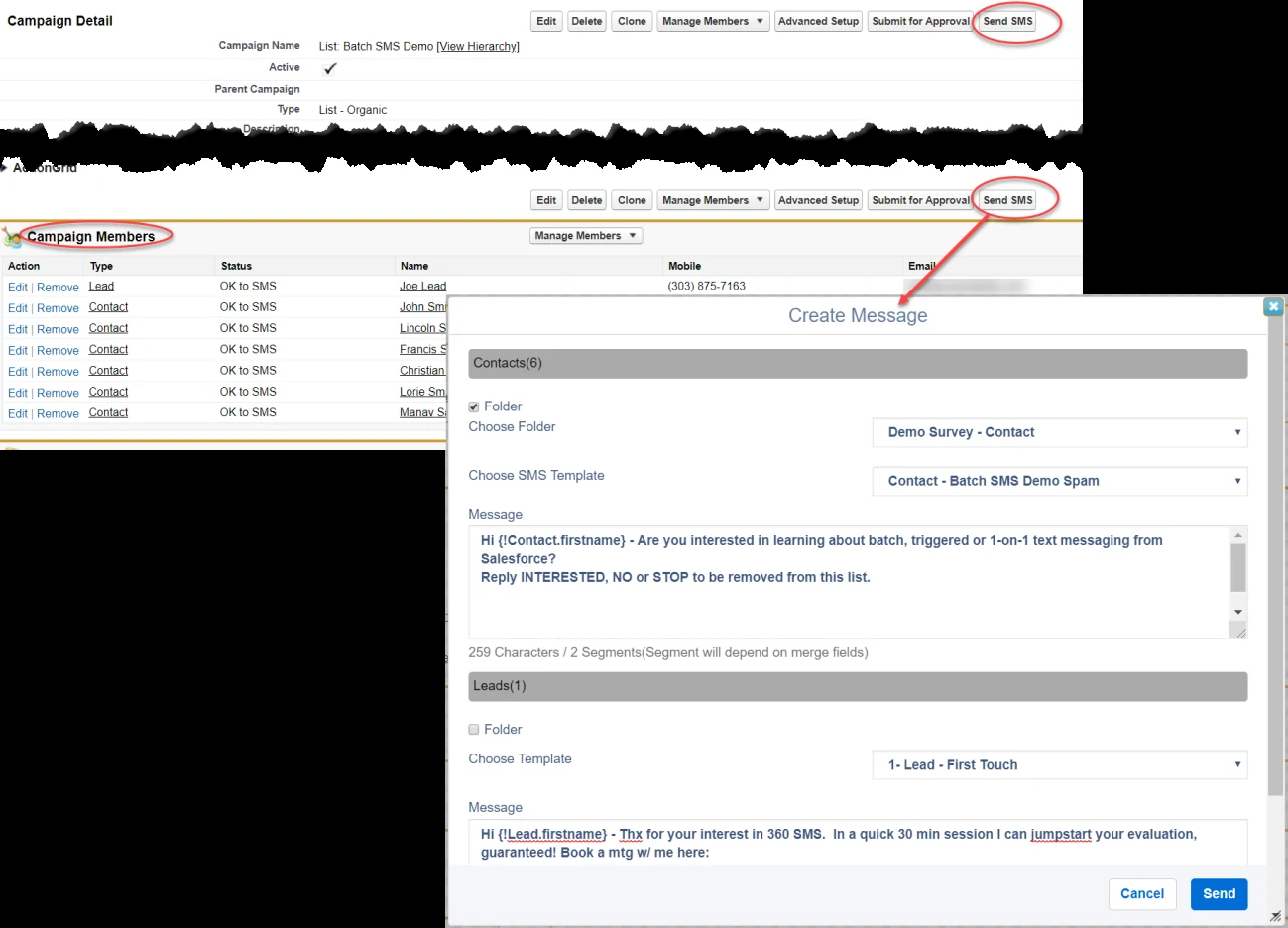
To configure simply add the Send SMS button to your Campaign page layout.
Note that the 2nd Send SMS button is for Salesforce1 and Lightning. It should be placed in its respective location in the Salesforce Mobile and Lightning Experience Actions section. The screen capture shows the placement of the button on the Classic Page Layout