


Introduction
360 File Sync is an application designed with the primary objective of syncing the uploaded files between Salesforce and Google Drive. This addresses storage limits and solves problems for admins, consultants and others concerned with Salesforce storage costs.
Use case
- The file sync app ensures that files are accessible across various platforms and devices, providing flexibility for users to access critical information regardless of their location or the device they are using.
- We are allowing instant synchronisation of files, ensuring that users have access to the latest versions of documents and information.
File Sync Setup:
The File Sync Setup consists of the following tabs:
- Configuration Setup
- Drive Setup
- Object Setup
Configuration Setup:
The Configuration Setup tab contains information related to your account and subscription.
Status: It shows the status of the app subscription.
Expiration Date: It shows the date when the subscription will expire.
App Configuration Setting: This shows who can change the app configuration. The System Administrator is by default enabled to make changes to the configuration. In addition, the user can enable any other user in their organization after giving the specific permission sets. By default, the toggle is set to System Administrator, but the user can also switch to Specific Users.
Drive Setup:
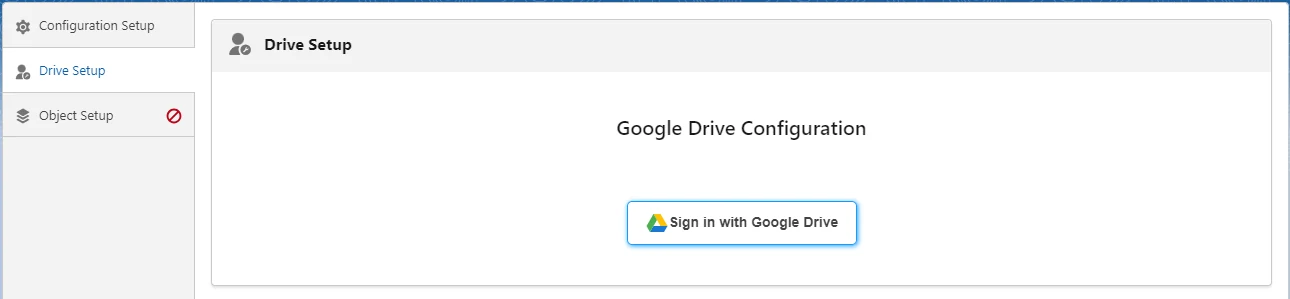
This tab shows the Google Drive account information which is used to sync the files from Salesforce.
You will need to follow the following steps:
Click on the Sign in with Google Drive >> Select your drive account >> Enter the password >> Click on the Continue button >> Click on the Allow button >> Now you’ll be logged in to the File Sync app with your GDrive credentials.
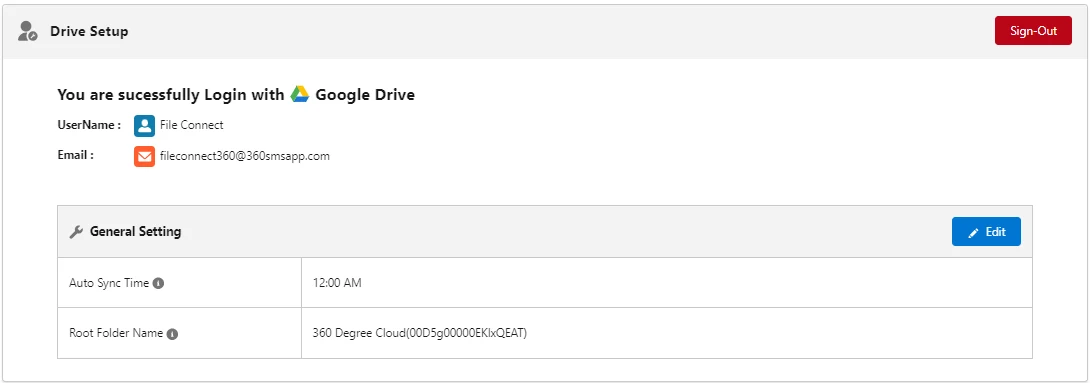
The page shows the following things:
Username: It shows the username of the Google Drive account.
Email: This shows the email ID using which the Google Drive account was created.
Sign Out: This button is used to log out of the Google Drive account from the File Sync app.
General Settings Section:
We have the following things in this section:
- Auto Sync Time: This shows the time at which the notes and attachments from the standard Salesforce component will be synced into Google Drive.
- Root Folder Name: This shows the name of the root folder created in Google Drive as soon as we sign in from Salesforce. The name can be edited later on as per preference.
Object Setup:
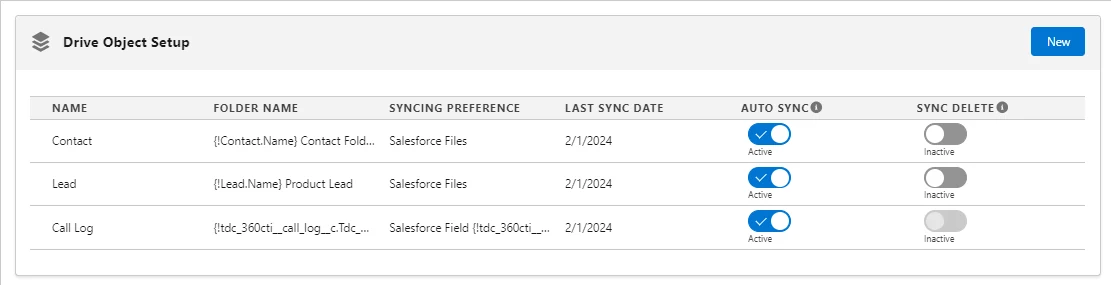
Here, we will show the information related to the objects which are configured for syncing the files.
Note: To configure the object, the user has to manually create a field named “Drive Folder Id” on that particular object. It is a text field with 255 characters in length.
Name: Shows the name of the object.
Folder Name: Shows the name of the folder that will be created for a record of the corresponding object in Google Drive.
Syncing Preference: This shows whether the files synced into Google Drive will be picked from Salesforce Notes and Attachments or any external link.
Last Sync Date: It shows the date when the last sync was performed.
Auto Sync: In this, there is an option to enable/disable automatic syncing for the files uploaded in the Notes and Attachments related list on the Salesforce record to the corresponding Google Drive folder. Enabling it will set up the auto sync at the specified time in the General Settings section of the Drive Setup tab.
Sync Delete: Enabling it will automatically delete those files from Salesforce which were synced with Google Drive.
In order to set up any custom/standard object, you will need to follow the following
steps:
Click on the New button on the object setup >> Search for the desired object name in the search box >> Click on Next >> Set the desired name for the folder which you want to create in Google Drive >> Choose your sync preference >> Click on Next >> Ensure proper setting for Sync Setup >> Click Next >> Click on Save
Sync Setup:
On this page, we show the following information:
Unsynced Record Count: This would show the total number of unsynced records.
Synced Record Count: This would show the total number of synced records.
Sync Records: This toggle button enables the user to sync the records of the object that existed before configuration.
Custom Range: This enables the user to sync a selected set of historical records.
Delete Synced Files: This enables the user to delete the synced files of the historical records after successfully syncing them into Google Drive and also work with the daily syncing of notes and attachments.
Parent Object Lookup: In case the object under configuration is a child of any other object, here you can select the related parent object so that whenever a file from a child object record is synced into Google Drive, it will be linked to the folder created for the parent object record.
Drive File Component Setup:
This component allows you to upload the files for a particular record and sync them on Google Drive.
To set up the drive file component, follow the following steps:
Open the detail page of any record of the desired object >> Go to the setup gear icon on the top right >> From the dropdown, click on the Edit Page option >> In the search box on the left, enter fileViewDriveComp >> Drag the component to the desired location on the layout >> Click on Activation >> Choose whether you want to assign as org default, app default or for a particular profile >> Click on Close >> Click Save…
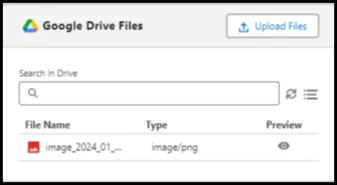
The component has the following sub-components:
Upload Files: It helps you to select the files from your local storage and upload on Google Drive.
Search box: It helps to search the uploaded files for the particular record based on the text entered.
Preview: This helps to preview your uploaded file.
There are also sub-components available for manual sync and changing the list view.
Frequently Asked Questions (FAQs)
Q. 360 File Sync is a replacement for Salesforce Storage (with Google Drive) for cost savings. The Google Drive storage being linked must be a Business Account, correct? OR it can be an individual’s Google Drive as well?
Ans. You can sync the individual account as well but it is preferable to have a Business Account for Google Drive due to enhanced features.
Q. Are there plans for File Sync to allow other storage solutions as well? (OneDrive/SharePoint, Dropbox, AWS, etc)
Ans. Yes, in future we plan to add more file storage solutions to this feature.
Q. If the file is deleted from Google Drive, and the file stays for 30 days. Does it affect our app?
Ans: We don’t control your G drive. In SalesForce, once the file is synced successfully in your G Drive, then it gets deleted 30 min after that.
Q. For cti, File Sync supports only CTI India?
Ans: Yes, right now only CTI india. But we can do it for Cti International too if needed.
Q. The copying of files is one way or two?
Ans:The syncing is done from SalesForce to Google drive only. not the other way.
Q. What about Synchronisation logs (for syncing of files), will those take space?
Ans: No it doesn’t take up space in Salesforce.
Q. For Object Setup, Step 2: naming convention, we choose NaA or link?
Ans:Right now, it’s either or situation but we will make it if we get customer requests.
Q.Obj Setup: If lead obj is already set, can i have another setup done?
Ans: The app doesn’t allow you to create duplicate settings for the same object.
Q. For CTI india, which obj for recording?
Ans: Recordings are stored under “Call Log.” I can have Lead as a parent folder, and Call Log as a child.
Q. Does it support custom objects?
Ans: Yes.
Q. What about API limits?
Ans: No API limits will be hit. If any new document version is uploaded, it syncs to G Drive. It won’t consume Salesforce API.
Q. Does it support newer files – content documents as well as older NaA? Ans: It supports lightning only. Currently, we are only supporting the Salesforce Files object. Notes and attachments in the classic version aren’t supported. We support NaA which is stored in Files objects in lightning.
Q.Do you control document/ content versions?
Ans: Yes, we are. We uploaded new versions.
Q. Are you handling the duplicate files?
Ans: No we don’t handle it. We sync files as is. We leave that on SF Admin to handle duplicates . Q. If McKay and Josh – buy Lic for Josh but not for McKay,. And both users have access to the file. It’s a per user per month charge. I have 50 sf users, and I give 10 of them file sync lic. and unlicensed users upload a file to Lead Obj. So does it sync?
Ans: If you use SF standard object NaA, it consumes sf storage. If the “Auto Sync ” button is on, then the file from an unlicensed user will be synced. but that user won’t be able to view it in Gdrive. and if that file is deleted (if auto delete on), then they won’t have access to our real time file sync component and can’t see that file.
Q. How does syncing work for LIC vs. NON LIC users.
Ans. Users with the app license can see the current G drive and their files. Admin can sync all files from SF to Gdrive. but unlicensed users can’t access those files.
Contact Us
For more information or assistance, please contact 360 SMS experts at
Email: care@360smsapp.com
Phone number: +1 323 641 4417 (USA); +44 740 327 9473 (UK); +61 48885 3632 (AUS)
Website: https://360smsapp.com/