


Hyperlink Clickthrough Tracking
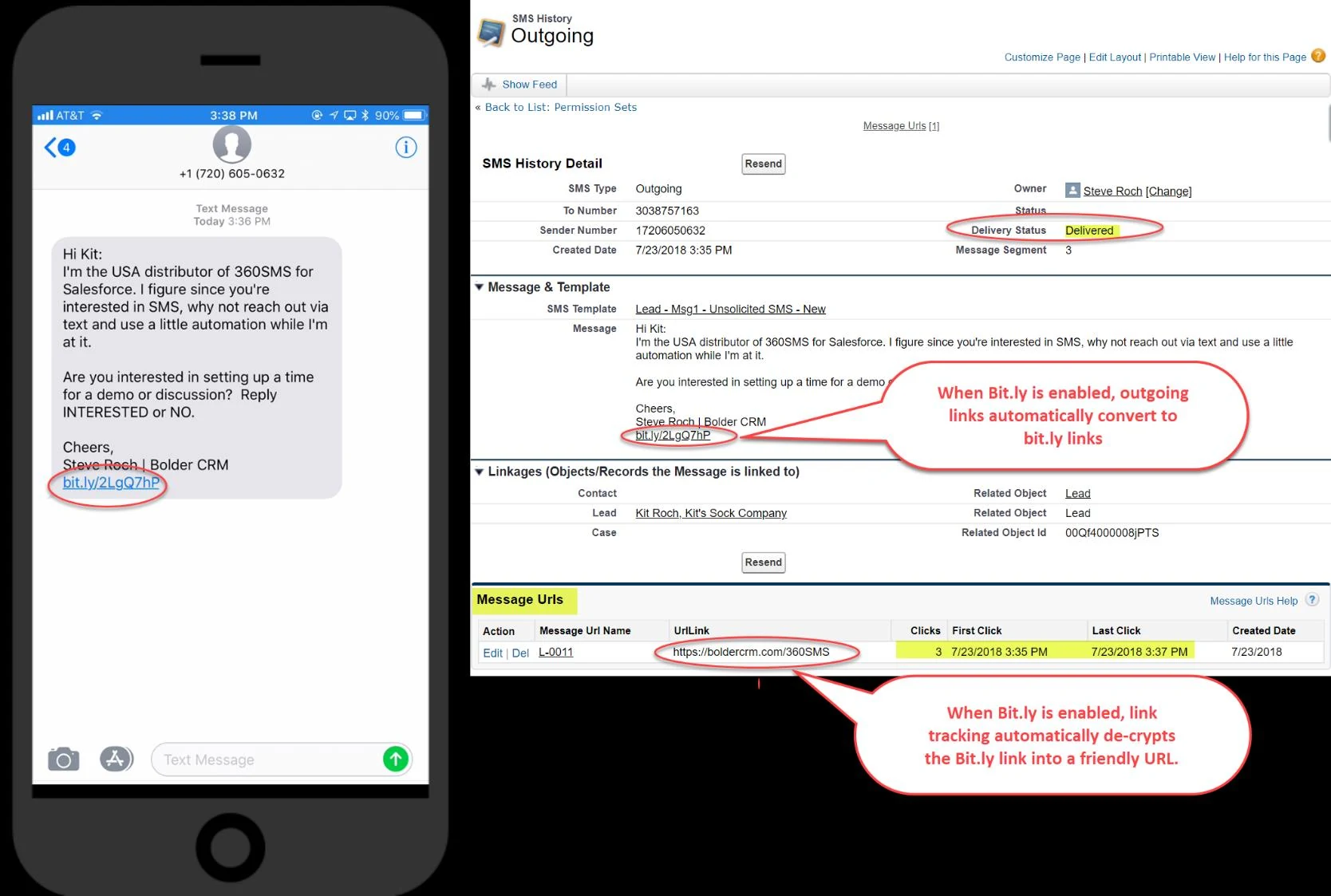
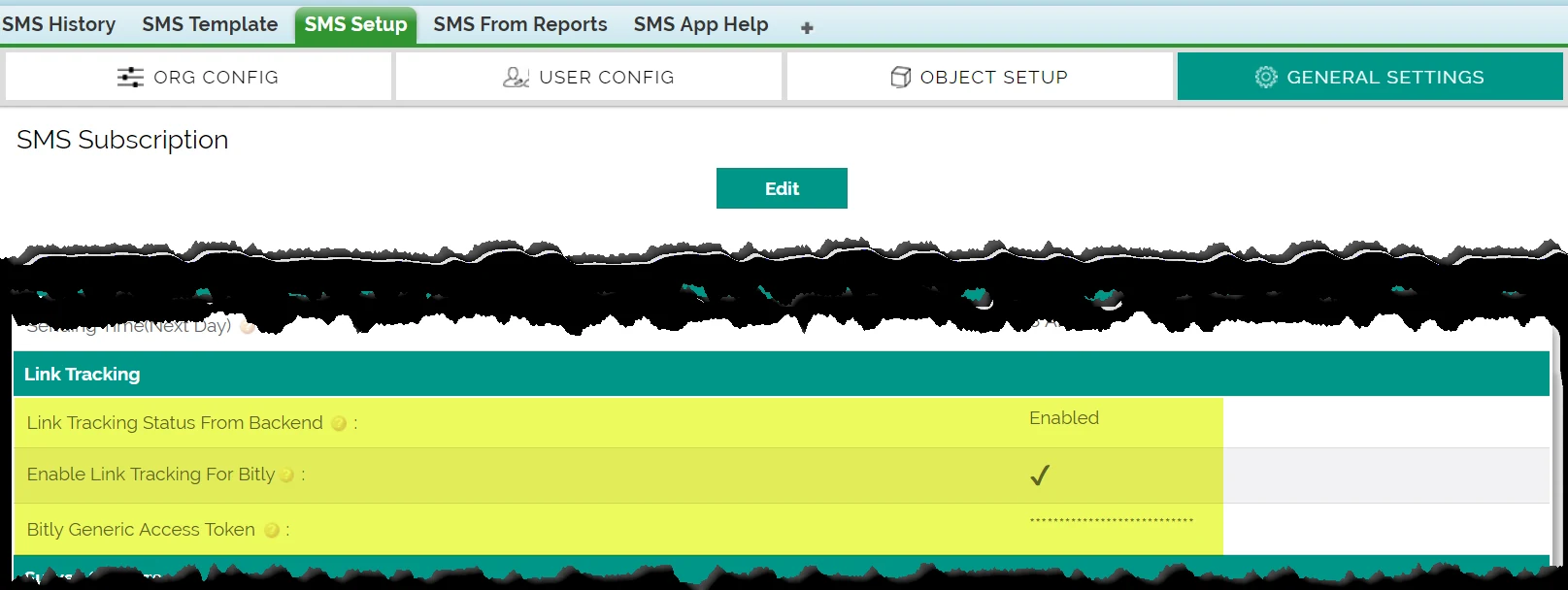
360 SMS provides the unique ability to send links via SMS and have the clickthrough’s tracked against the SMS History record. The clickthrough statistics are stored in the Message URLs related list of the outbound SMS History. One can write powerful reports and Process Builder automations based on this data, making 360 SMS truly unique in its SMS Marketing abilities.
Key Points:
- You must write to Sales@360SMSApp.com to request that Link Tracking be enabled.
- Uses standard Salesforce Sites technology that must be configured to communicate the clickthrough data back into Salesforce. Thus, Sites must be setup as documented in the following section.
- Link Tracking is not supported on Salesforce Professional Edition because it doesn’t support Sites.
- When combined with the optional Bit.Ly integration, regular links entered into outbound SMS convert to bit.ly links automatically and when the link is tracked it un-encrypts the bit.ly link back into a friendly readable link.
- The bit.ly integration is not required, without it the links simply go out as they were typed.
- An outbound SMS with a links always creates a Message URL record so that its easy to report those records with and without a clickthrough. The Clicks Count will simply remain at 0 if never clicked.
- Only one link can be sent and tracked per outbound SMS
Configure Salesforce “Sites” for Delivery Status and/or Link Tracking
360 SMS offers automatic updating of the Delivery Status of outbound SMS Messages as well as Hyperlink Clickthrough Tracking (when enabled by contacting Sales@360SMSApp.com).
Because, these services are writing into your Salesforce system to update various fields, we must use the standard Salesforce Sites technology to create this communication channel. The site runs as its own user profile so we must also give it security access via the standard SMS App Permission Set.
Note: Sites are not supported in Salesforce Professional Edition and thus Delivery Status and Link Tracking are not available for Professional Edition.
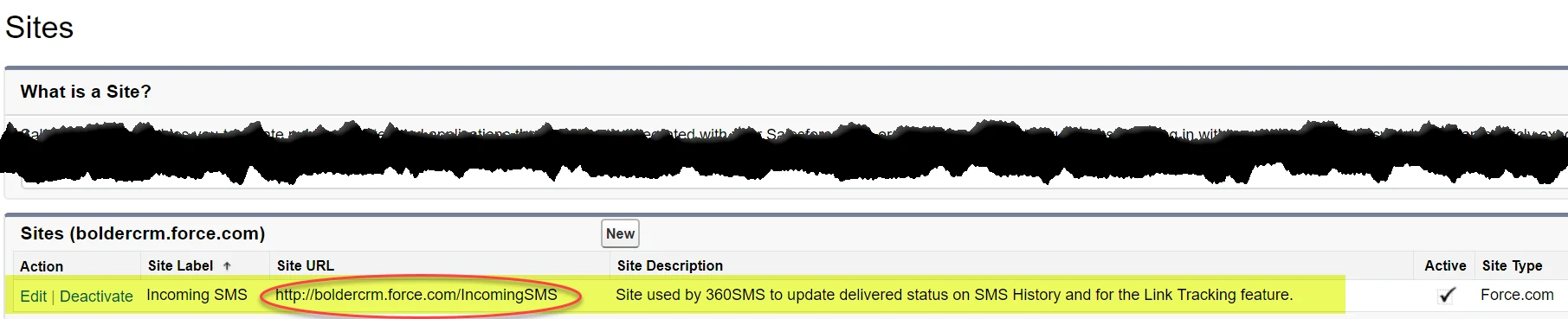
When we’re all done, we’ll have something like shown in Figure 2 below.
To create a Salesforce Site follow these instructions:
- Go to Setup → Quick Find → Sites
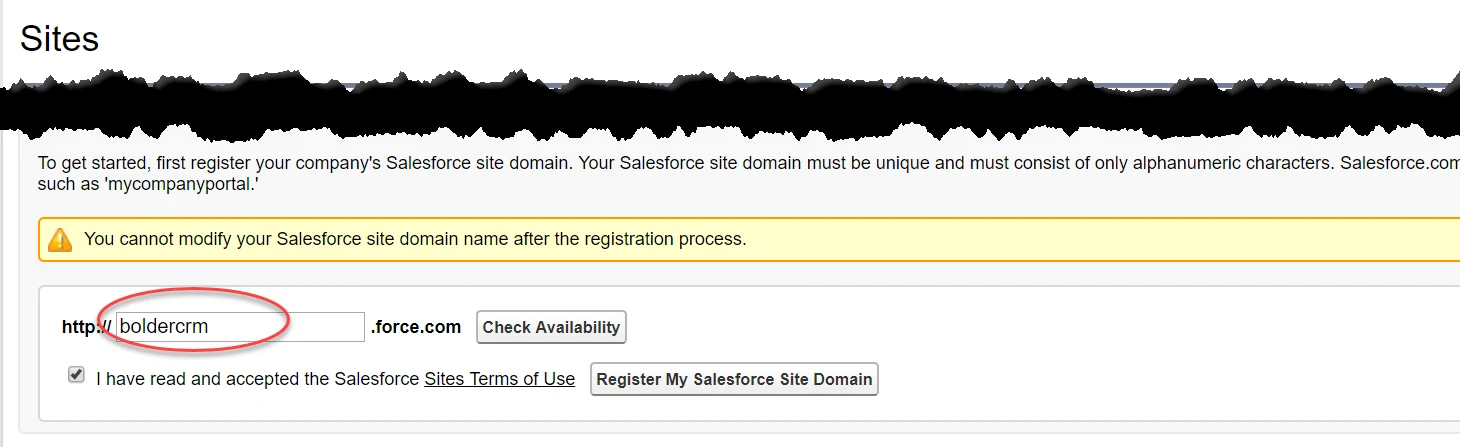
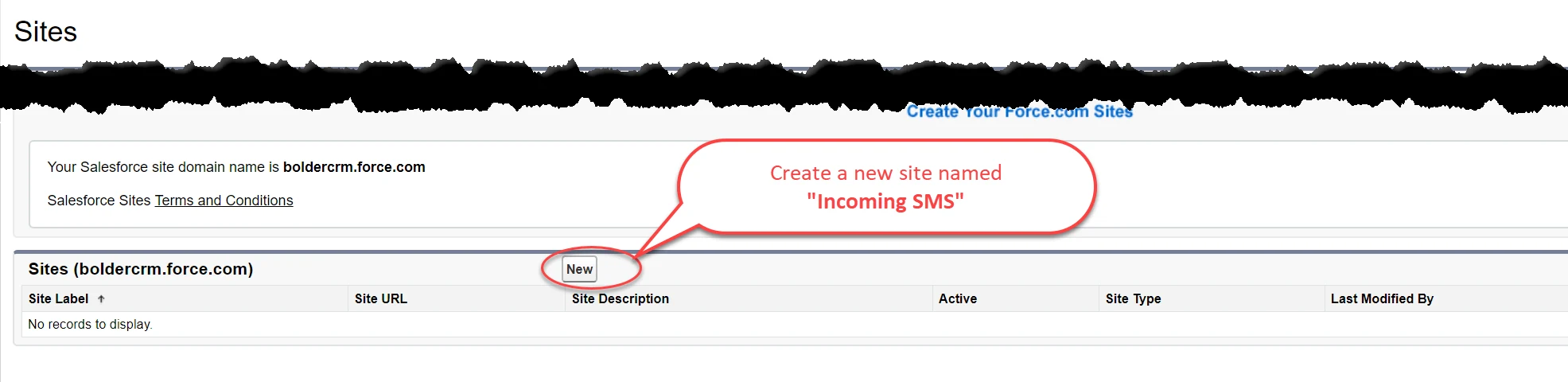
- You may or may not have a primary site already created for your org such as shown in Figure 4. If no site has been previously created, you must create one, Figure 3.
- From Figure 4, press NEW to create a new Site
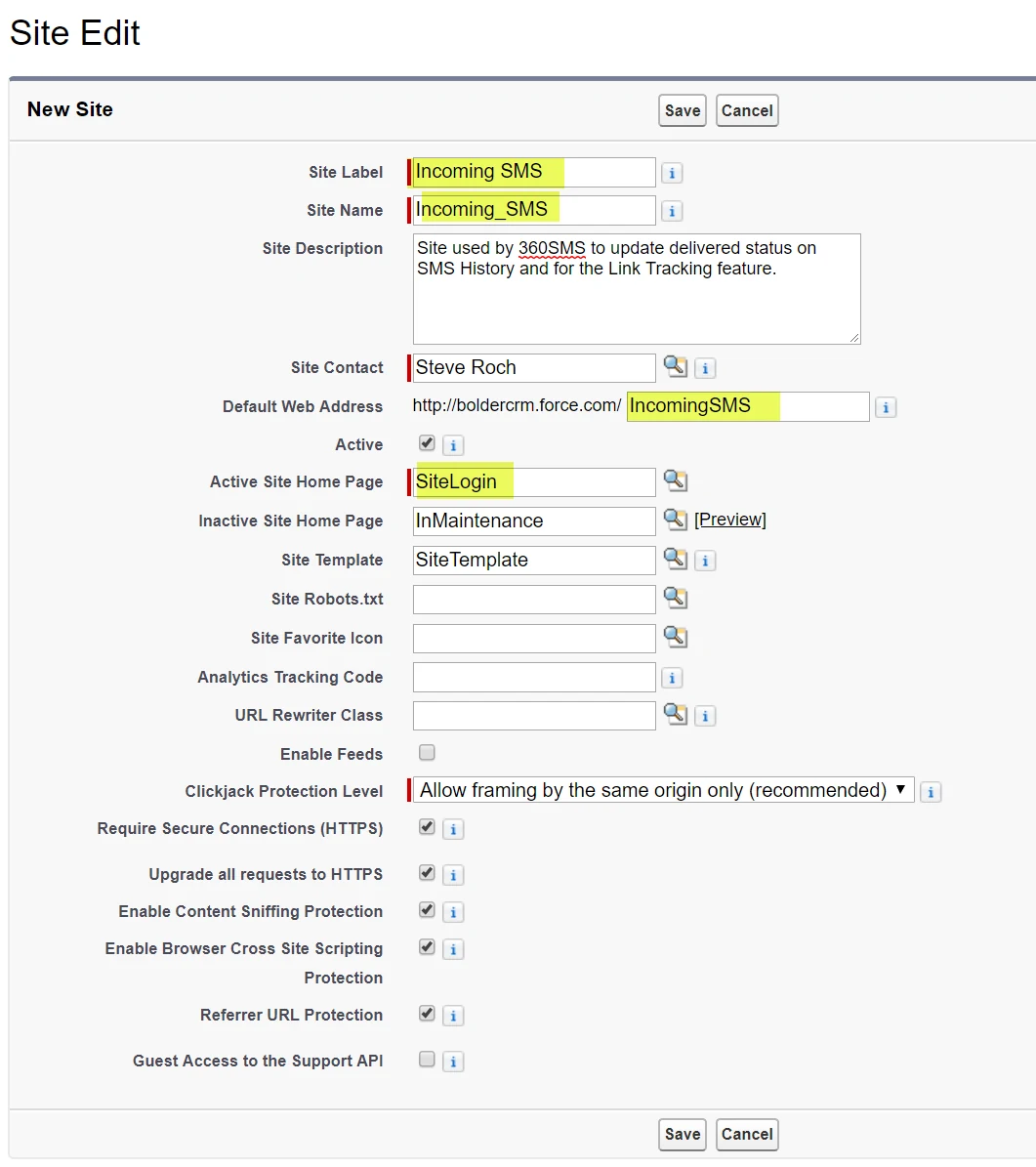
- Make the new Site look exactly as shown in Figure 5.
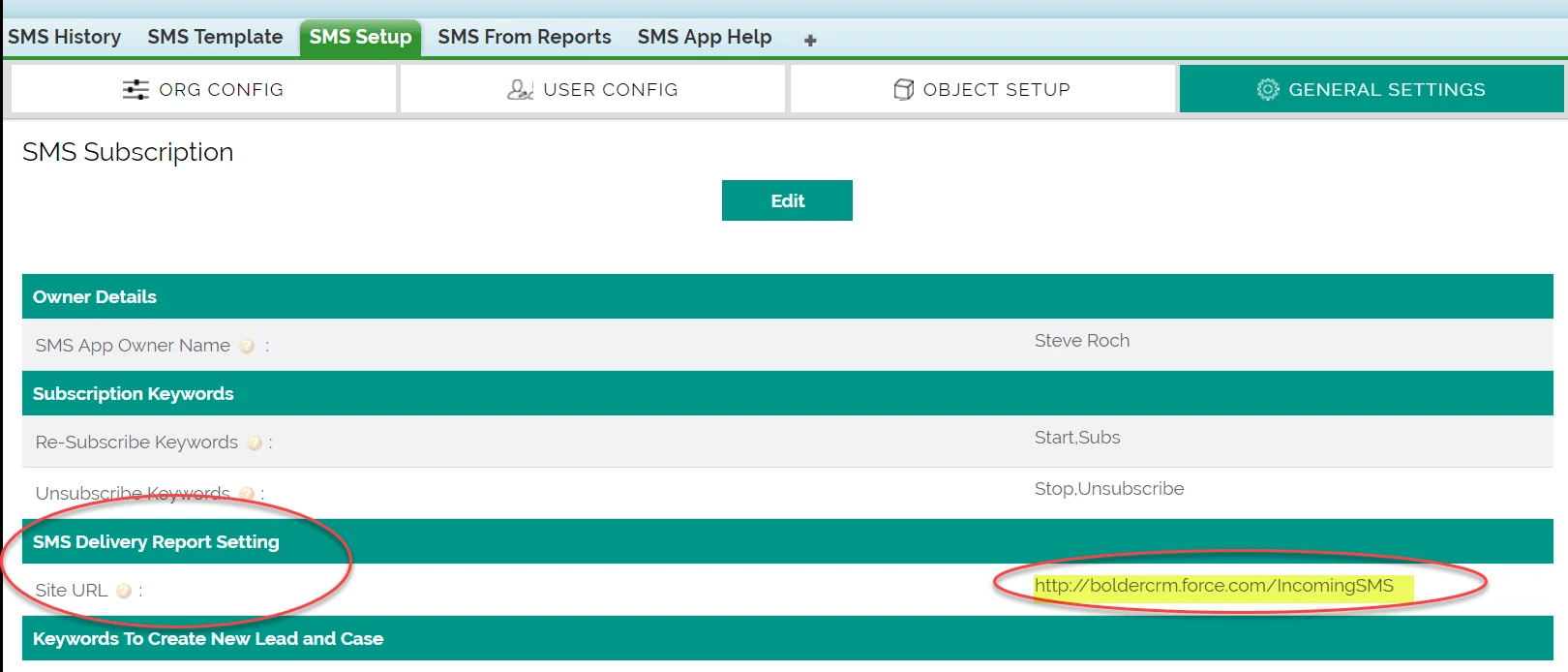
- When the Incoming SMS site has been created, copy its Site URL and paste it into the SMS Set-up → General Settings → Site URL as shown in Figure 6.
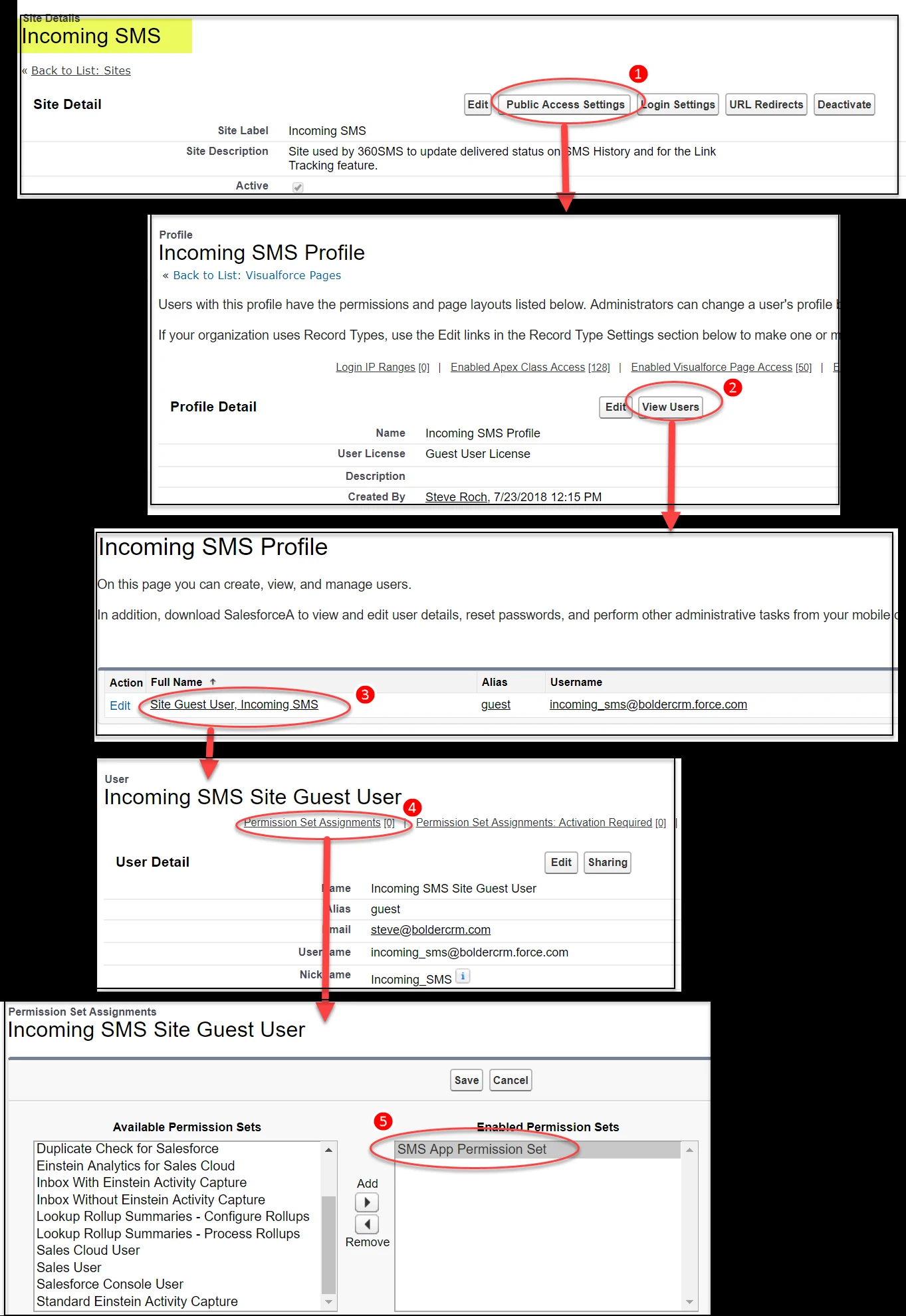
- The new Incoming SMS site runs under its own security profile and thus we must give it access to all the various 360SMS items by putting it into the same Permissions Set as regular users, see Figure 7 for the steps to get there
Security
Because the Incoming_SMS site accesses Salesforce like other users, we must give the Incoming_SMS site user the same permissions that a regular user would have. We do this by simply adding the Site/User to the out-of-box 360SMS Permission Set (SMS App Permission Set). Figure 7 illustrates the steps as it’s a long haul to get to Permission Sets.
About the Author
Steve Roch, CEO of Bolder CRM is an SMS Industry expert having worked or consulted with the top three SMS Apps on the Salesforce AppExchange and also having built the popular Salesforce app ActionGrid™, acquired by Conga in April-2016. Bolder CRM is the exclusive distributor of 360 SMS in the United States and Canada.
Learn more about Steve and Bolder CRM at https://www.BolderCRM.com.