Customer service managers! Are you tired of juggling traditional company phones and systems while offering support to your customers?
Well, the issue with almost the same with all who don’t have the right call management solution in Salesforce.
Here is a game-changing solution you should know about to streamline your contact center operations- Salesforce CTI Integration. With this solution, you can be more efficient and fast in providing superior quality customer service. In addition to elevating customer service, you can also improve your service agent’s efficiency.
This blog will discuss how Salesforce CTI integration can take your contact center operations to the next level by simplifying your call operations. So let’s dive in.
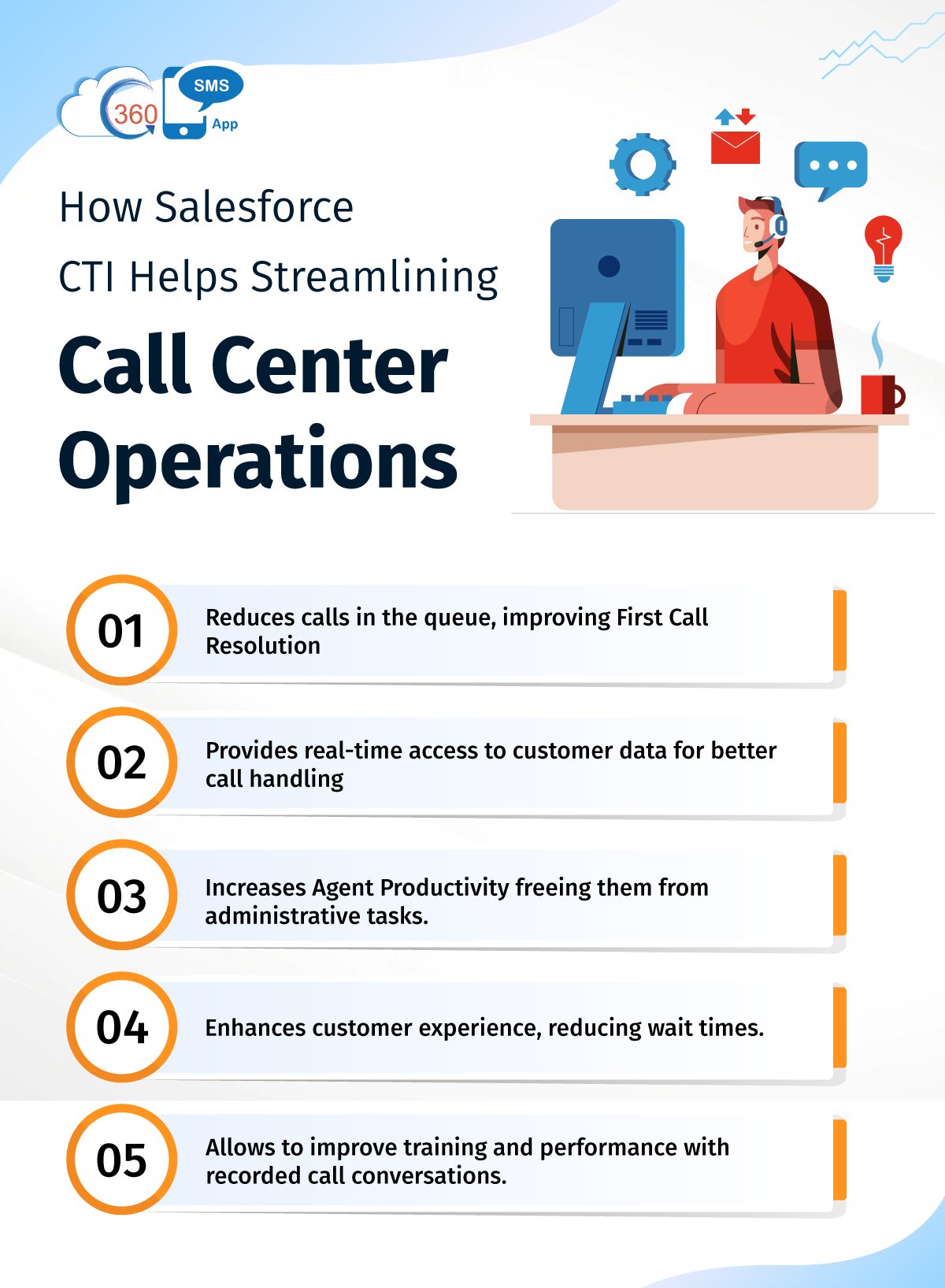
Table of Contents
CTI Integration in Salesforce for Streamlining Call Center Operations
Telephony integration with Salesforce provides users with a wide range of capabilities. This helps them streamline call center operations and deliver the ultimate experience to customers while interacting with them on calls. Using the right call feature, depending on their requirement, they can manage their call operations much better, improving overall efficiency. Also, they can overcome various challenges with Salesforce CTI, improving their call-handling capacity.
Reduced Calls in the Queue
Too many calls in the queue are tough to manage by customer service representatives as they are often overloaded with calls. And one reason for so many calls in the queue is repeated calls from the same customers.
This reduces the efficiency of customer service reps as they can close only a few tickets in a day.
What’s needed here is to resolve customer queries over a single call. Because when queries are not resolved over a single call, you can expect repeated calls from the same customer, which inflates the call queue.
With Salesforce telephony integration, you get multiple call management capabilities using which you can improve first call resolution. You can route calls automatically based on pre-defined criteria. Also, you can transfer calls or perform call conferencing to connect the right department with the callers and resolve their issues over a single call. This reduces the caller’s wait time and improves customer satisfaction by resolving issues faster, which are two important factors from a caller’s point of view.
According to Freshworks’ Deconstructing Delight 2021 Report, 22% of consumers feel wait times are too lengthy, and 52% expect a quick resolution.
Real-time Access to Customer Data with CTI Integration in Salesforce
Without knowing who the caller is, it is impossible to personalize conversations right off the bat. Also, customers can get frustrated when they have to repeat themselves every time they contact a service rep for support. CTI integration in Salesforce provides agents with customer data in real time.
When someone calls, agents have customer information on their screen through a pop-up. This helps them to personalize interactions from the very beginning.
Also, they can resolve customer queries faster by accessing information like previous interactions, notes of previous calls, purchase history, etc., without having to ask customers to repeat information.
Increased Agent Productivity
When maximum operations are manual, the time frame of call operations increases organically. Salesforce CTI integration allows agents to automate many tasks and frees them from administrative tasks, leaving them more time for all handling.
They can automate the call routing process rather than manually connecting callers to the right person.
Besides, they can also automate call logging, which helps them save time and increase their daily sales count. This way, their productivity can get a boost.
Enhanced Customer Experience
With the right call management capabilities, you can work on all ingredients that lead to good customer experiences. This includes personalization, reduced wait times, quick resolution to queries, and much more. Also, you can simplify communications using advanced CTI functionalities.
CTI integration in Salesforce allows you to configure IVR to provide self-help options to callers so that they can resolve their queries themselves without depending on customer service representatives.
This helps to improve customer service and experiences.
According to Salesforce’s 2022 Report, 96% of customers admitted that good customer service helps with trust building.
Besides, real-time access to customer data makes it feasible to personalize conversations.
You can also reduce the caller’s wait time by redirecting calls to available agents in the queue or by setting call termination after a defined period. Plus, you can resolve queries faster and improve First Call Resolution using capabilities like call transferring, conferencing, and routing.
Improved Training and Performance
Manual call logging drains a lot of time for the call center agents, leaving them with less time to attend calls.
Telephony integration with Salesforce helps you to automate call logging, which reduces agents’ manual work. Plus, the chances of human errors and incorrect information are also reduced.
Call recording is another feature that you can access with the help of Salesforce CTI integration. This helps you provide better training to agents with the help of recorded live conversations.
Call recording lets you monitor agent performance and provide feedback for improvement.
Salesforce CTI integration helps call center managers make data-driven decisions and boost overall performance with the help of reporting and analytics. With metrics like call length, daily call counts, and call conversions, call center and IT managers can make more informed decisions and boost overall performance.
Improve and Accelerate Call operations with CTI Integration in Salesforce
When you have the right capabilities, it is always easy to streamline operations. And when it comes to managing Salesforce call operations, Salesforce CTI integration is something you can’t afford to miss,
This is because you get all the capabilities you need to handle calls much better. Not only can you personalize the experience for your callers, but also prevent them from getting frustrated due longer to wait times or the unsatisfactory resolution of their queries. So, calls are one of the important communication channels for your business, don’t let any opportunities slip away from your hands due to call mismanagement. Get CTI integrated into Salesforce today by reaching out to experts at care@360smsapp.com or click here to contact us.