Let’s be honest—it can be a nightmare to control your social leads when all your systems are not linked. You have Facebook and Instagram connections throwing leads at you, and your sales team resides in Salesforce. Where is the next curse? Leads tend to be lost, postponed, or swept under the rug because of manual work too often.
In case you are nodding your head now, you are not the only one.
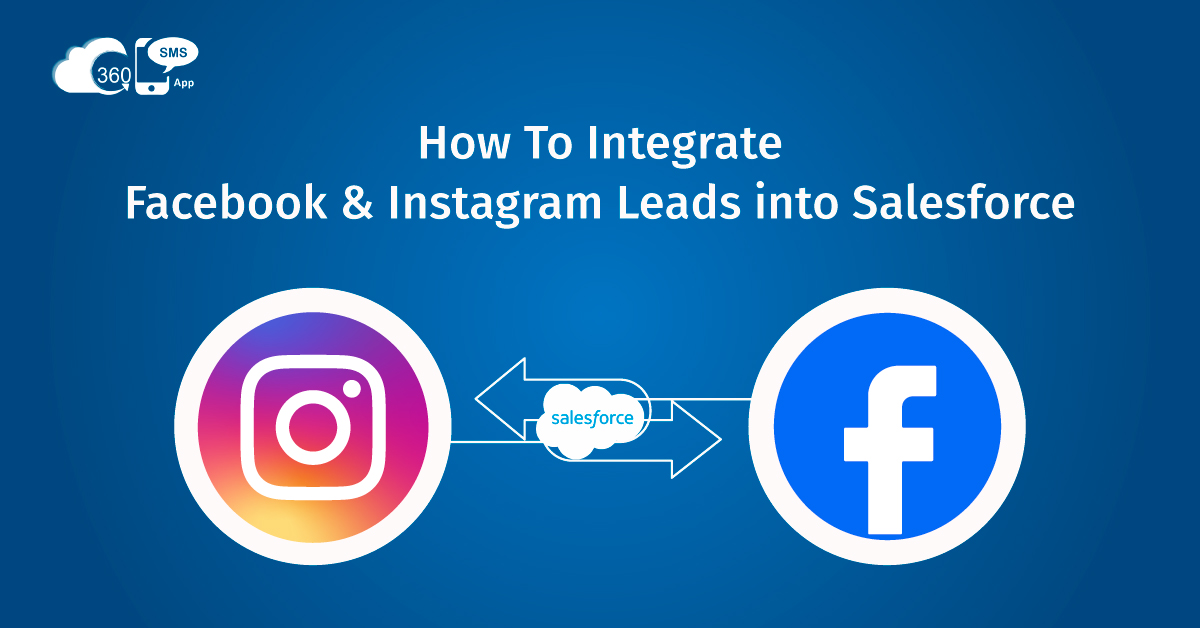
The good news is that you do not need to complicate things to connect Facebook and Instagram leads to Salesforce and benefit from Facebook Lead Ads Salesforce integration. As a matter of fact, it can be smooth, quick, and completely automated with proper configuration.
Within this blog, we are going to guide you on how it works, why it is important, and most importantly, how to do it smarter, utilising tools such as 360 SMS (we will discuss this further down the line).
Table of Contents
So… How Does Salesforce Integrate with Facebook?
Great question. No, Salesforce does not sell a plug-and-play option to connect Facebook Lead Ads. It implies that in case you desire your leads on your Facebook or Instagram forms to be added to Salesforce automatically, you will have to use a connector.
That is where applications such as 360 SMS come in for out-of-the-box social media CRM integration.
We found the solution that helps to connect a Facebook Business account with Salesforce and get all the new leads directly in your CRM, without exporting, importing, and babysitting spreadsheets. Better, you can choose where those leads need to go (Leads, Contacts, Campaigns, or even custom objects), and what should be done next.
To put it in an example, you may send a welcome SMS in a second, send the lead to a member of the selling team, and create a follow-up task automatically.
This is Salesforce Facebook integration done right: simple, clean, and built for real teams who don’t have time to waste.
360 SMS for Instagram and Facebook Lead Ads Salesforce Integration
So, now it is time to speak about making things easier. In case you are actively using campaigns on Facebook and Instagram, you will also need a solution that will allow you to capture the leads and engage with them on the spot. That’s exactly where 360 SMS comes in.
Here’s how it works:
1. Auto-Capture Leads in Real Time
With Salesforce Facebook integration and Salesforce Instagram in 360 SMS, you can easily take your social media conversation to the next level. You run an ad on Facebook or Instagram with a lead form. Someone submits their info. Boom—360 SMS pushes that data directly into Salesforce. No delays, no spreadsheets, no manual entry, while also giving you access to the powerful features lead management system offers for tracking and nurturing leads effectively.
You get to choose how the system treats each lead: Should it create a new Lead record? Update an existing Contact? Add to a campaign? It’s all customizable.
2. Instant Engagement (Across Channels)
Once a lead hits Salesforce, what’s next? You can deploy a multichannel campaign to run. Thanks to Salesforce Instagram messaging support, you can fire off an Instagram DM, WhatsApp message, or SMS—whatever works best for your audience.
Maybe it’s a simple “Thanks for reaching out!” or a more detailed message with a CTA. Either way, your lead gets a response while they’re still in the zone, not hours (or days) later.
3. Qualify Without Lifting a Finger
Want to figure out if a lead is really worth your sales team’s time? Let automation do the asking.
360 SMS lets you build no-code chatbots for Facebook and Instagram that engage new leads and ask qualifying questions right inside their preferred messaging app. For example:
- What product are you interested in?
- What’s your budget?
- Are you ready to book a demo?
Based on their answers, you can score and route leads—so your reps spend more time closing, and less time guessing.
4. Personalization, Powered by Your CRM
Now that your leads live in Salesforce, you can use all your CRM smarts to drive better conversations.
Segment by ad source, campaign, or geography. Trigger messages based on behavior. Personalize replies using merge fields. The possibilities are endless, and it’s all possible with Social CRM integration that works hand-in-hand with your existing data.
5. Track the Full Journey
The best part? You’re not flying blind anymore. Once Facebook and Instagram leads are in Salesforce, you can finally track the full lifecycle—from form submission to deal won.
Want to know which ad campaign brought in the most revenue? Easy.
Which message had the highest response rate? You’ve got that too.
That’s the real power of social media CRM integration—insight, not just information.
Why This Matters More Than Ever in 2025
Let’s face it: Social media isn’t optional anymore. Your future customers are already hanging out on Facebook and Instagram, discovering new brands, and submitting lead forms.
If those leads don’t make it into Salesforce quickly—and get followed up with even faster—you’re losing money.
Businesses using advanced Social media CRM integration with solutions like 360 SMS are:
- Responding to leads 10x faster
- Personalizing messages in real-time
- Converting more ad spend into real pipeline
- Streamlining handoffs between marketing and sales
This isn’t a nice-to-have anymore. It’s table stakes.
Quick FAQs Before You Go
Let’s clear up a few common questions that teams usually ask when starting out:
Why should I integrate social media with Salesforce?
Social CRM integration is crucial because that’s where your leads are coming from! Integrating Facebook and Instagram ensures you never miss a chance to connect, and you keep your CRM as your single source of truth.
What are the benefits of Facebook and Instagram integration with Salesforce?
By using solutions like 360 SMS for Social CRM, you’ll save time, reduce manual work, improve lead response times, and drive more conversions from your ad spend. It’s a win-win across the board.
What tools can I use for Facebook Lead Ads and Salesforce integration?
You can use platforms like 360 SMS (perfect for messaging, automation, and 11+ channels), or other tools like Zapier or LeadsBridge. Just make sure whatever you pick integrates cleanly with Salesforce.
Wrapping It Up
Integrating Facebook and Instagram leads into Salesforce isn’t just about convenience—it’s about staying competitive in a fast-moving world.
Whether you’re a startup or a large enterprise, using the right tools to capture, qualify, and convert social leads can completely change how you approach digital marketing.
And if you’re looking for a fast, no-code, Salesforce-native way to do it, 360 SMS has you covered. One integration, multiple channels, and more time to focus on what matters: your customers. So, level up your social media messaging with 360 SMS today!
CEO Siddharth Sehgal is CEO & Salesforce Communication Guru. He helps businesses grow exponentially by putting their Salesforce CRM on steroids with his unique techniques. He is on a mission to help businesses build deeper relationships with their customers.

Siddharth Sehgal